With Review Highlights, you can highlight the most valuable parts of customer reviews so shoppers can quickly spot important product insights.
Check our demo site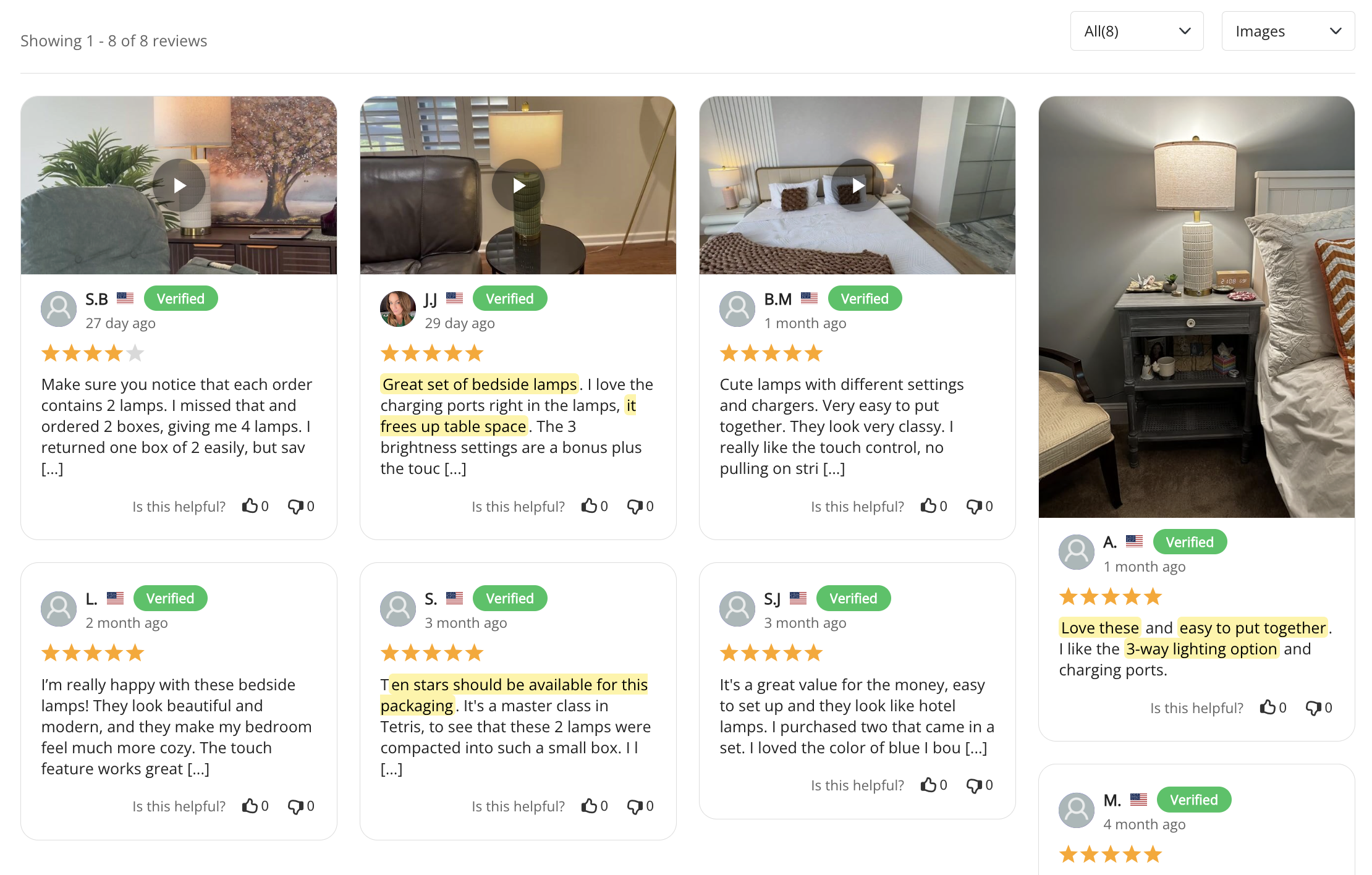
You can highlight review text in two ways: manually or automatically with AI.
In your Ryviu dashboard, go to Reviews.
Go to the Products tab and select the product containing the review you want to highlight.
Click on each review to open its detail page.
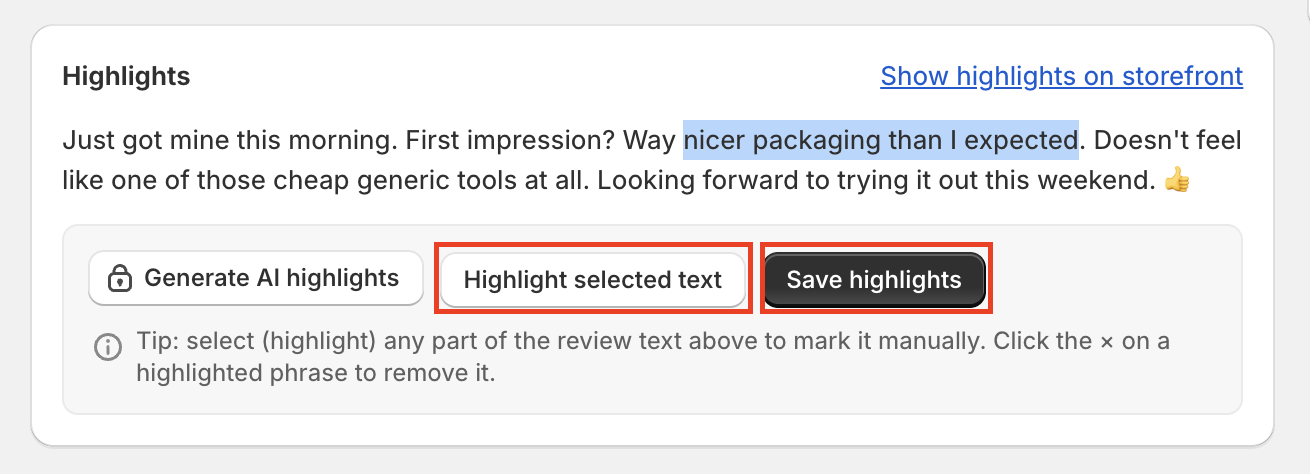
In the Highlights section, select any part of the review text with your mouse.
Click Highlight selected text.
Click Save highlights to save your changes.
Ryviu AI analyzes the review and automatically highlights the most meaningful phrases.
In the Highlights section, click Generate AI highlights.
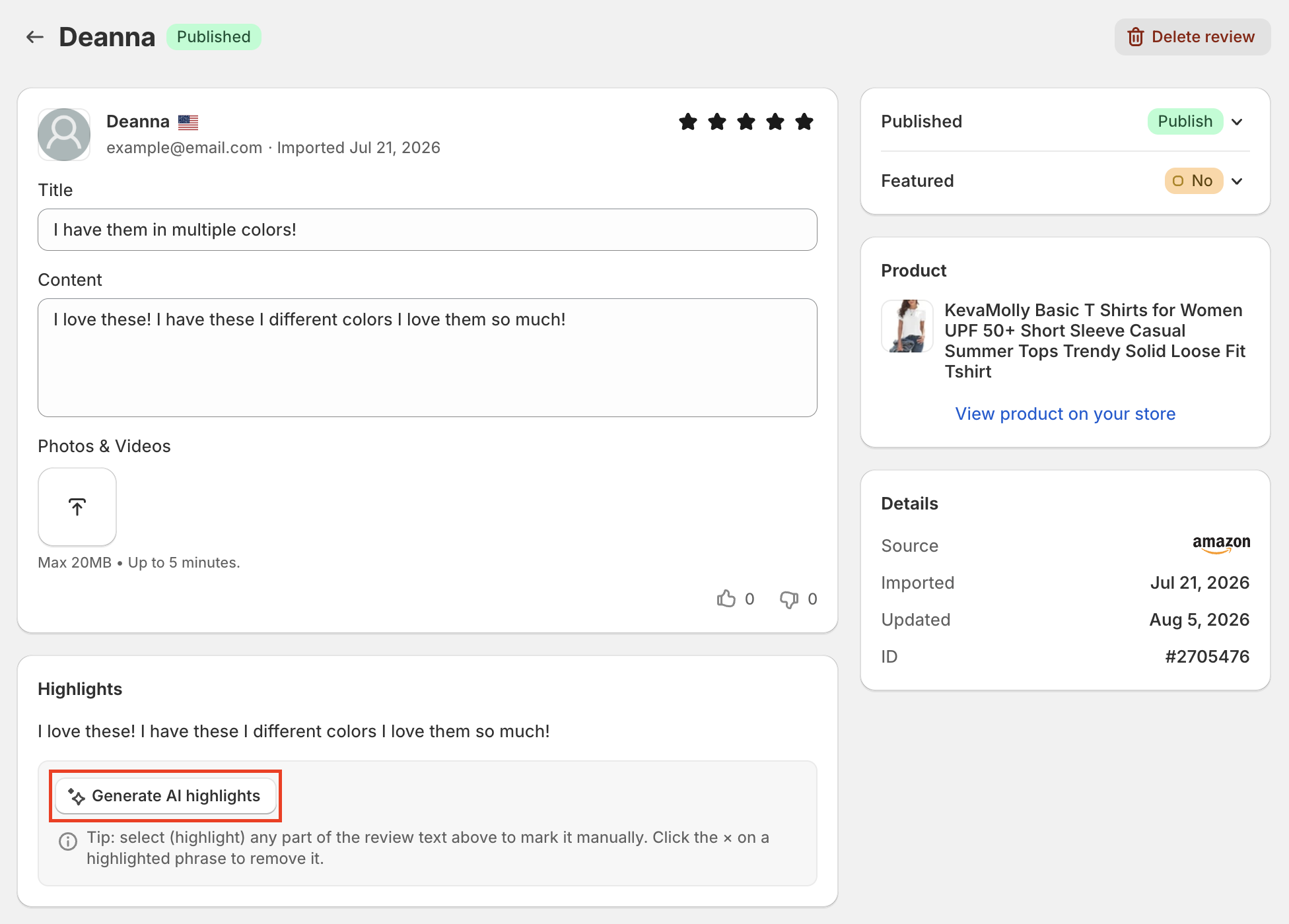
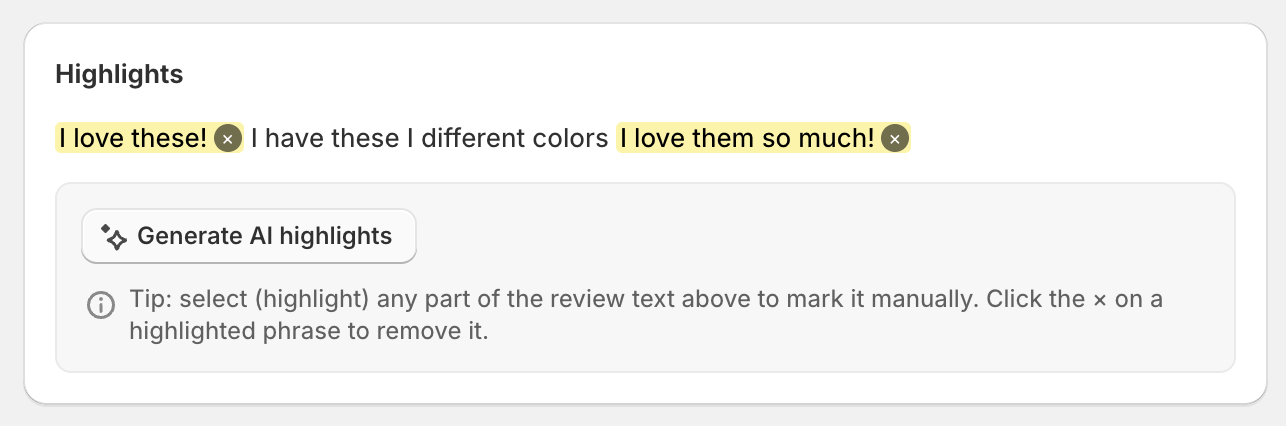
The AI analyzes the review and highlights important phrases automatically.
Check the suggested highlights before saving.
Optional: Remove any unwanted highlights
Creating highlights does not automatically display them in your storefront widget. You need to enable the display setting once.
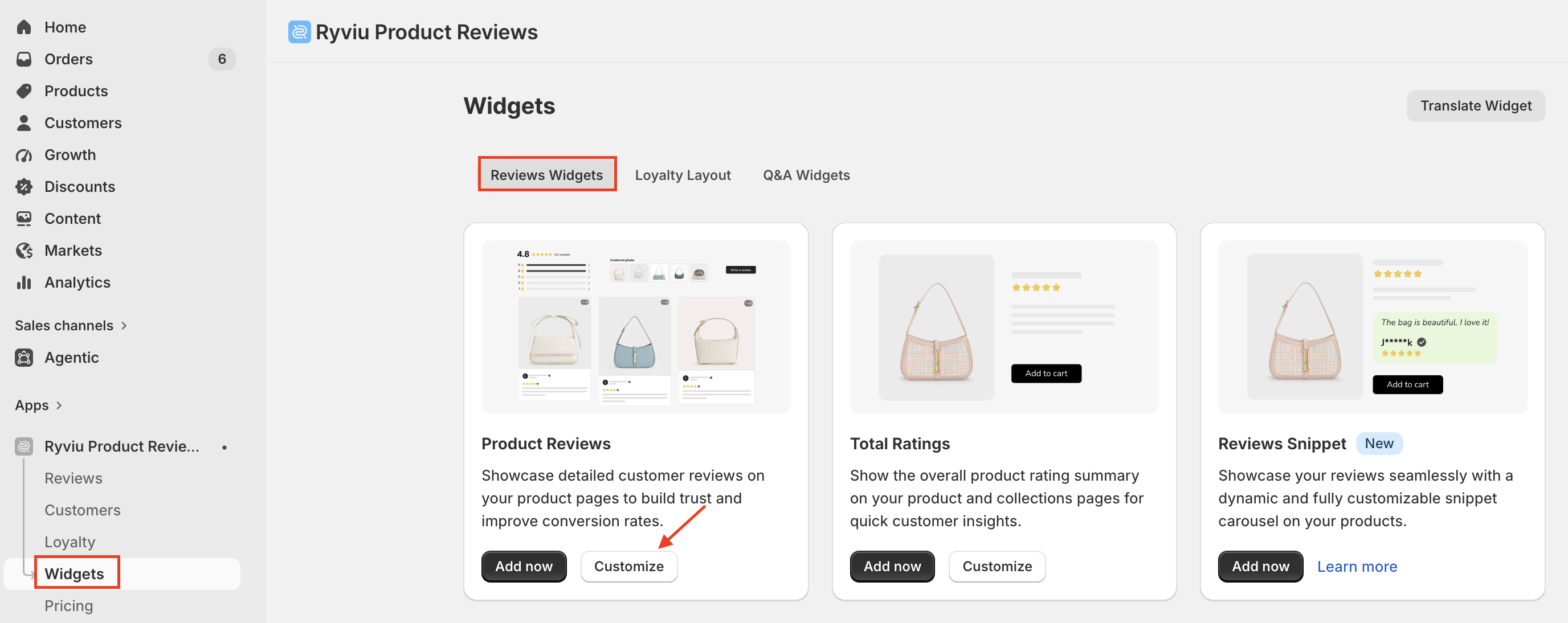
Go to Widgets and select Review widgets.
Click the Customize button for Product reviews.
In the Settings tab, enable Show AI highlights in the AI Highlights section.
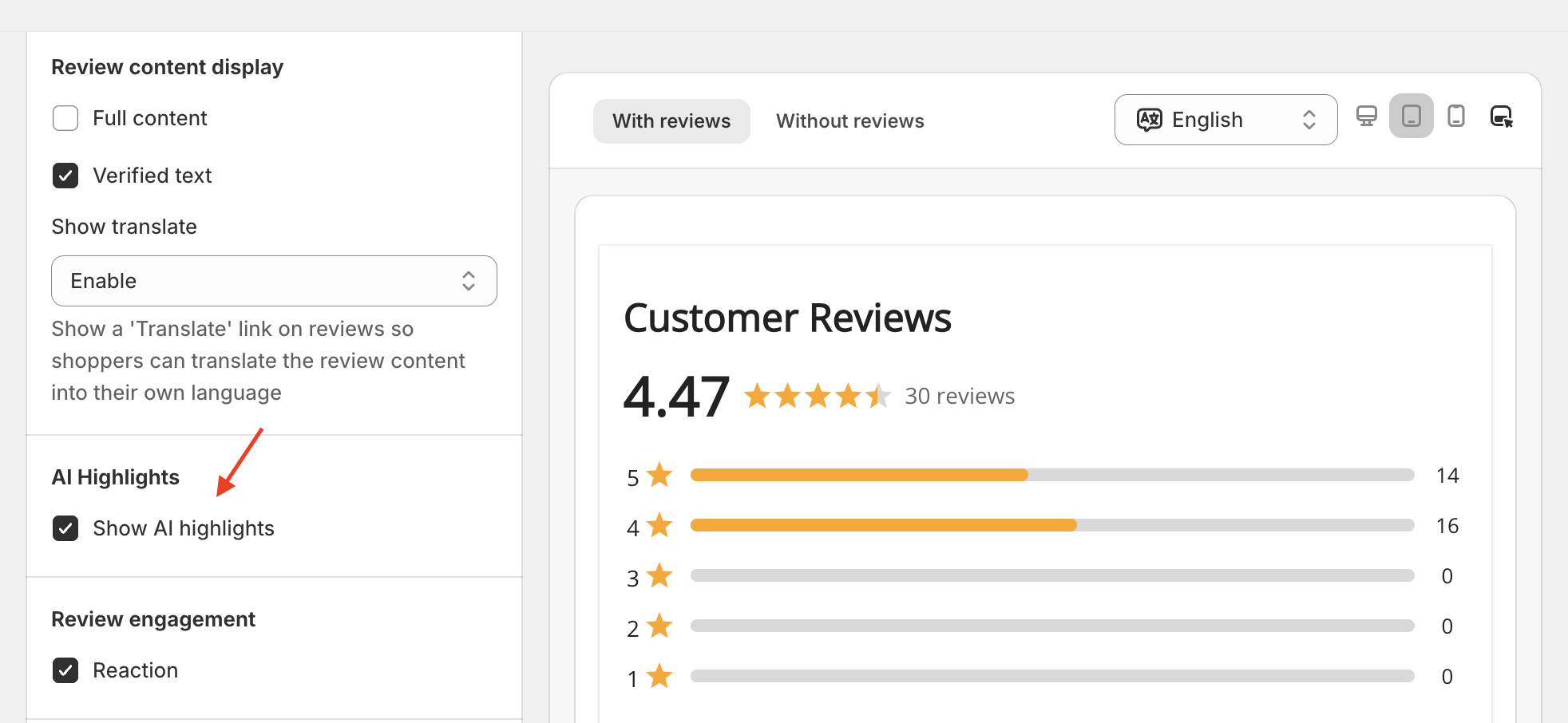
Click Save.
You can customize how highlighted text appears on your storefront.
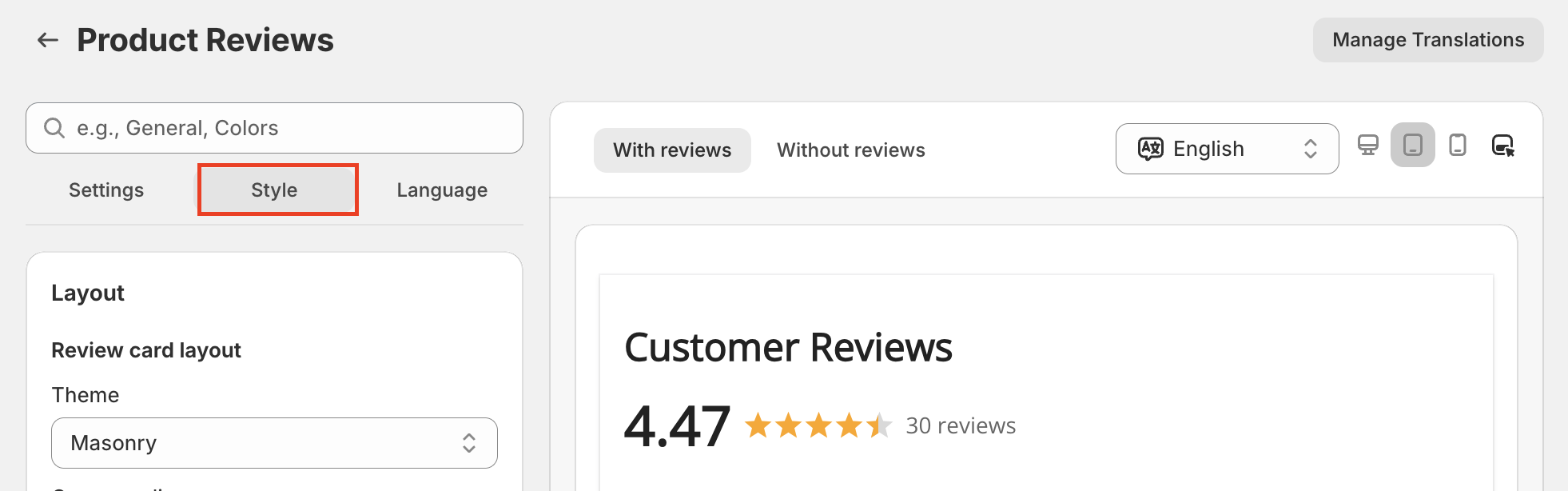
On the Product reviews settings page, open the Style tab.
You can customize the text color, highlight background color, and choose from several style options, including Bold, Italic, Underline, Square corners, and Animated highlight.
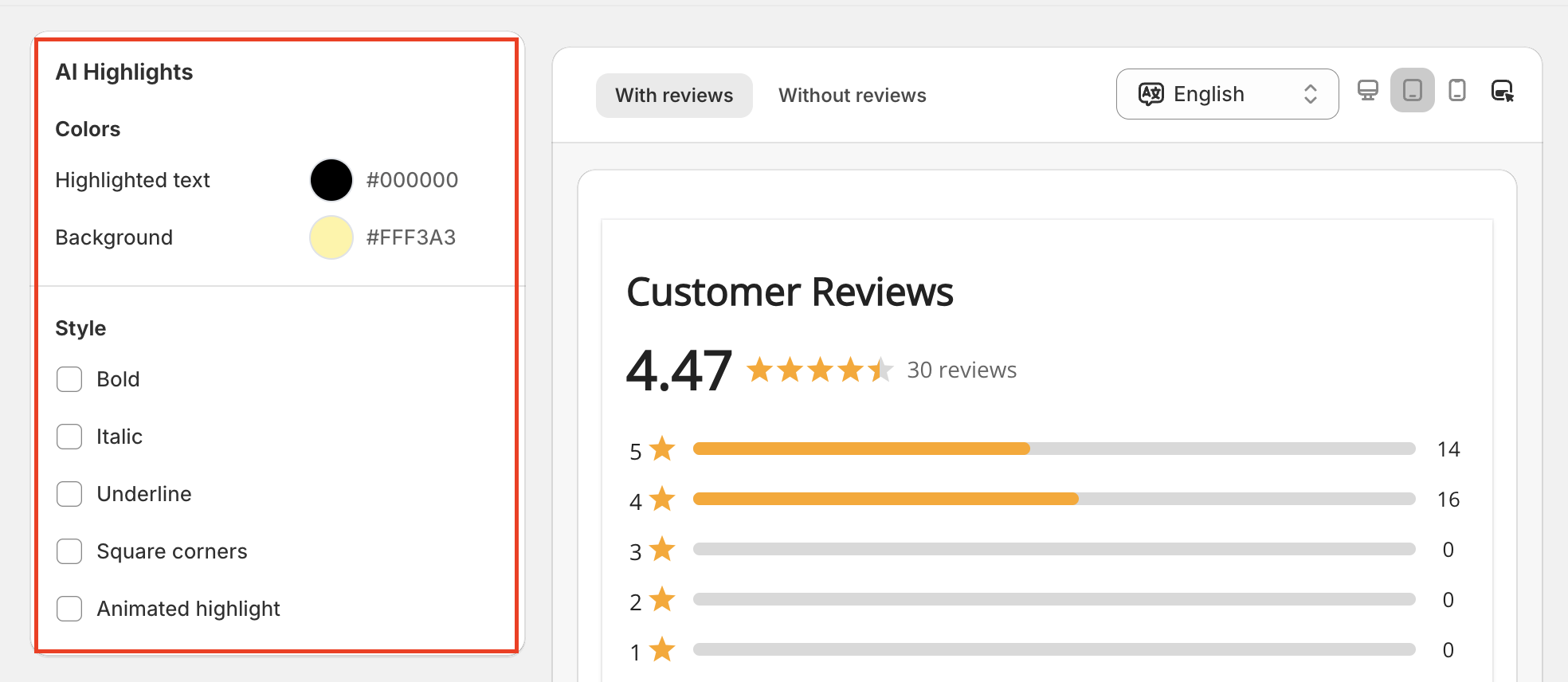
Click the Save button to apply the changes.
Watch this video to follow the complete process of adding review highlights in Ryviu 2.0.
Need help?
Get in touch with our support team through live chat or email at [email protected]. We're here to help!