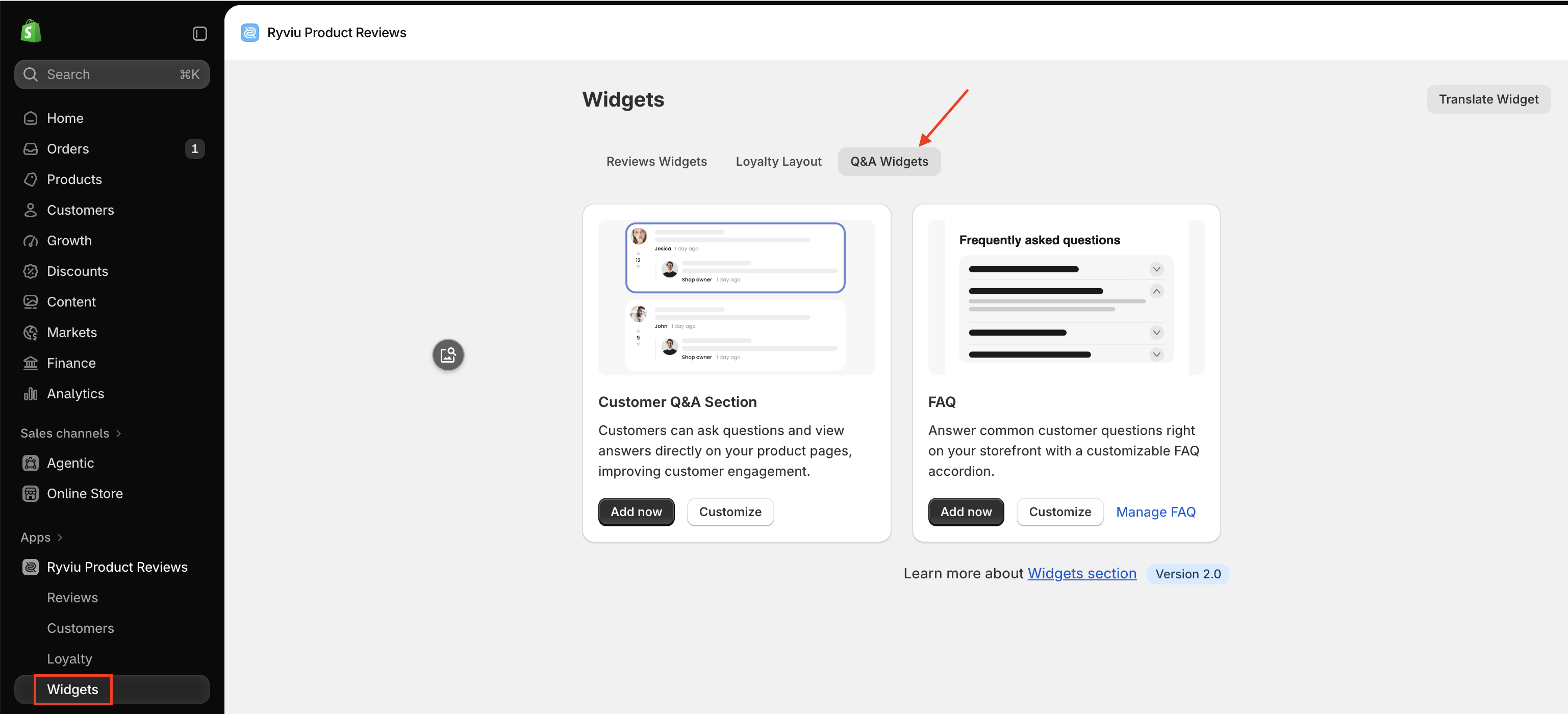
Ryviu provides two Q&A widgets to help customers find answers and make informed purchasing decisions:
Customer Q&A Section: Allows customers to ask questions and view answers directly on product pages.
FAQ Widget: Displays frequently asked questions in a customizable accordion layout.
To access these widgets, go to Widgets → Q&A Widgets in your Ryviu dashboard.
To make customization easier, each widget settings page provides the following options:
Quick search: Enter keywords in the search bar to quickly find the settings you need.
Live preview: Use the preview panel to see how your widget looks before displaying it on your storefront. You can:
Switch between With questions and Without questions.
Preview the widget on desktop, tablet, and mobile devices.
Select a language to preview the corresponding text.
The Customer Q&A Section allows customers to ask questions about your products and view answers from other customers or the store owner.
Click Customize under the Customer Q&A Section to configure the widget.
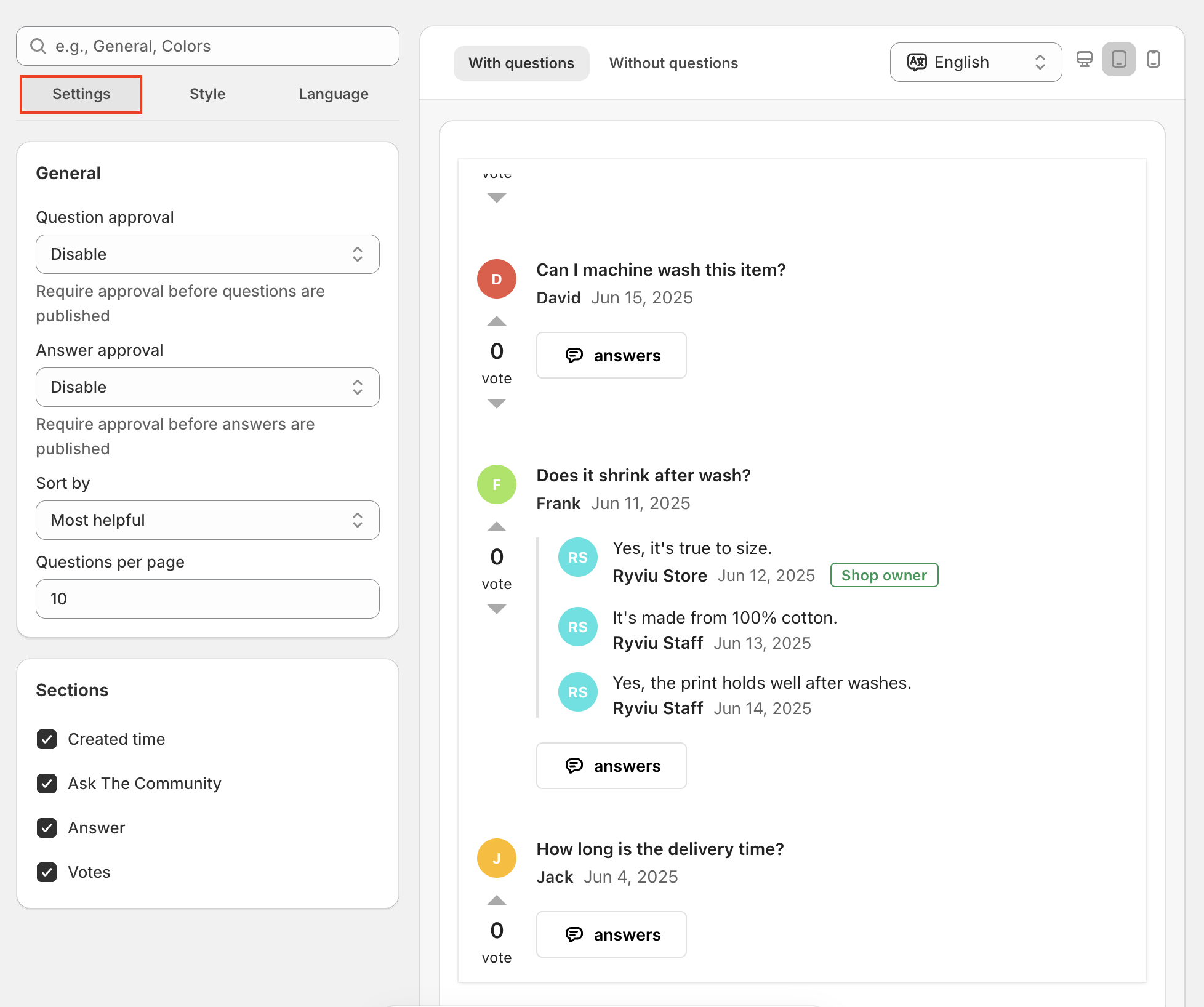
Under the Settings tab, you can manage how questions and answers are displayed.
General
Question approval: Enable or disable approval before customer questions are published.
Answer approval: Enable or disable approval before answers are published.
Sort by: Choose Most helpful or Newest as the default sorting order for questions.
Questions per page: Set the number of questions displayed on each page.
Sections
Choose which elements to display in the Q&A section:
Created time: Show when a question was submitted.
Ask The Community: Display the option for customers to ask the community.
Answer: Show answers below questions.
Votes: Display voting options so customers can vote on questions.
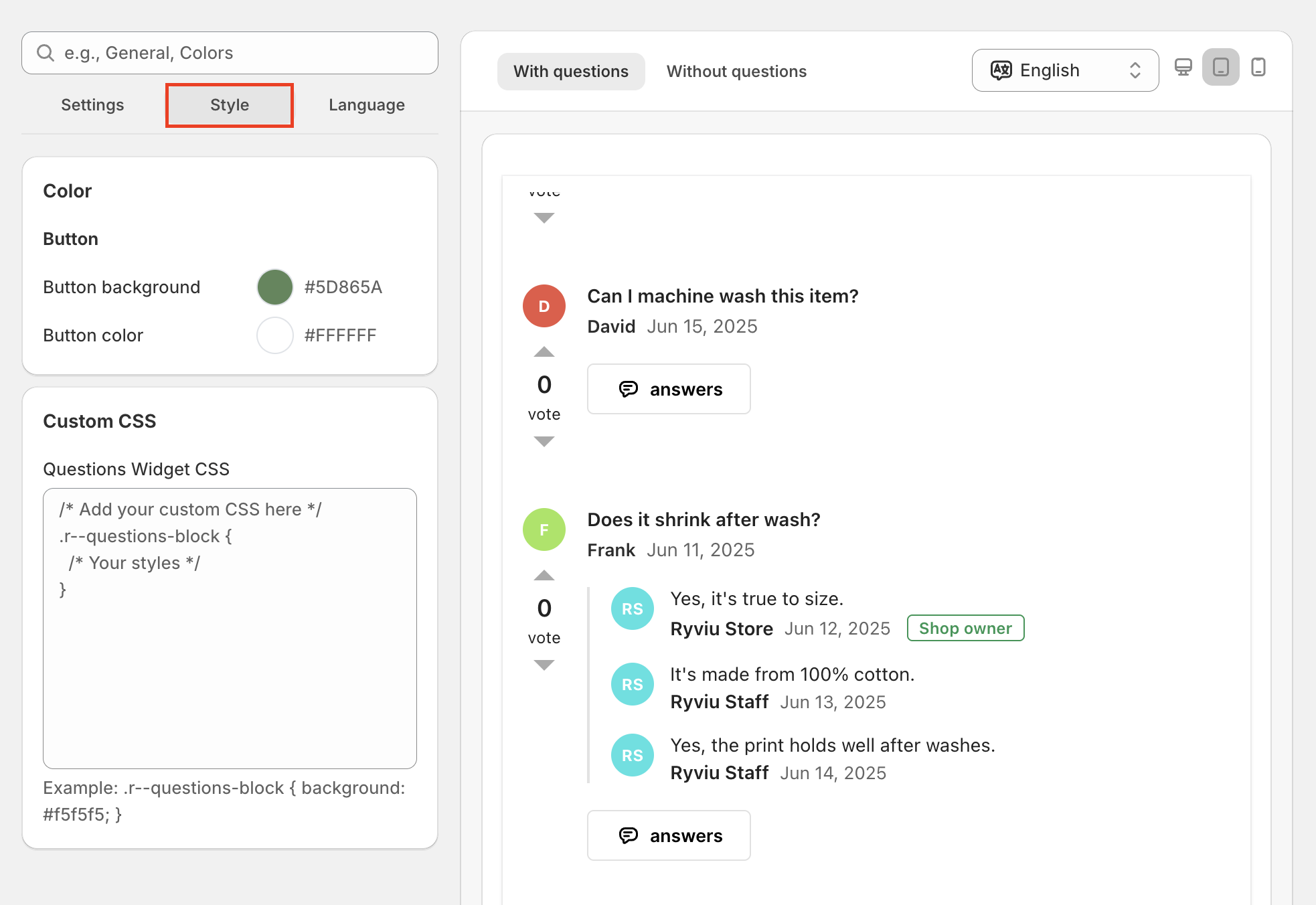
Under the Style tab, you can customize the Q&A button colors, including its background and text color. You can also add custom CSS to further adjust the widget's appearance.
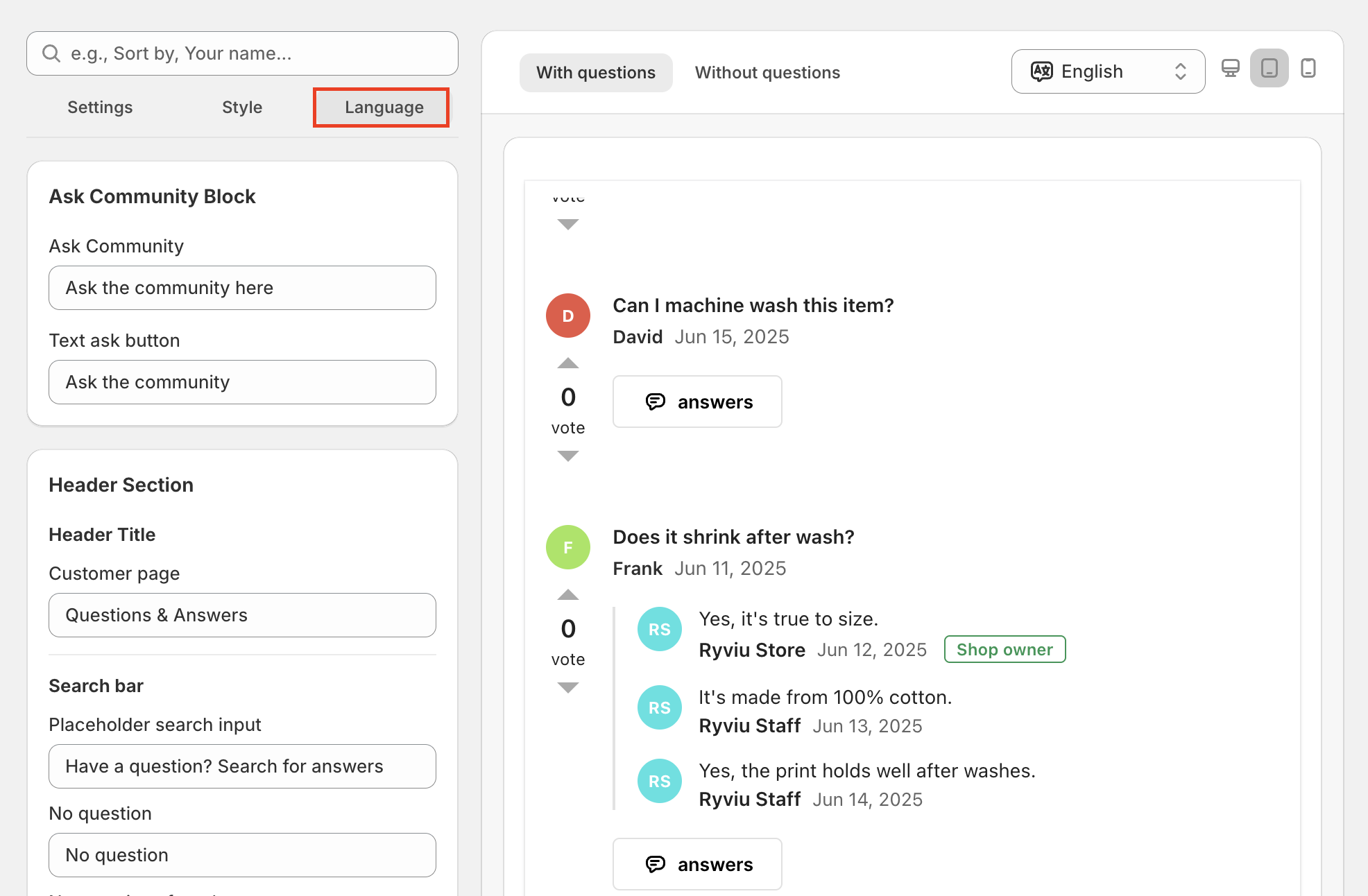
The Language tab allows you to customize the text displayed throughout the Q&A widget, including headings, buttons, form labels, placeholders, and success or error messages.
You can also click Manage Translations to manage translations for different languages.
The FAQ Widget displays frequently asked questions and their answers in an accordion layout, helping customers quickly find important information.
Click Customize under the FAQ widget to configure its appearance.
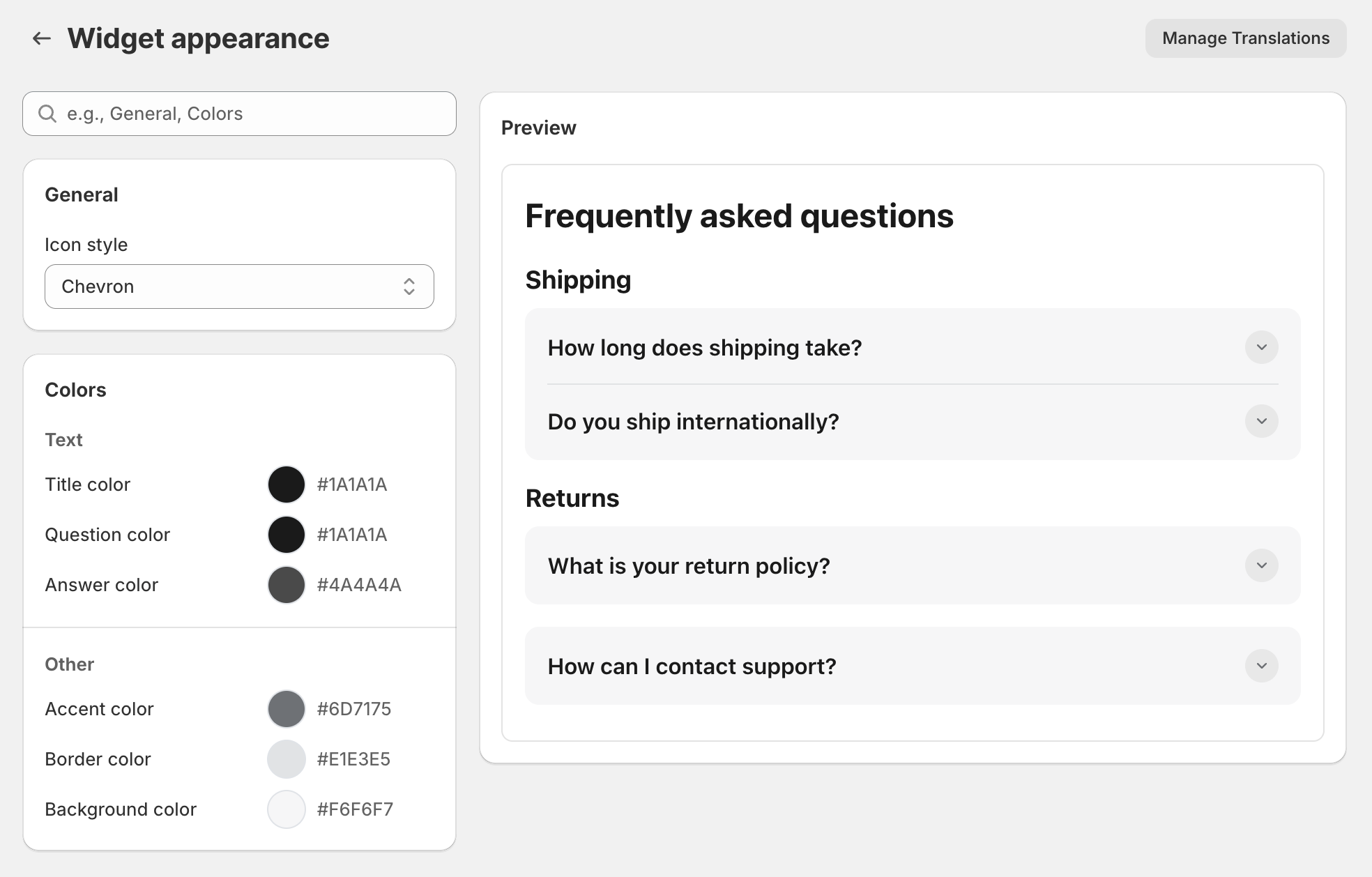
Icon style: Choose between Chevron and Plus/minus icons to expand or collapse FAQ questions.
Customize the widget colors to match your storefront.
Text
Title color: Set the color of the FAQ title.
Question color: Set the color of FAQ questions.
Answer color: Set the color of FAQ answers.
Other
Accent color: Set the accent color used in the widget.
Border color: Customize the widget's border color.
Background color: Set the background color of the FAQ sections.
Click Manage Translations to edit and manage the text displayed in different languages.
Need help?
Get in touch with our support team through live chat or email at [email protected]. We're here to help!