
Boost your store's visibility and conversion rates by displaying star ratings on your Google Shopping ads. This guide will show you how to set up an automated or manual review feed from Ryviu to Google Merchant Center.
Before starting, your account must be eligible for the Product Ratings program.
Log in to your Google Merchant Center.
Go to Growth > Manage programs and find Product Ratings.
Click Get Started and fill out the Interest Form.
Note: When asked "Do you work with an approved third-party reviews aggregator?", select No.
Ryviu simplifies generating your review data.
From your Ryviu dashboard, go to the Products section.
Click More actions > Google feed settings.
In the settings page:
Store URL: Ensure your store URL is correct (format: https://example.com/products).
Status: Select Generate the product review feed.
Sync Product Identifiers (Crucial): * Click the Sync Product Identifiers button in the top right corner.
This will automatically sync your products' GTIN, MPN, and Brand from your Shopify/store to Ryviu. This data is essential for Google to match reviews with your products.
Click Save. You can now use the XML URL or download the File name for the next step.
You have two options to provide your review data to Google:
This method automatically updates your Google Shopping reviews daily without any manual work.
In Google Merchant Center, go to Marketing > Product reviews.
Click Product reviews feeds > click the plus (+) button.
Choose Scheduled fetch as your input method.
Paste your XML URL from Ryviu into the File URL field.
Set the Fetch frequency to Daily and click Create feed.
Use this if you prefer to control exactly when the data is sent to Google.
In the Ryviu Products dashboard, click More actions button > Export reviews XML.
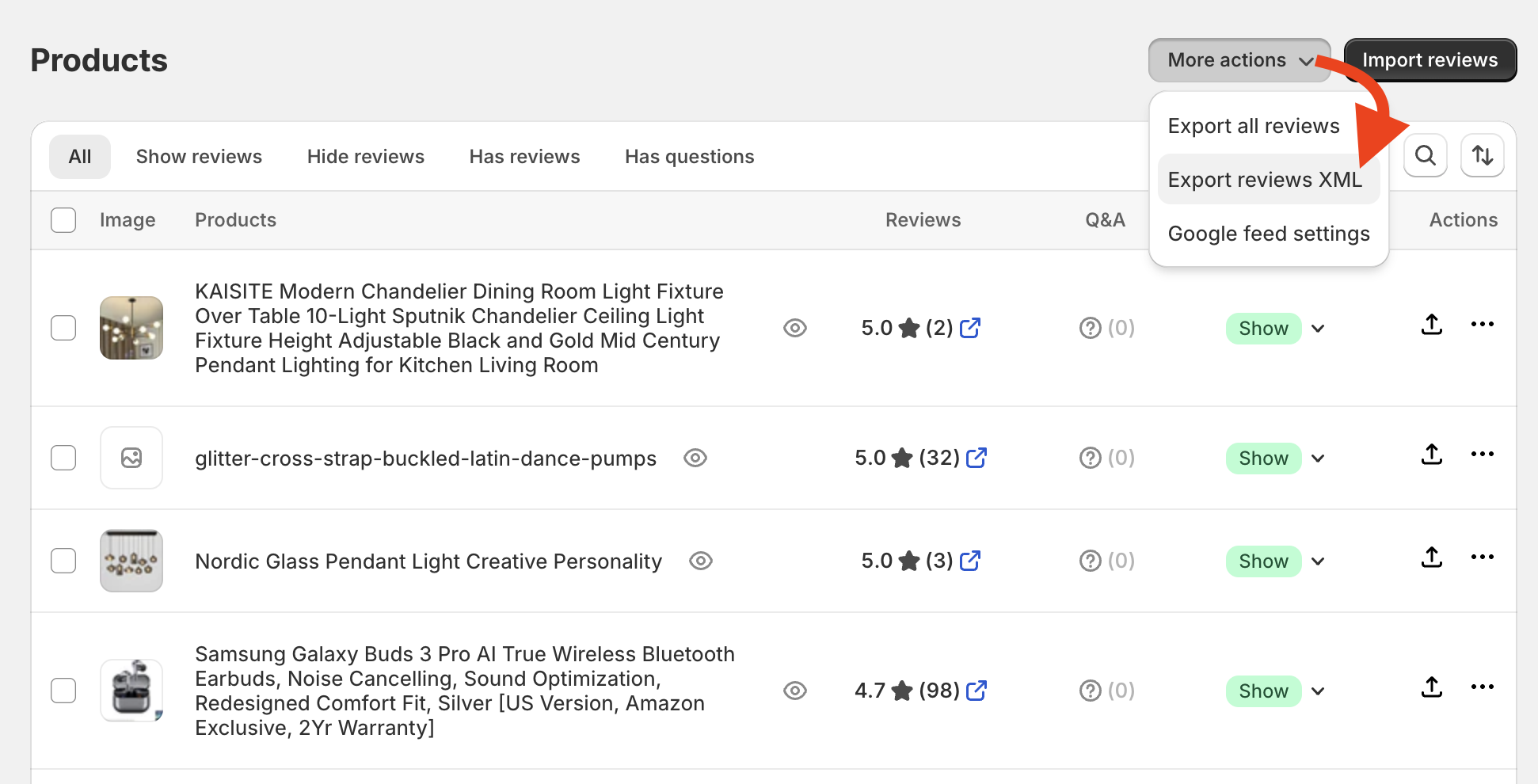
Please log in to your Ryviu user’s email and download your XML file
In Google Merchant Center, go to Marketing > Product reviews > Product reviews feeds > click the plus (+) button.
Choose Upload as your input method.
Select the XML file you just downloaded and click Create feed.
Note: You will need to re-upload this file manually whenever you want to update Google with new reviews.

Need help?
Get in touch with our support team through live chat or email at [email protected]. We're here to help!

