This article will help you enhance your customer engagement with a customized request review email template in Ryviu. Here's how to do it:
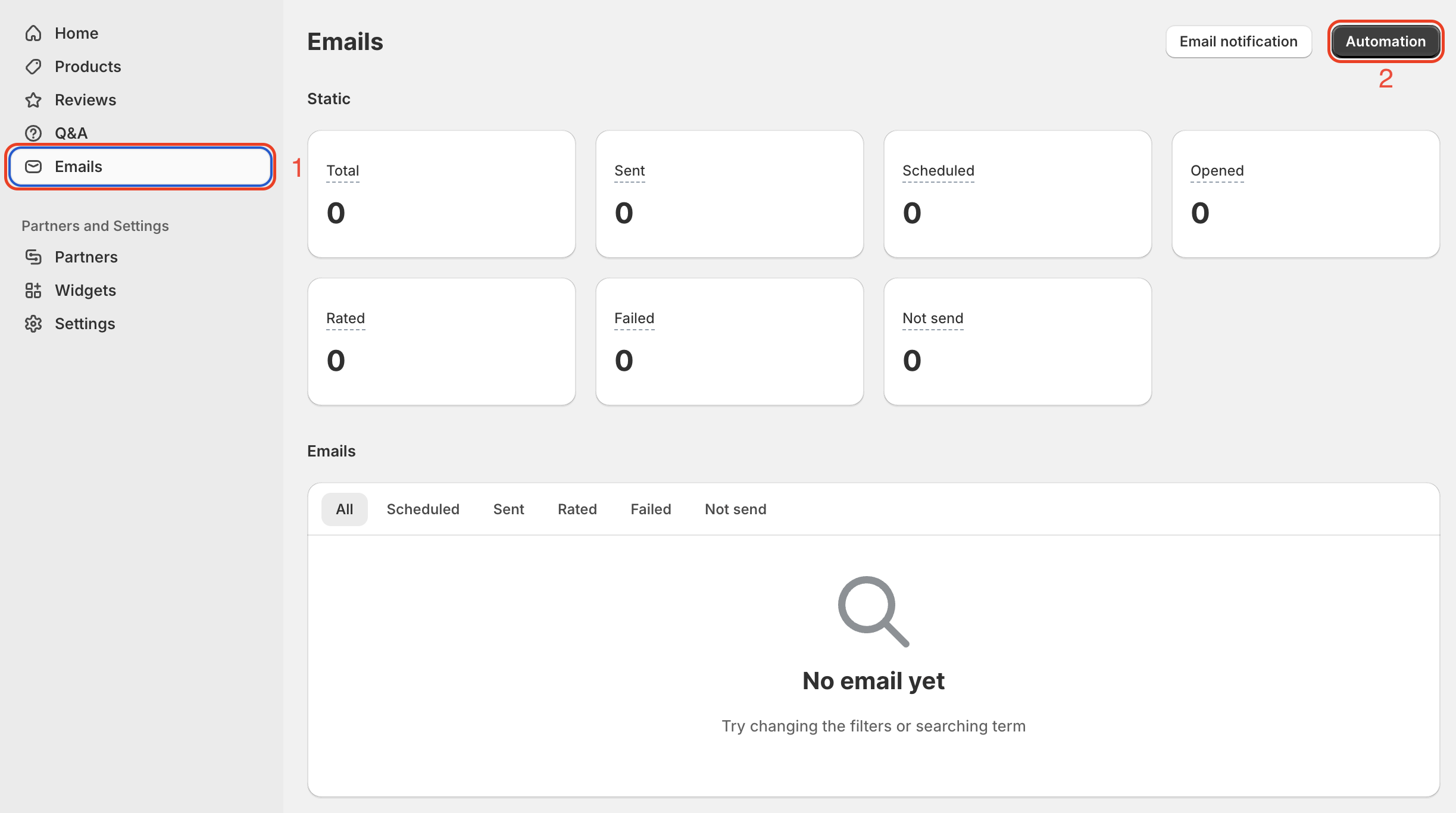
👉 Step 1. From your Ryviu account, go to Emails > Automation to visit the emails automation section
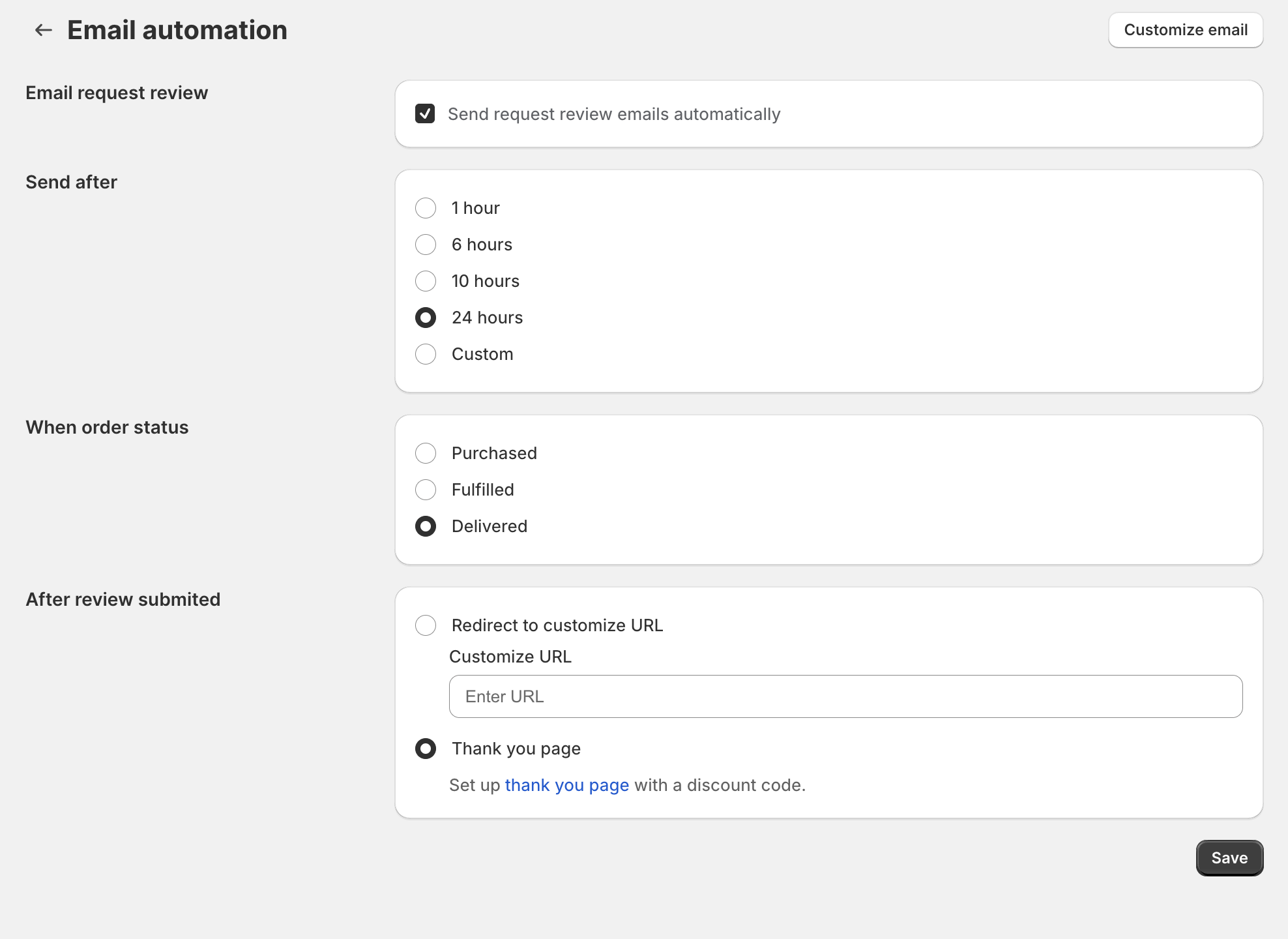
👉 Step 2. Set the time to send emails.
Step 3: Create and customize email template
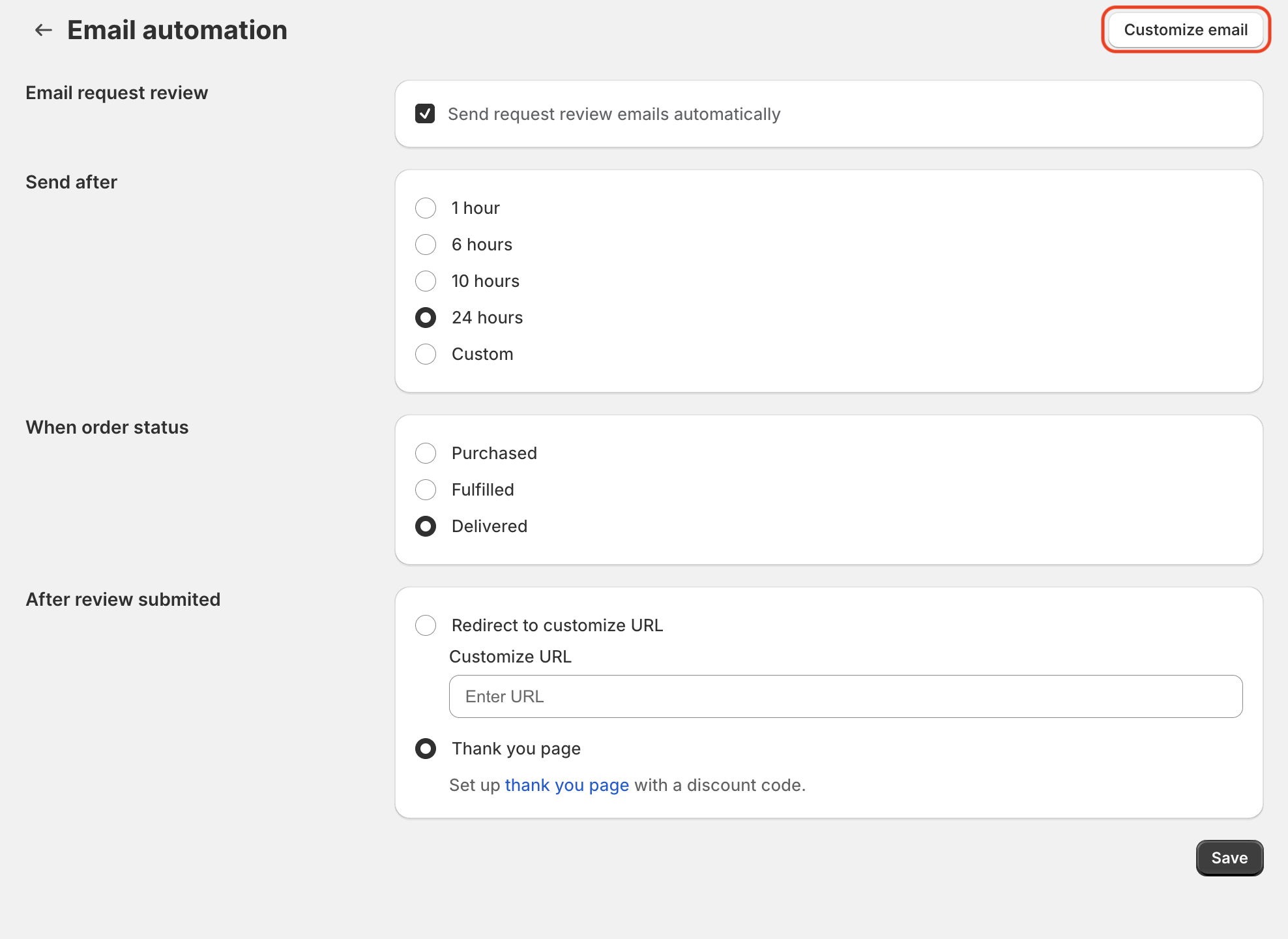
1. Click Customize email button at the top right corner to visit the email template.
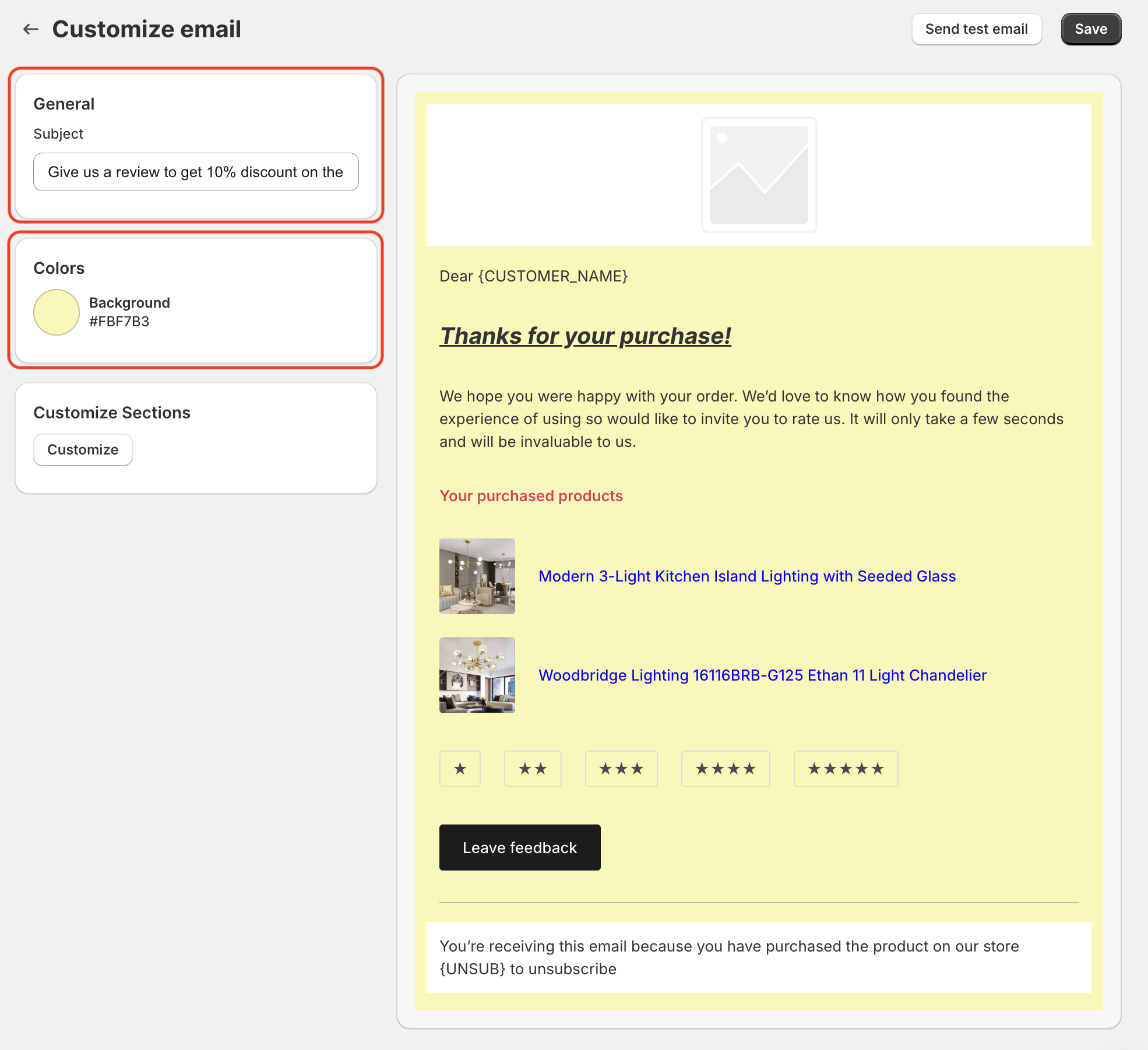
2. Edit the email subject in the General section and change the background color in the Colors section.
3. Customize email template
Click Customize under the Customize Section.
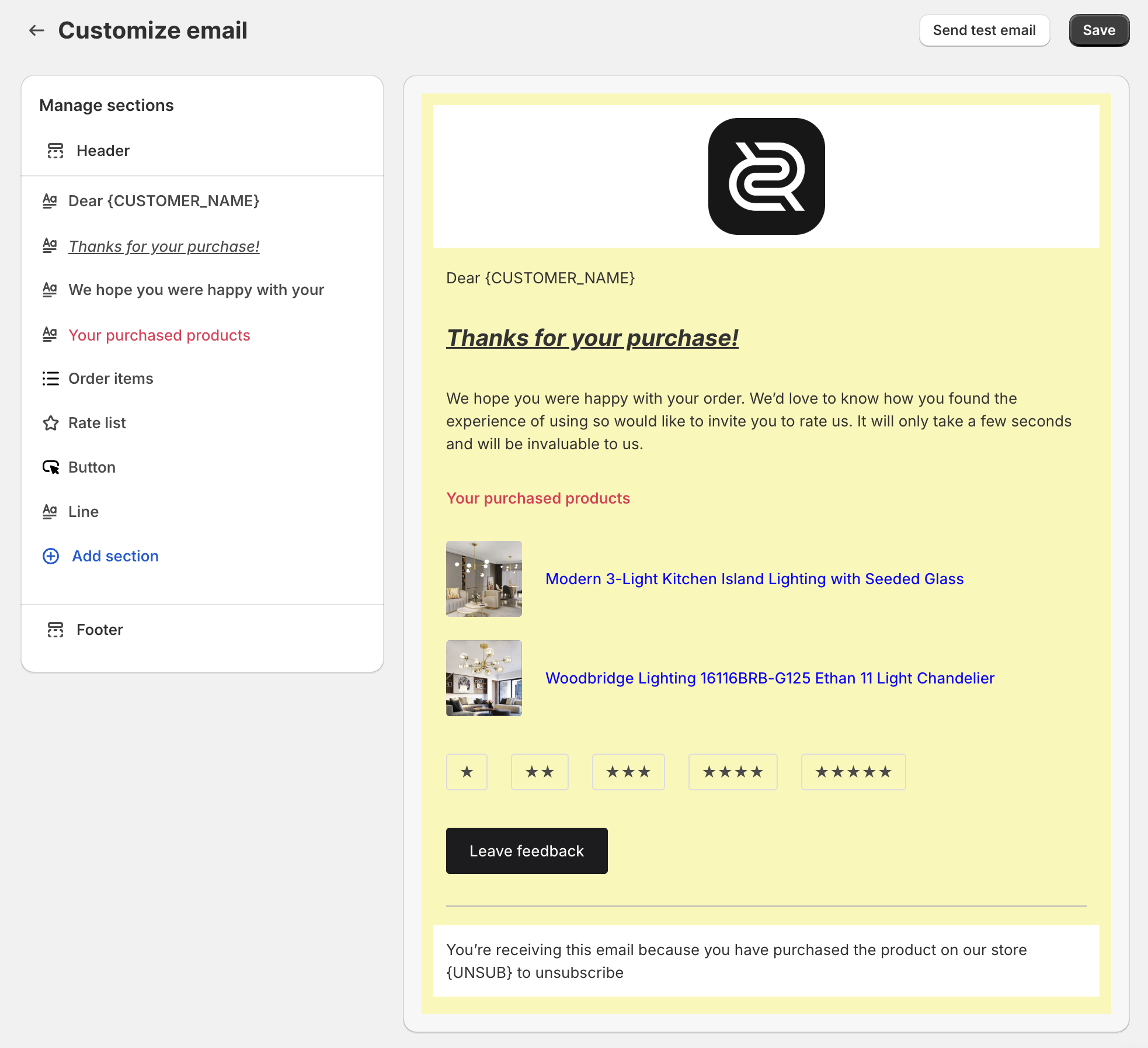
On this page, you can configure and edit all sections of the request review email templates, including the header, logo, content, order items, rate list, CTA button, and footer. You can also add more sections to the email template and reorder them using drag-and-drop.
Once you're finished, click the Save button.
Finally, you should send test email to check how the customers see it on their devices. Here, let’s see how my email template looks:

4. Set up Thank you email template
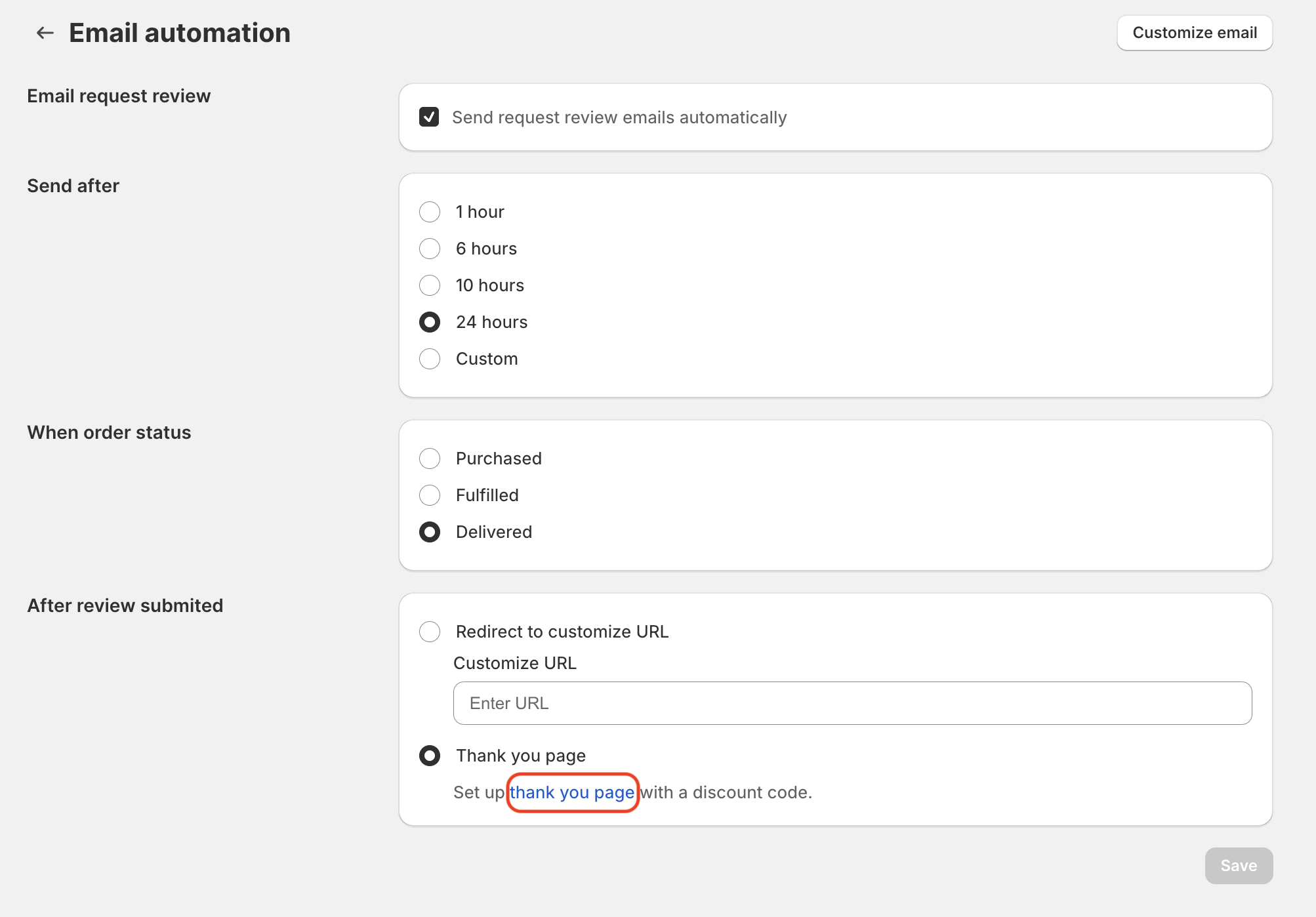
A thank-you email will be automatically sent to customers after they leave a review. To set it up, please follow the steps below:
Return to the Email Automation page, and click on thank you email to open the thank you email template.
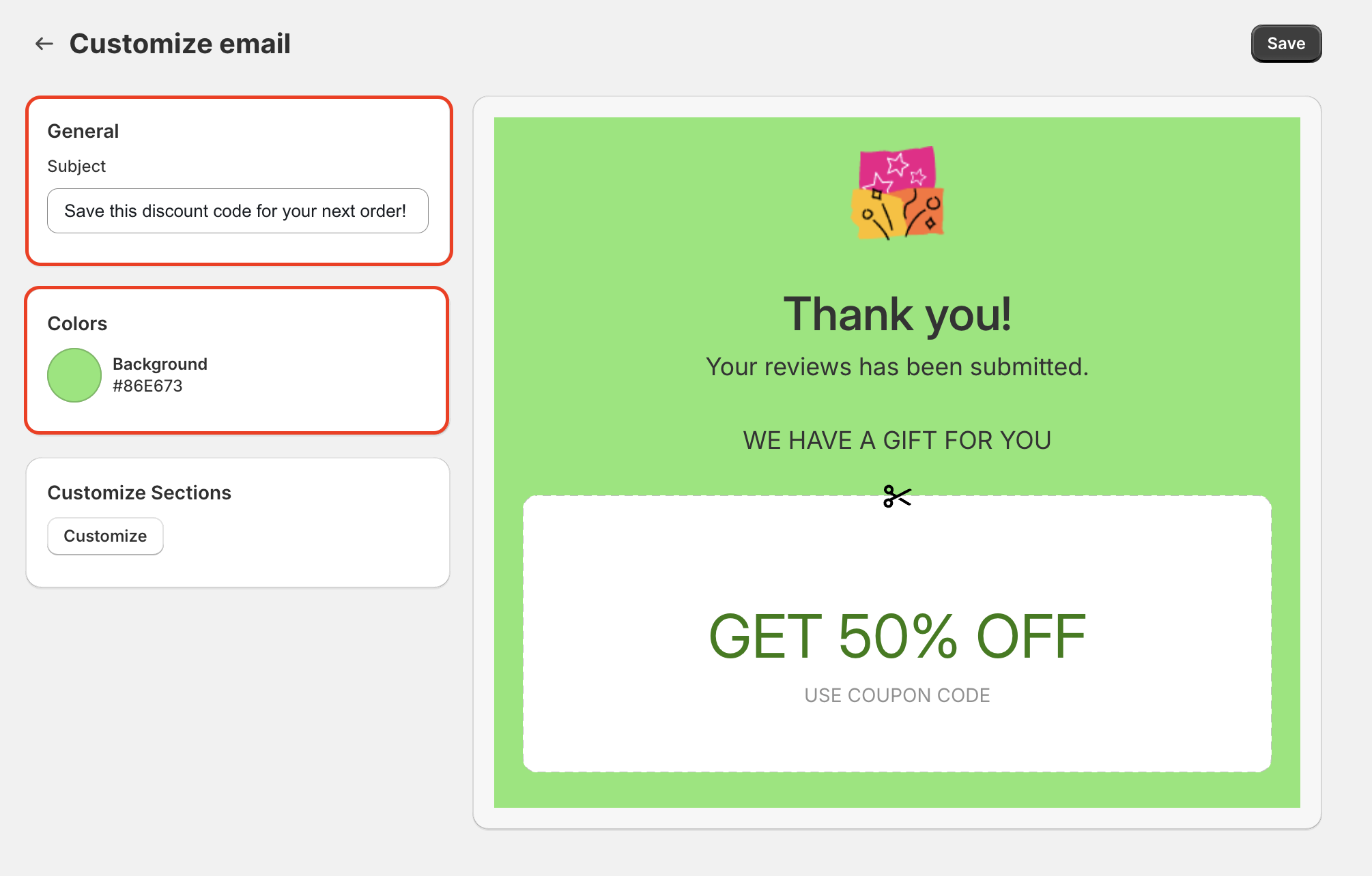
First, type the email’s subject and set the background color.
Then you can edit multiple sections of the thank-you email, such as the image, content (text), and the coupon code amount. You can also add more sections and reorder them easily by dragging and dropping.
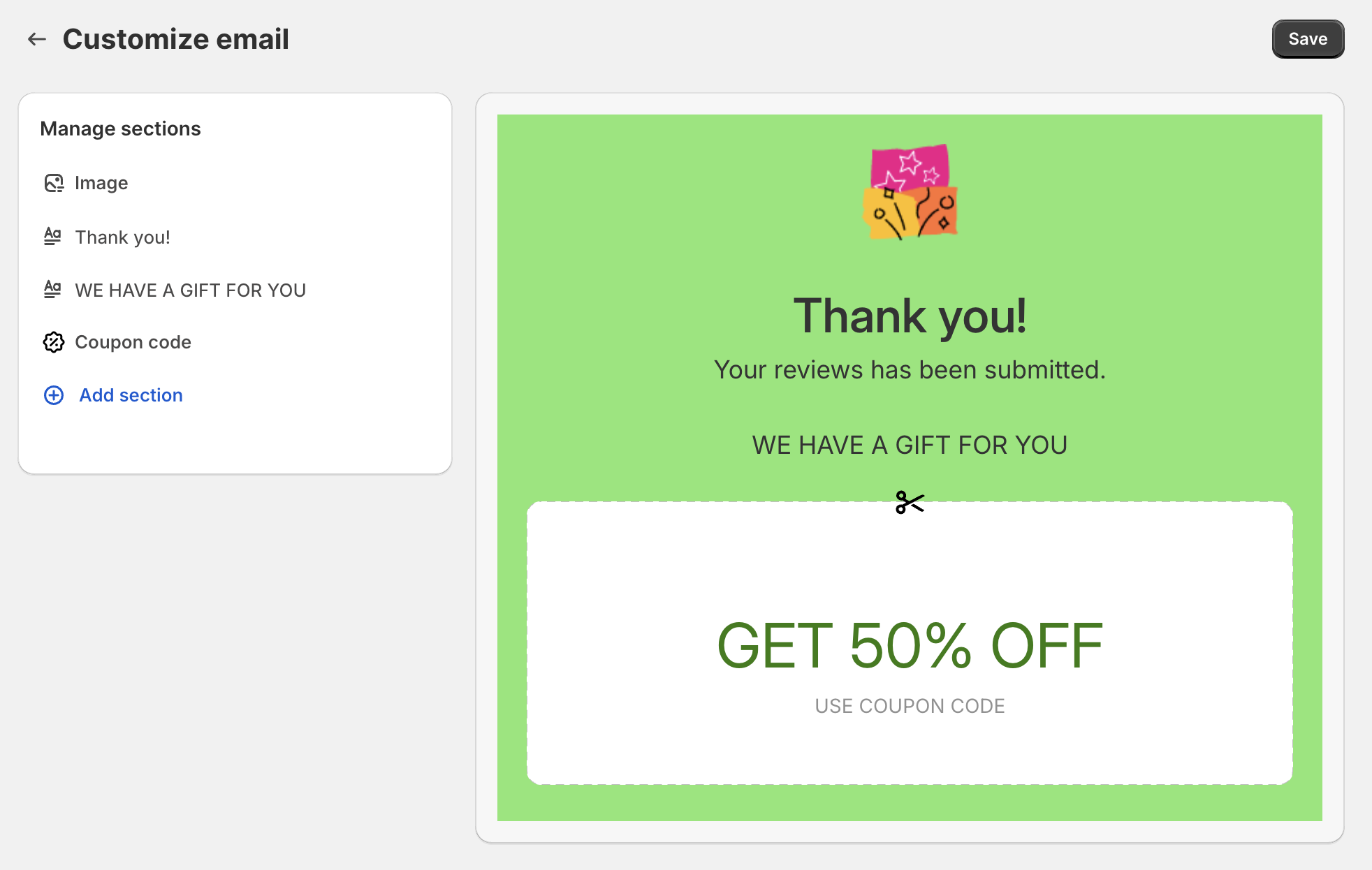
Once finished, just hit the Save button.
Need help?
Get in touch with our support team through live chat or email at [email protected]. We're here to help!

