We have some exciting news to share! Ryviu is now fully integrated into the AI Search, Filter & Recommend app. This integration opens up new possibilities for enhancing your product reviews and ratings, resulting in a more engaging shopping experience for your valued customers.
⚠ This feature only works with Boost AI Search & Discovery V2 and V3. To find out which version of our app your store's current theme is installed with, please follow this article.
1. From your store admin > Apps.
2. Go to Boost AI Search & Discovery > Integration > Third-party Integration > Select Product reviews tab.
3. Toggle ON the Ryviu integration > Select Ok, integrate now.
⚠ Please continue following these steps below only if you're using our app's V3 and just in case the automatic integration process does not work for your store after finishing the previous steps.
4. Go to Settings > Sync Overview > select Sync recent updates > click Start manual sync
5. Go back to Shopify Admin > Sales channels > Online Store > Themes > Find the theme you are working on > Customize.
6. In the Shopify Theme editor > From the left sidebar, select App embeds > Toggle ON the 3rd app you'd like to integrate.
⚠ At step 6, if you do not find the 3rd-party app in the App embeds list, no worries, move on to step 7 and on if you are using V3 or Turbo. Learn more about Shopify's App embeds here.
7. Go to Boost AI Search & Discovery > Integration > Shopify Integration > Find the theme you are working on > Next > Customize
8. Go to Product Item section > Additional information > Turn on the option Show Product rating
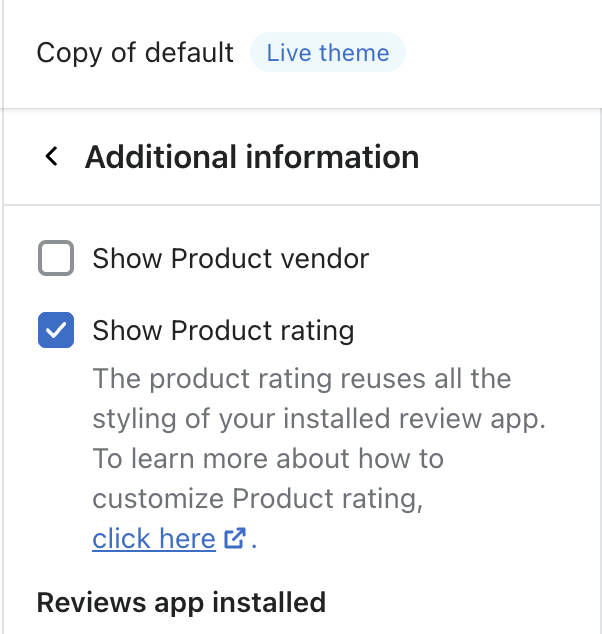
💡 You can add the Product Rating anywhere in the Product Item. To learn more about this element, visit our article here.
Now you're set and ready to go!
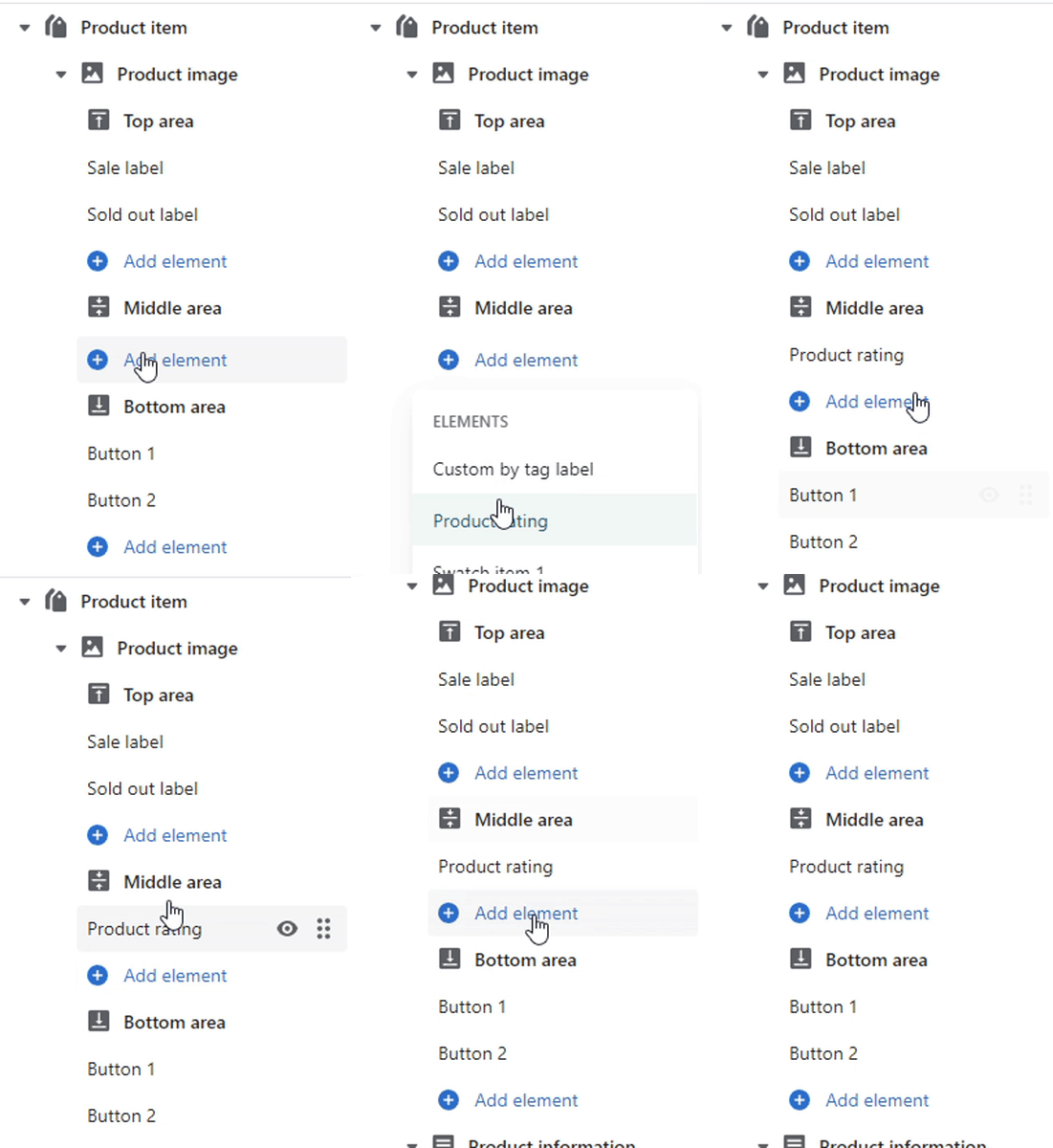
7. Go to Boost AI Search & Discovery > Theme > Find the theme you are working on > Action > Edit visual design.
8. Go to Product Item section > in the area you'd like to add your Product's rating/reviews > Add elements > Product rating.
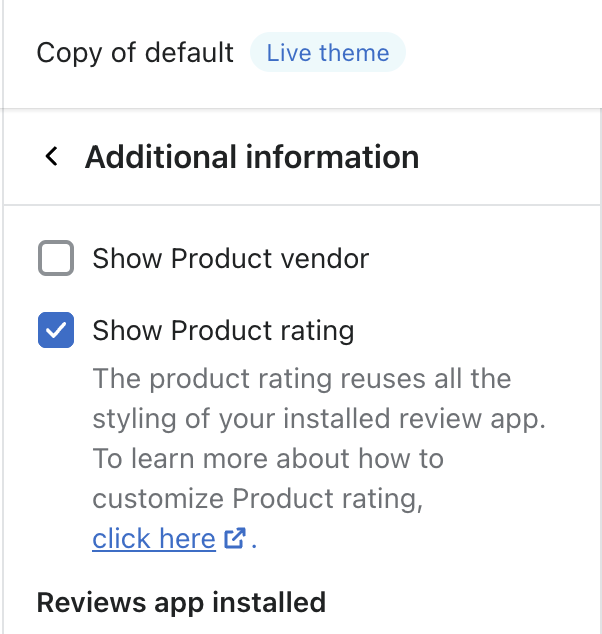
7. Go to Boost AI Search & Discovery > Integration > Shopify Integration > Find the theme you are working on > Next > Customize
8. Go to Product Item section > Additional information > Turn on the option Show Product rating
After integration, the product item review rating is automatically enabled.
By default, review stars are placed under product titles. To place review stars in a different position, follow these instructions:
⚠ These steps are for advanced users with expertise in liquid & JavaScript coding. For further assistance, please get in touch with us via our live chat.
Please find the code line containing [[item <title>]] in the file boost-pfs-filter-html.liquid, and then move it to the place you want:
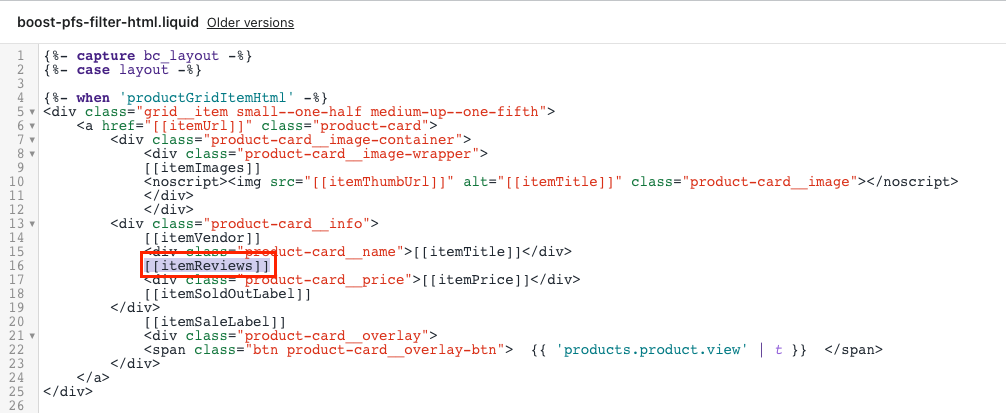
If the file boost-pfs-filter.liquid does not exist, please find it in boost-pfs-filter.js:
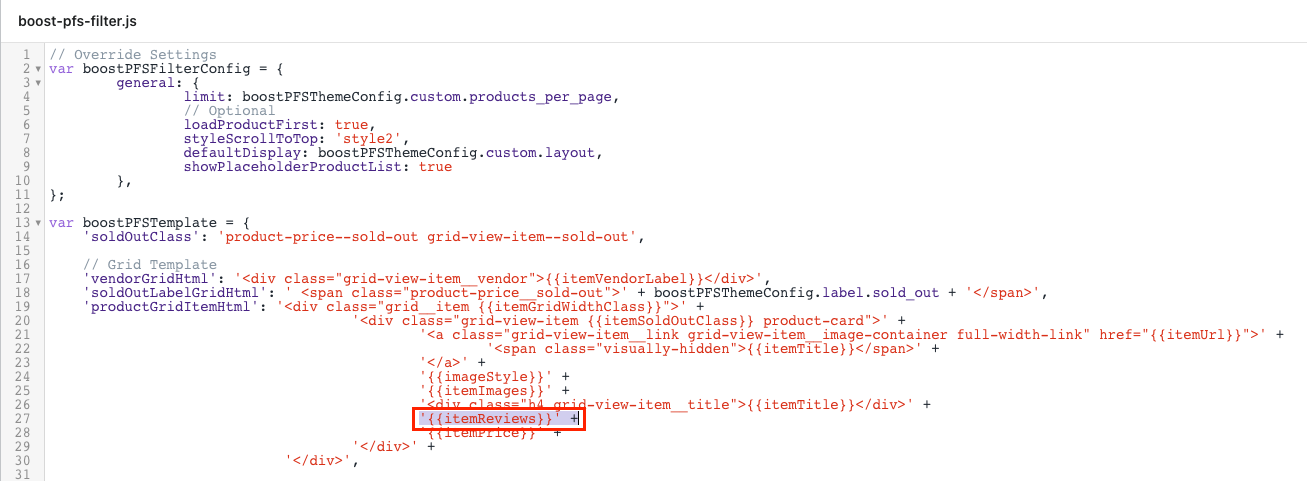
To use review stars for filtering, refer to the instructions below.
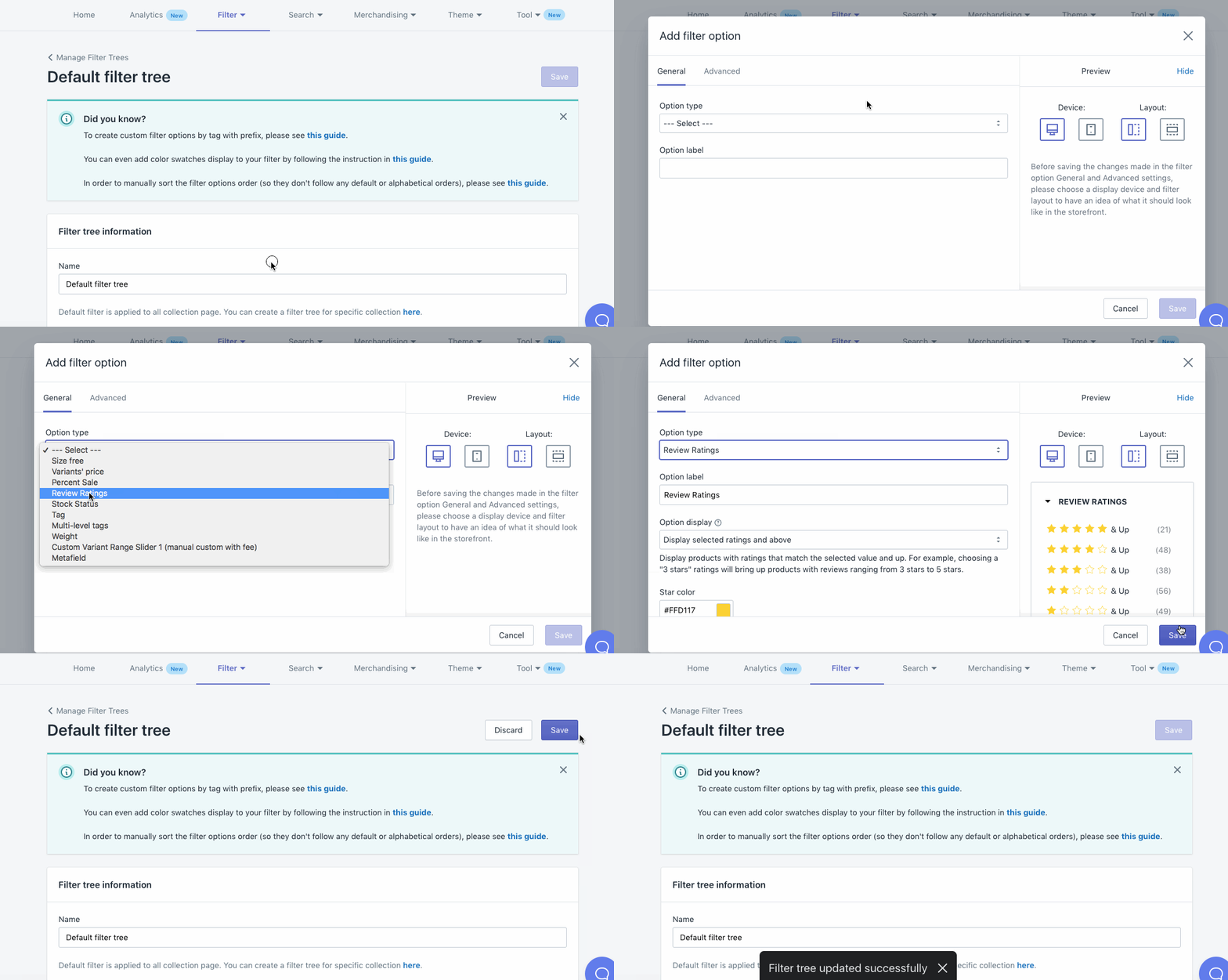
1. Wait about 3 minutes for the syncs to be done before creating a filter option by review ratings
2. Go to the app's Filter > Filter Trees > From a filter tree, click Add a filter option button > Choose Review Ratings > Click 2 Save buttons. Refer to this article for more details.
⚠ An automation will add/delete a metafield in the in-app Metafields setting once the integration is enabled/disabled. Kindly do not remove it.
Need help?
Get in touch with our support team through live chat or email at [email protected]. We're here to help!