Loyalty Layout allows you to customize how your loyalty program appears across your store—from the launcher button to on-page labels and popups.
You can adjust styles, colors, and placement to match your brand and improve customer experience.

Go to Widgets in your Ryviu dashboard
Select Loyalty Layout
Click Customize on the layout you want to edit
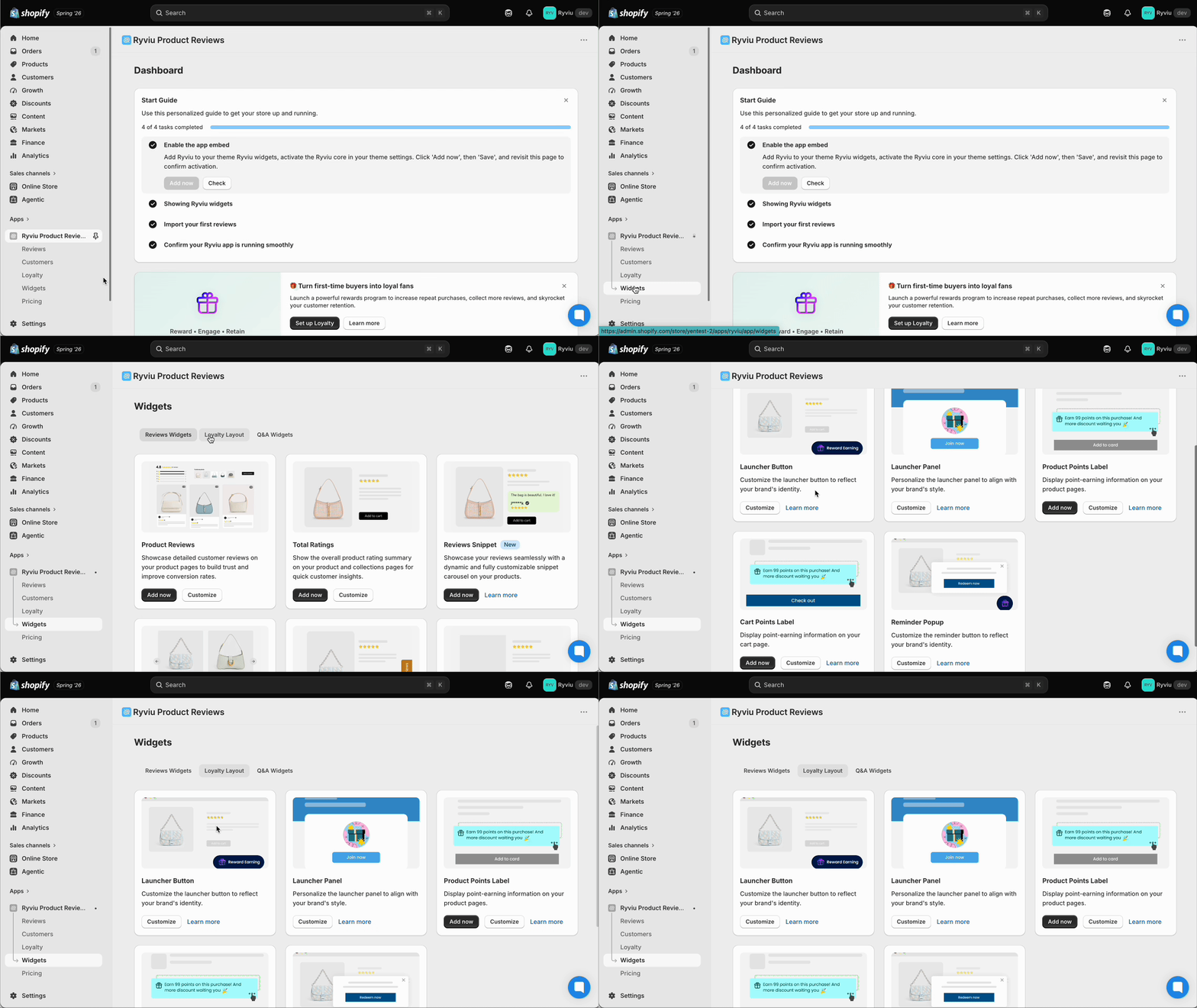
You can customize the following components:
Launcher button
Launcher panel
Product points label
Cart points label
Reminder popup
Each layout includes a live preview on the right side. If a layout is not yet added, click Add now to enable it.
Customize the launcher button to match your brand and control how it appears on your store.
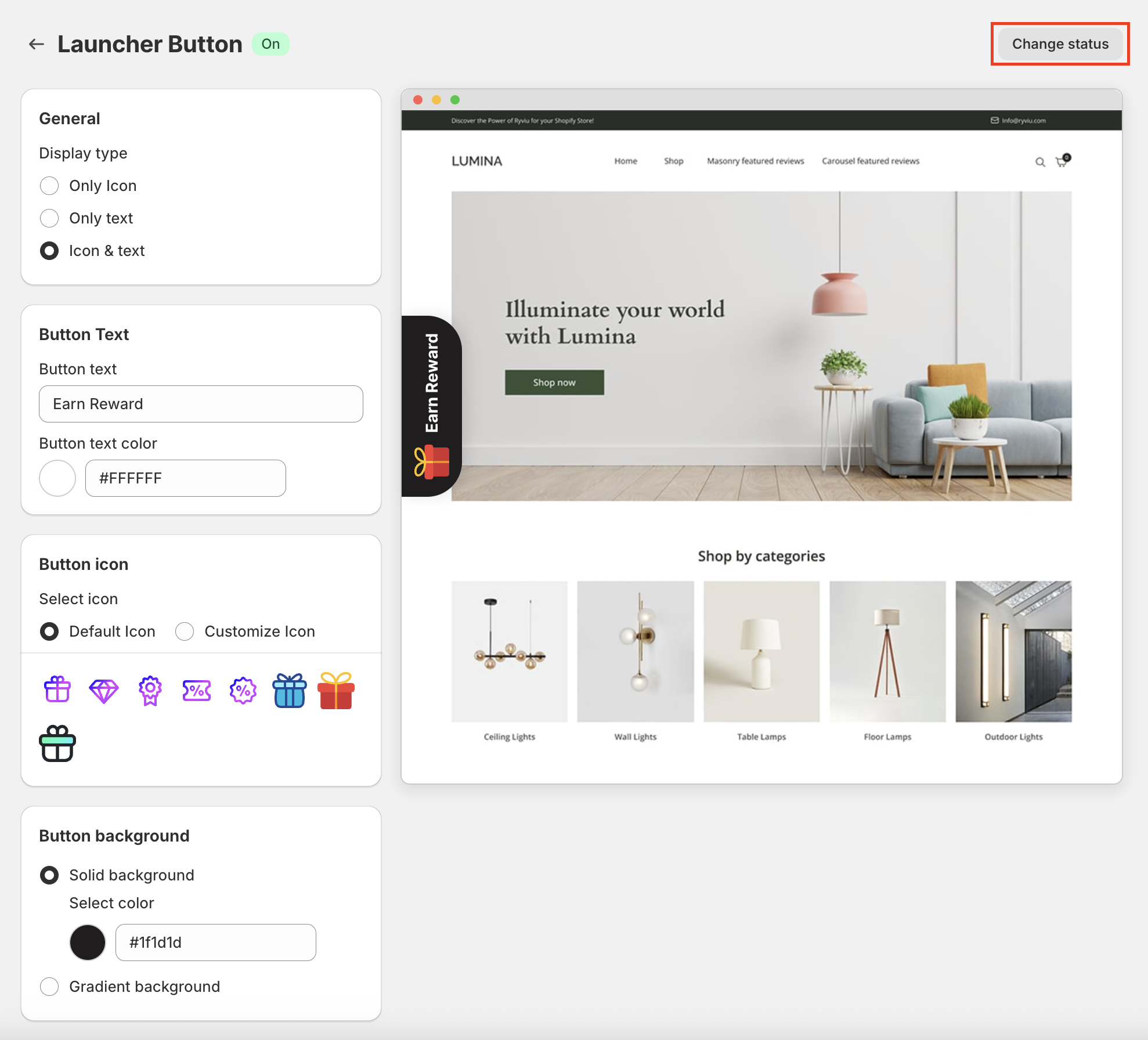
Display type: Choose between Icon only, Text only, or Icon & text
Button text: Set the label and text color
Button icon: Select a default icon or upload a custom one
Background: Choose a solid color or gradient
Placement: Set the position and spacing on your site
Style: Adjust size and shape
Visibility: Control where the button appears
Use the Change status toggle to enable or disable the launcher button.
Customize the loyalty panel that opens when customers click the launcher button.
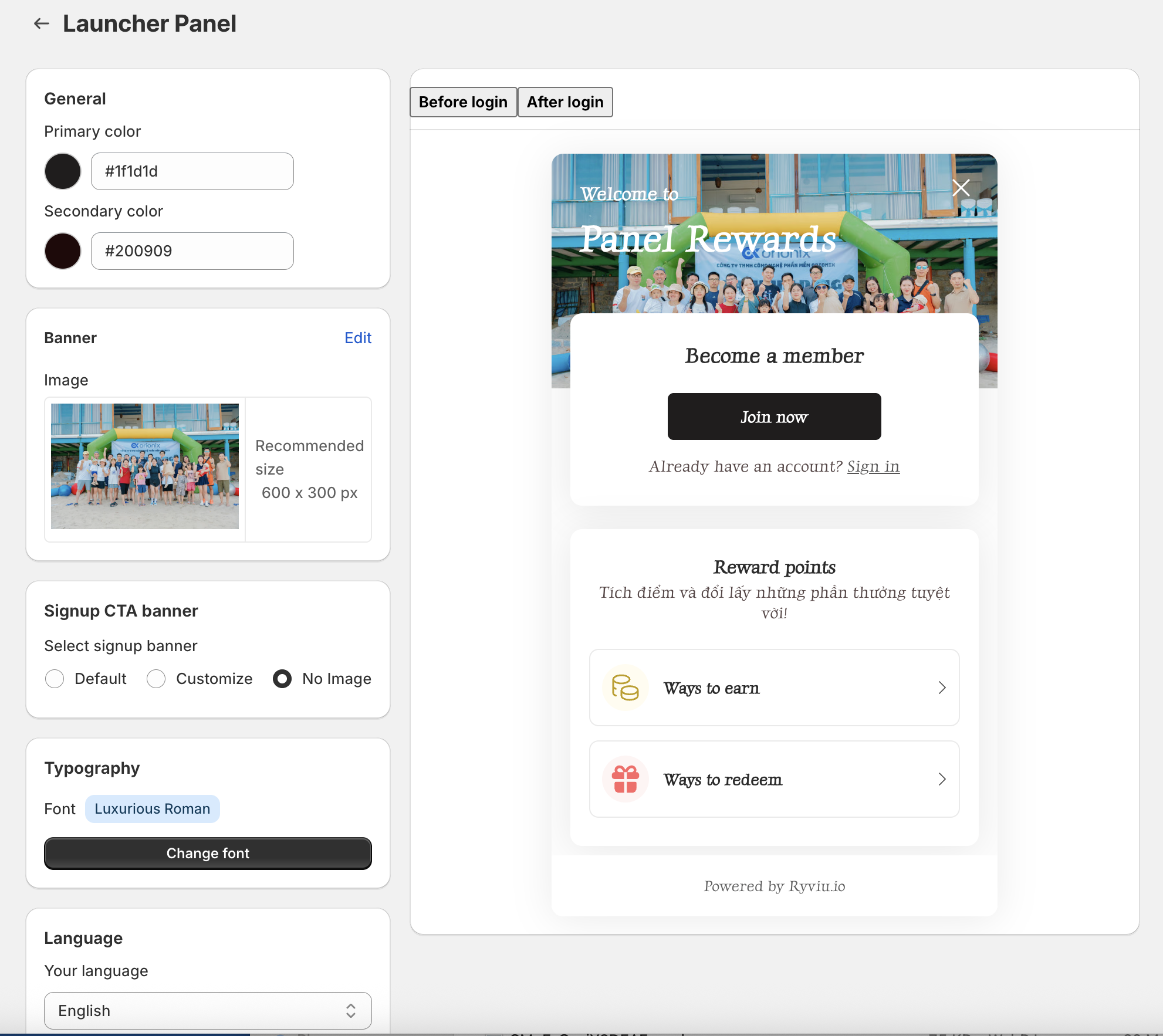
Primary color: Main color for the panel and buttons
Secondary color: Text and supporting content color
Banner: Image displayed at the top of the panel
Signup CTA banner: Image shown below the “Become a member” section
Typography: Choose the font family
Language: Select a language or customize text content
Display how many points customers can earn directly on product pages.
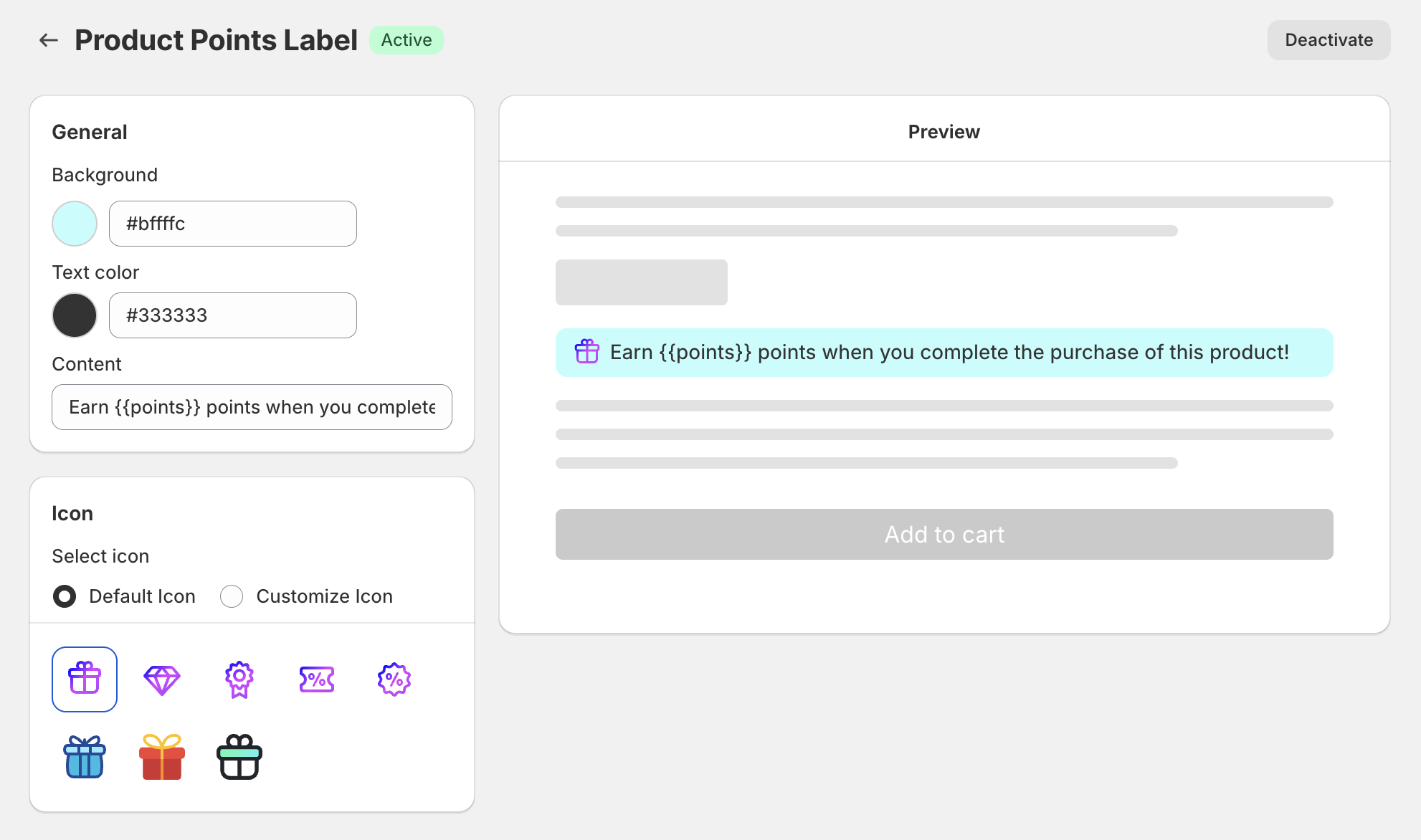
Text & colors: Set label content and styling
Icon: Choose or upload an icon
Status: Activate or deactivate the label
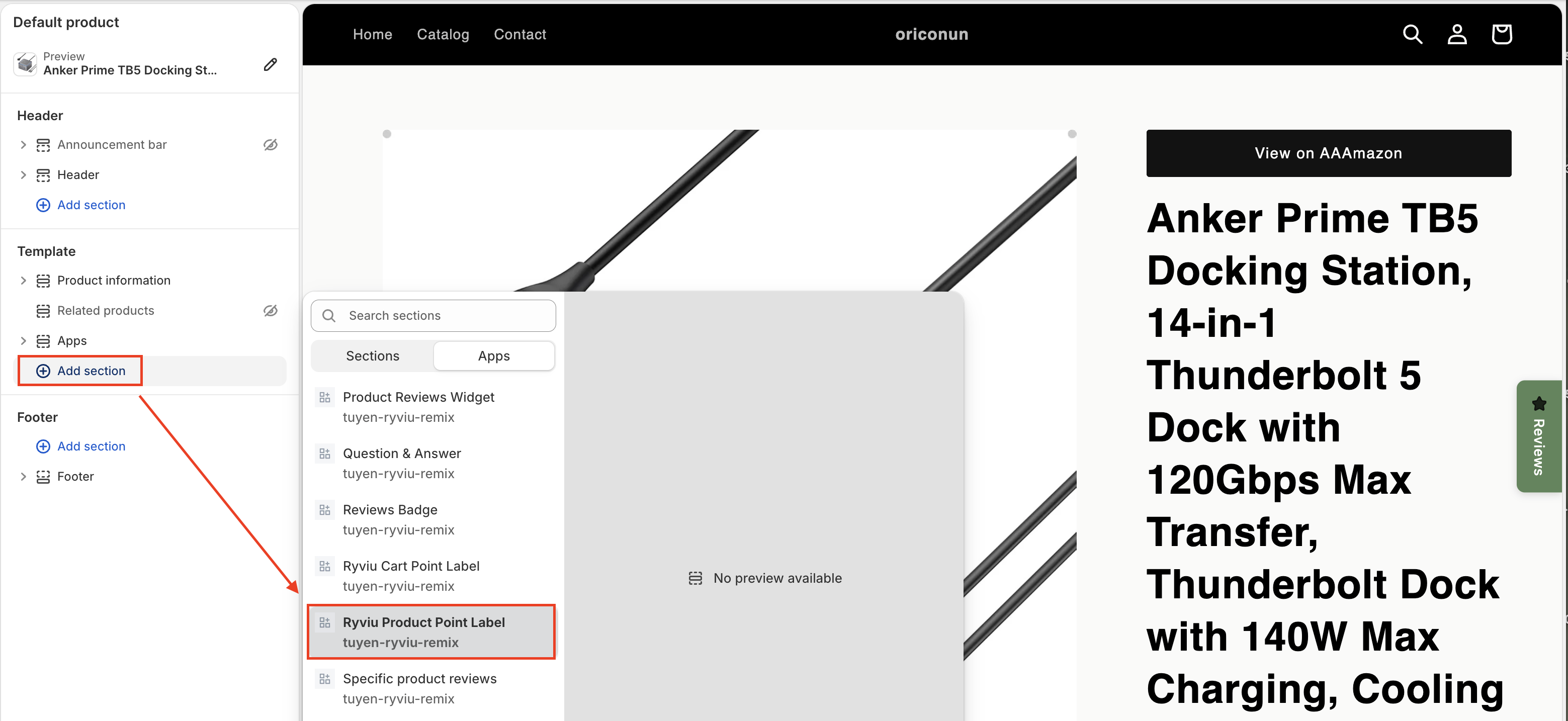
In Shopify admin, go to Online Store → Themes
Click Customize
Select a product template
Click Add block / Add section → Apps
Choose Ryviu Product Points Label
Drag and drop to your desired position
Click Save
Show how many points customers will earn in the cart.
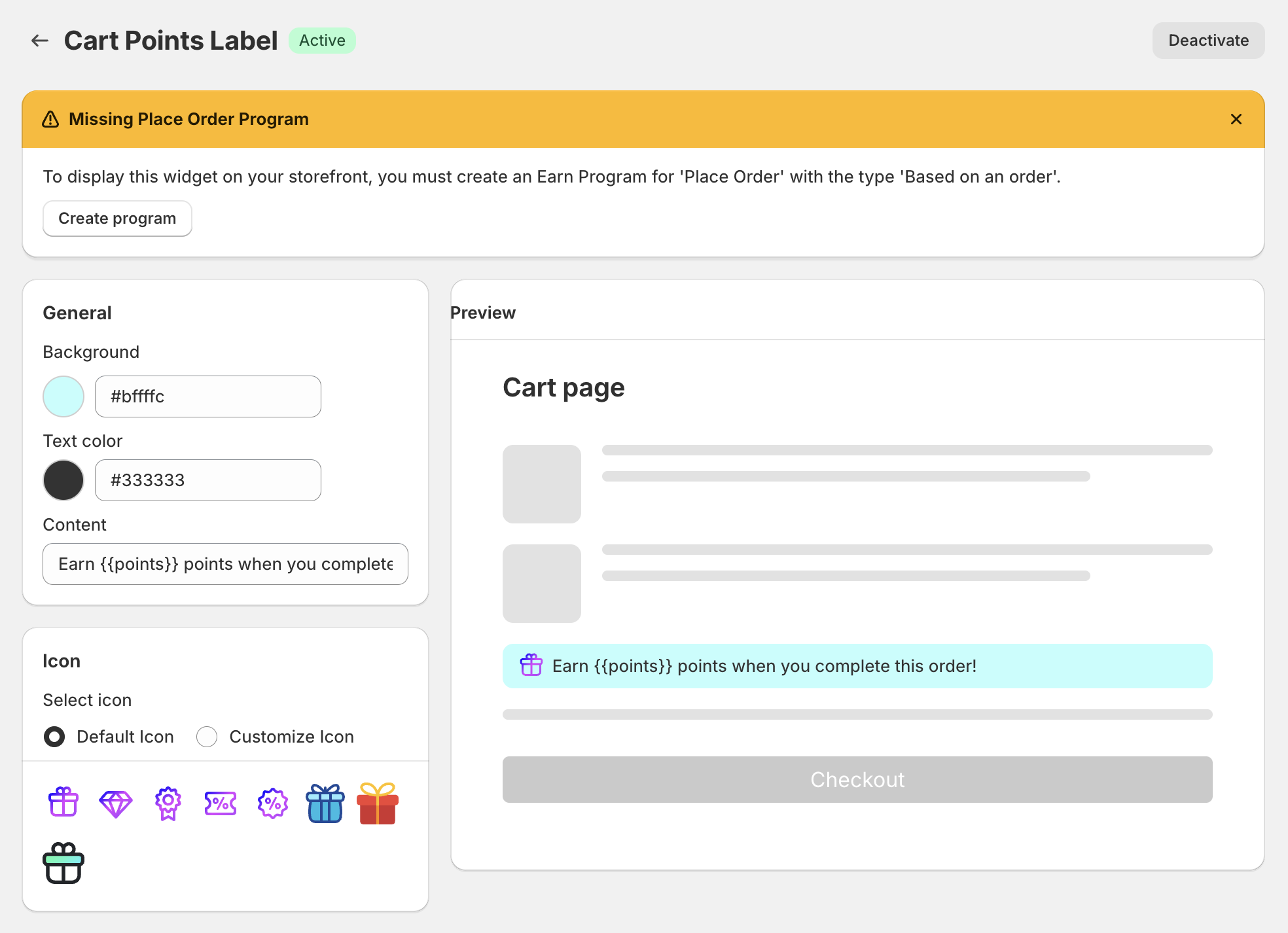
Text & colors
Icon
Status (Activate/Deactivate)
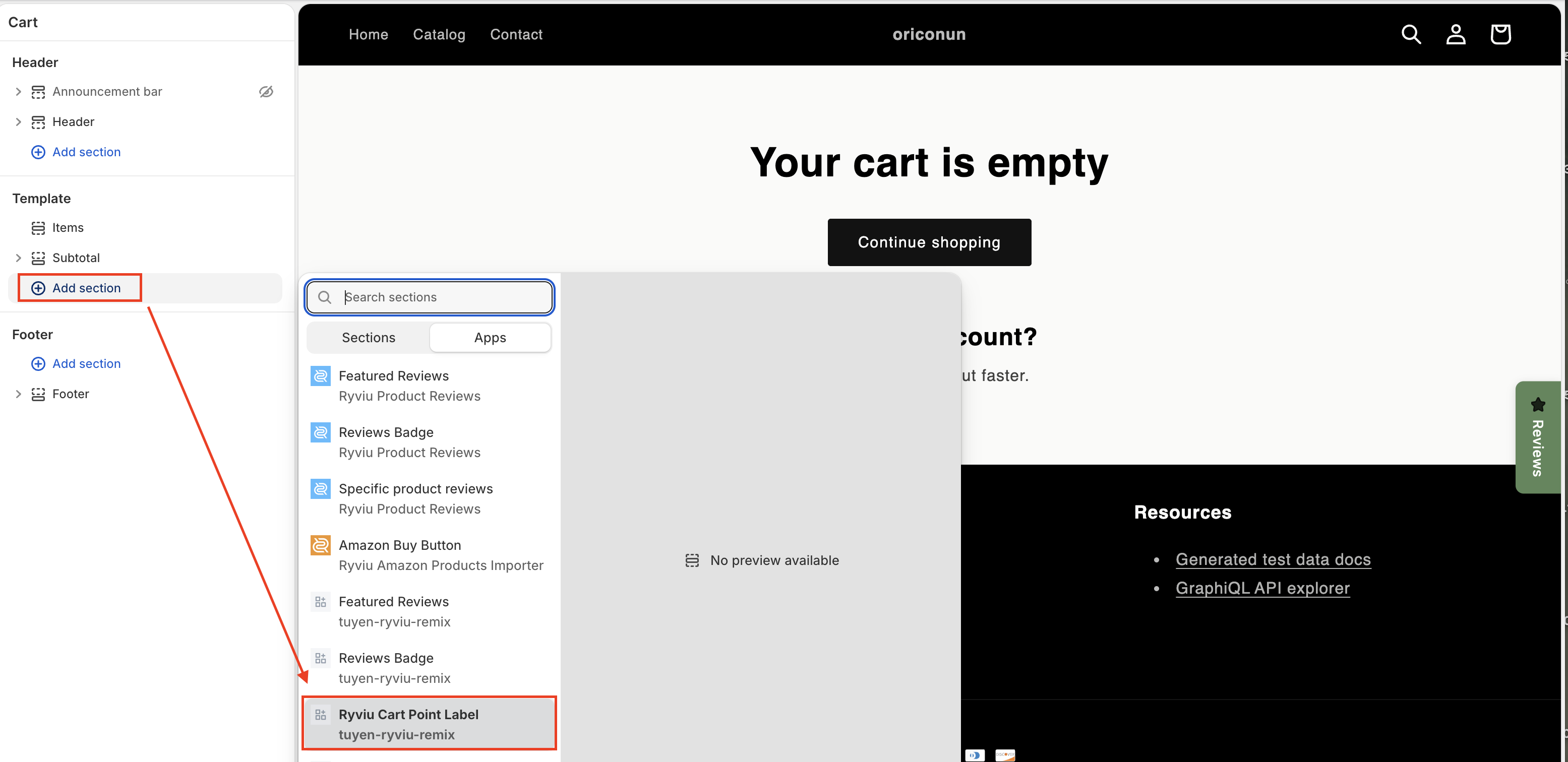
In Shopify admin, go to Online Store → Themes
Click Customize
Select the Cart page
Click Add block / Add section → Apps
Choose Ryviu Cart Points Label
Drag and drop to your desired position
Click Save
Remind customers to use their points before checkout.
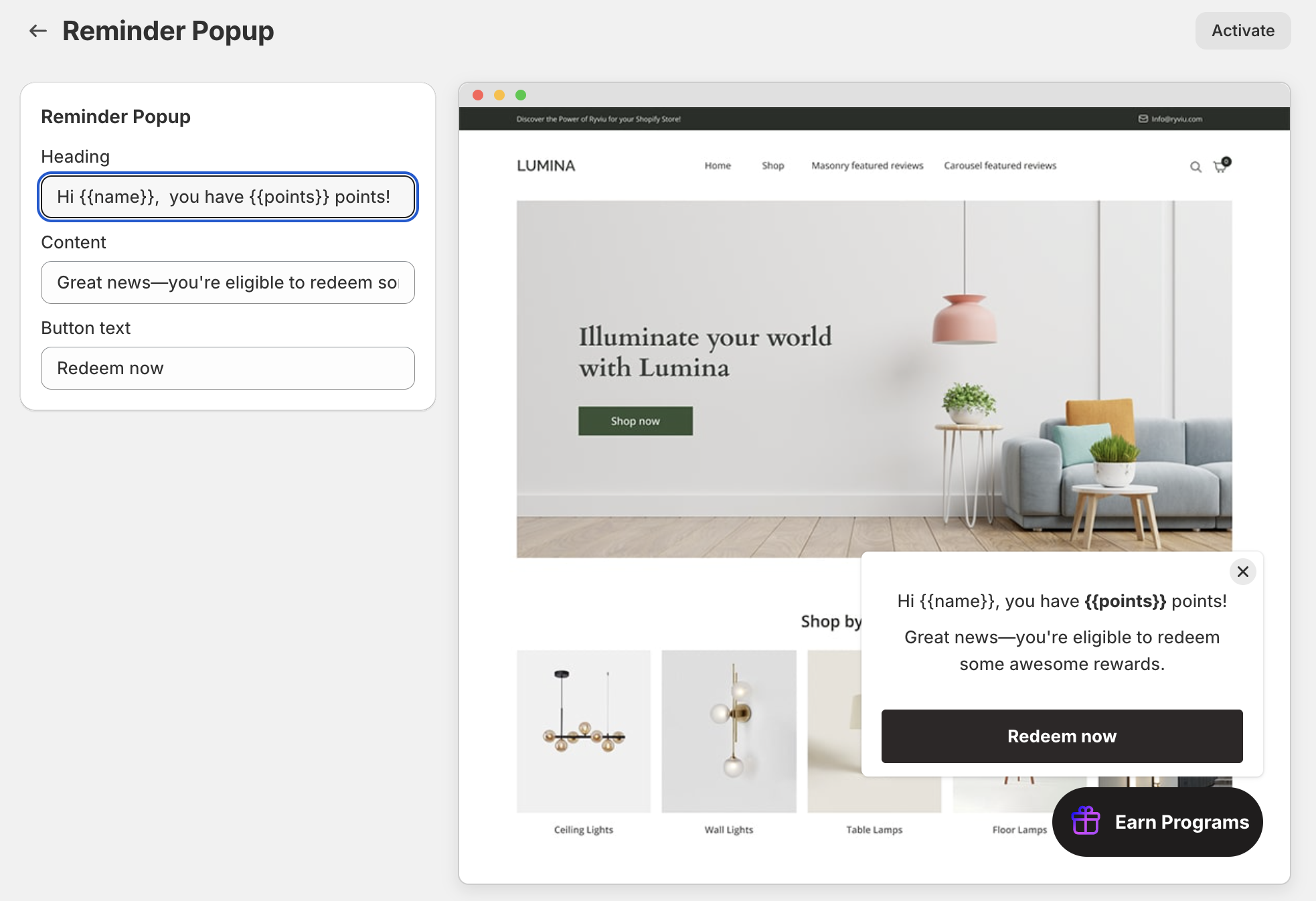
Edit the pop-up message
Preview changes in real time on the right panel
Need help?
Get in touch with our support team through live chat or email at [email protected]. We're here to help!