Product Groups lets you combine reviews from multiple Shopify products so they display the same reviews, total review count, and average rating.
This feature is useful when you have separate product listings for different colors or sizes of the same item.
View demo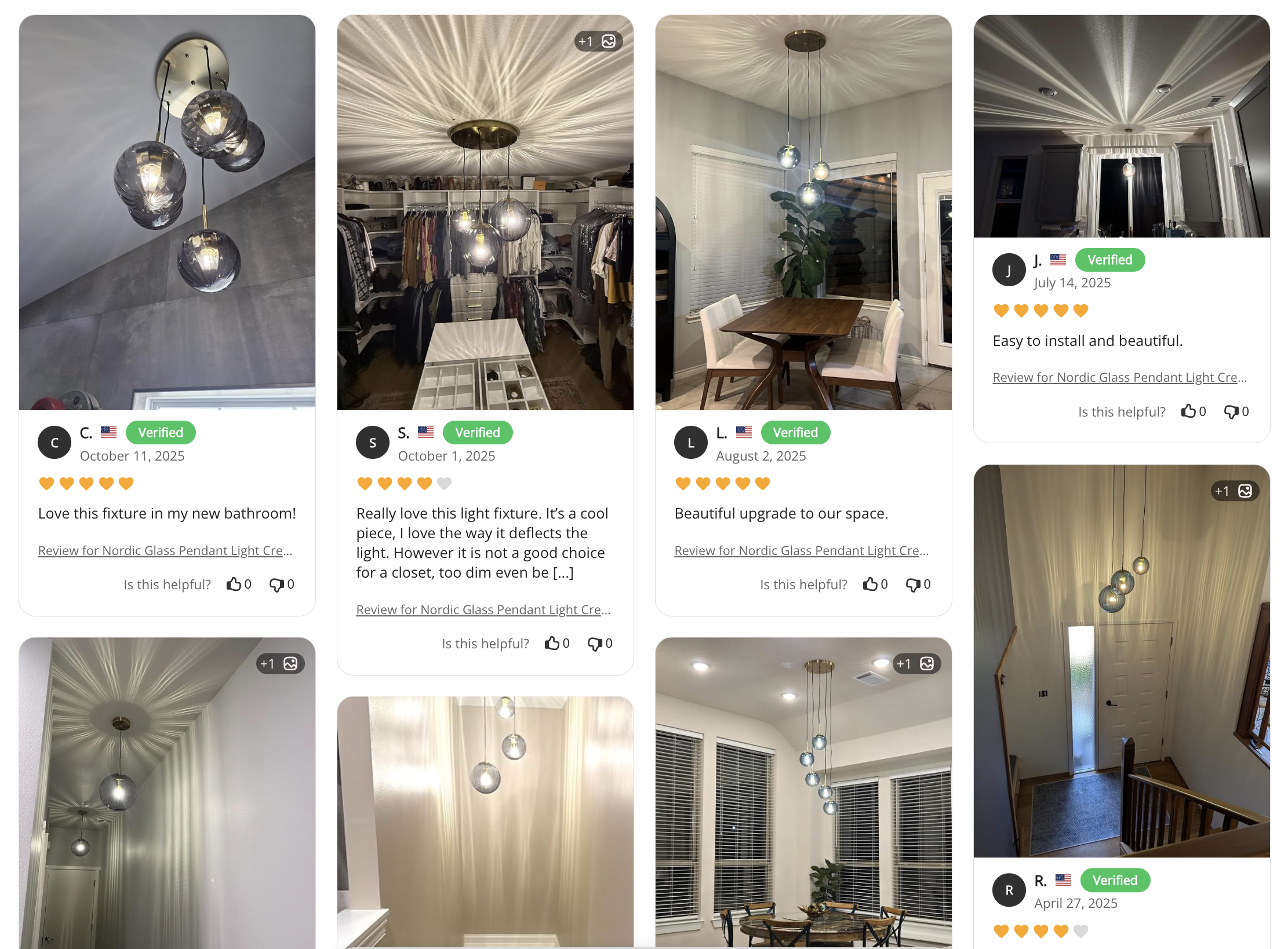
To create a product group, follow the steps below:
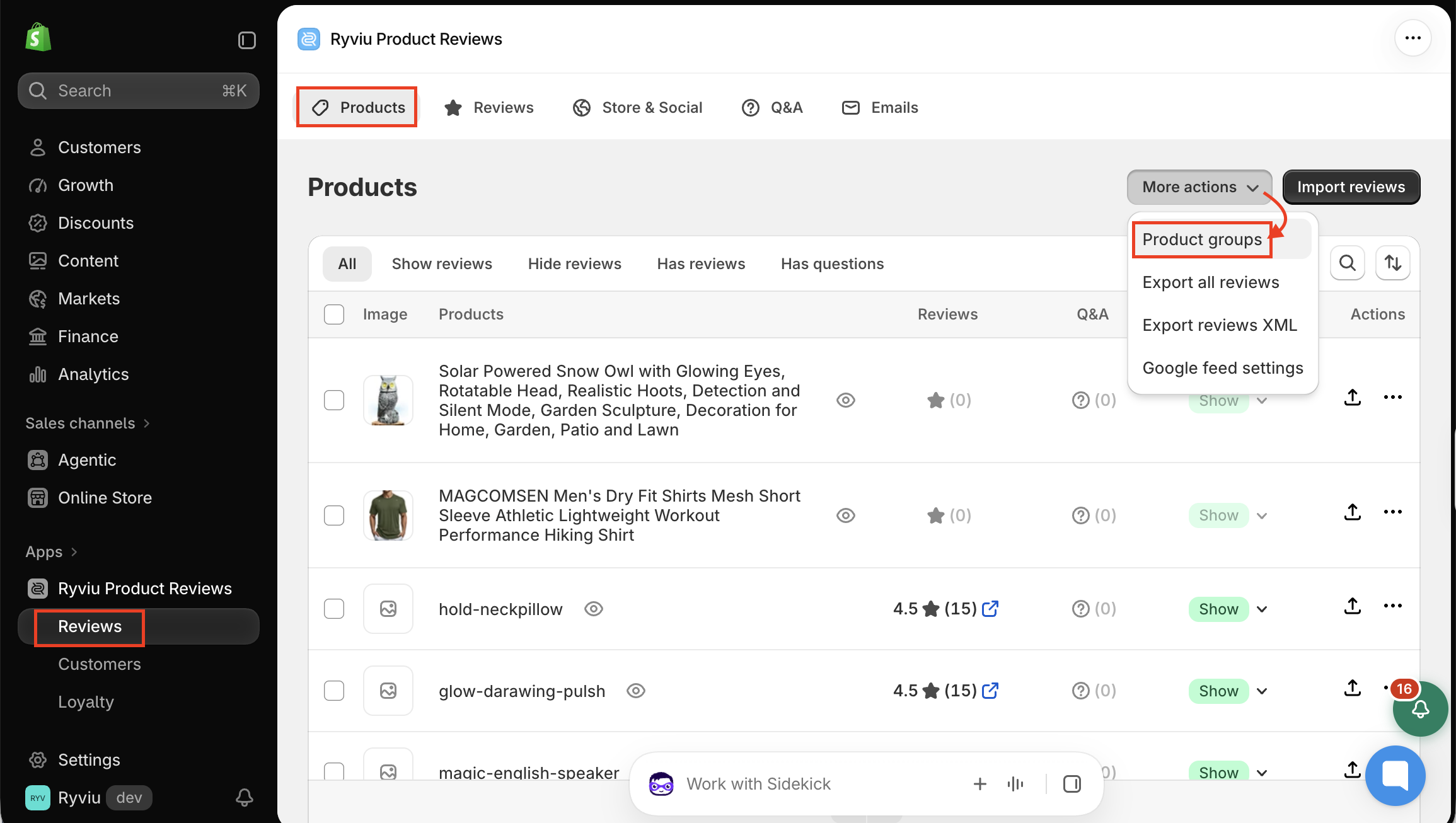
Step 1: In your Ryviu admin, go to Reviews → Products → More actions → Product groups.
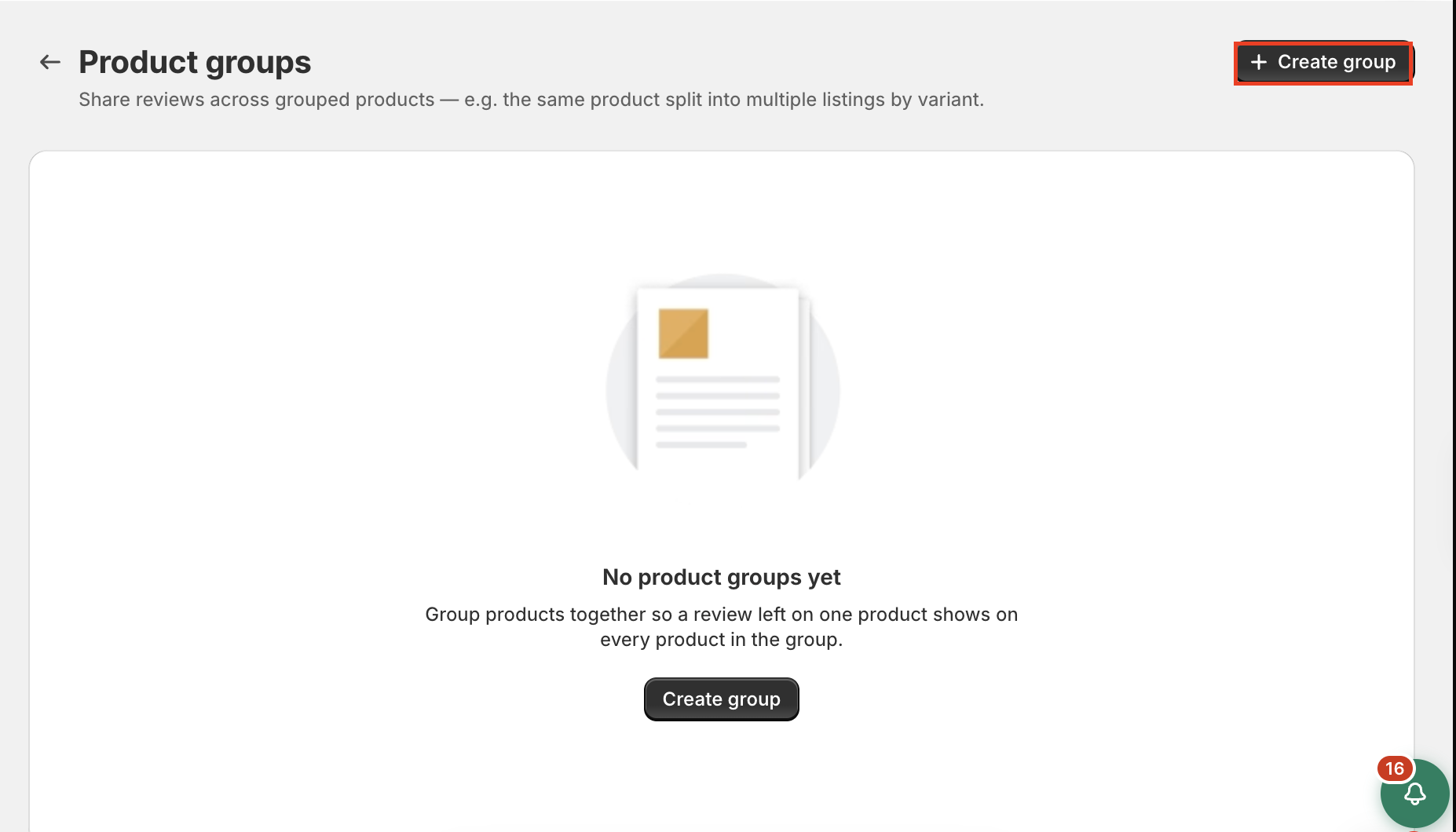
Step 2: Click Create group.
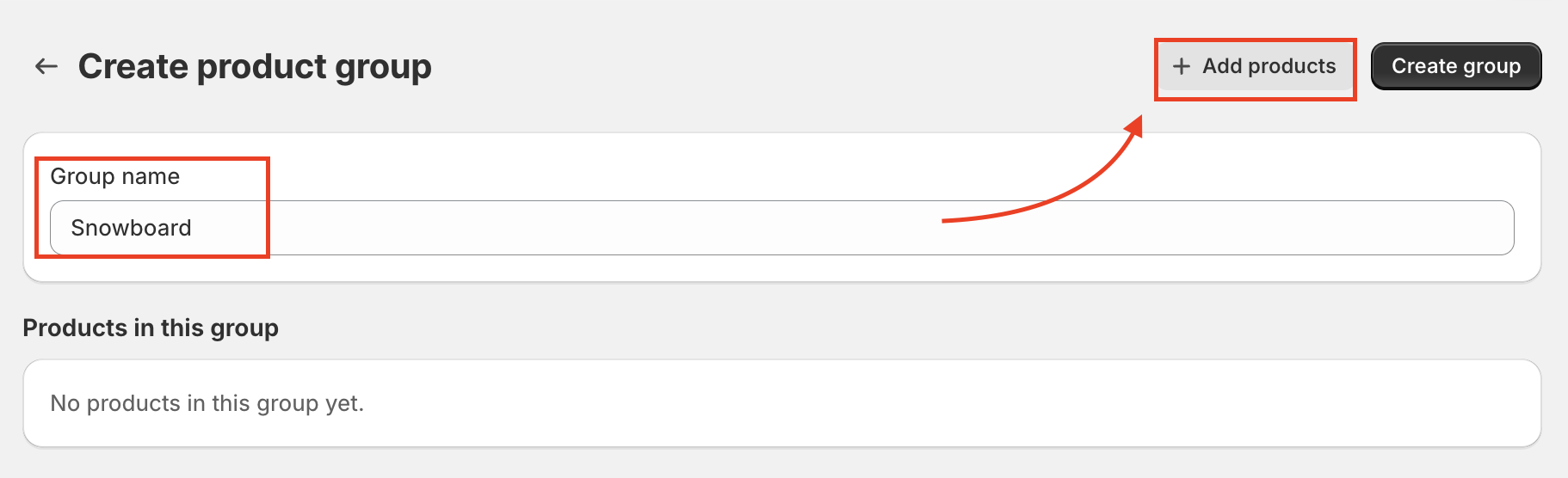
Step 3: Enter the group name, then click Add products to select products you want to group.
Step 4: Click Create group in the top-right corner to save your group.
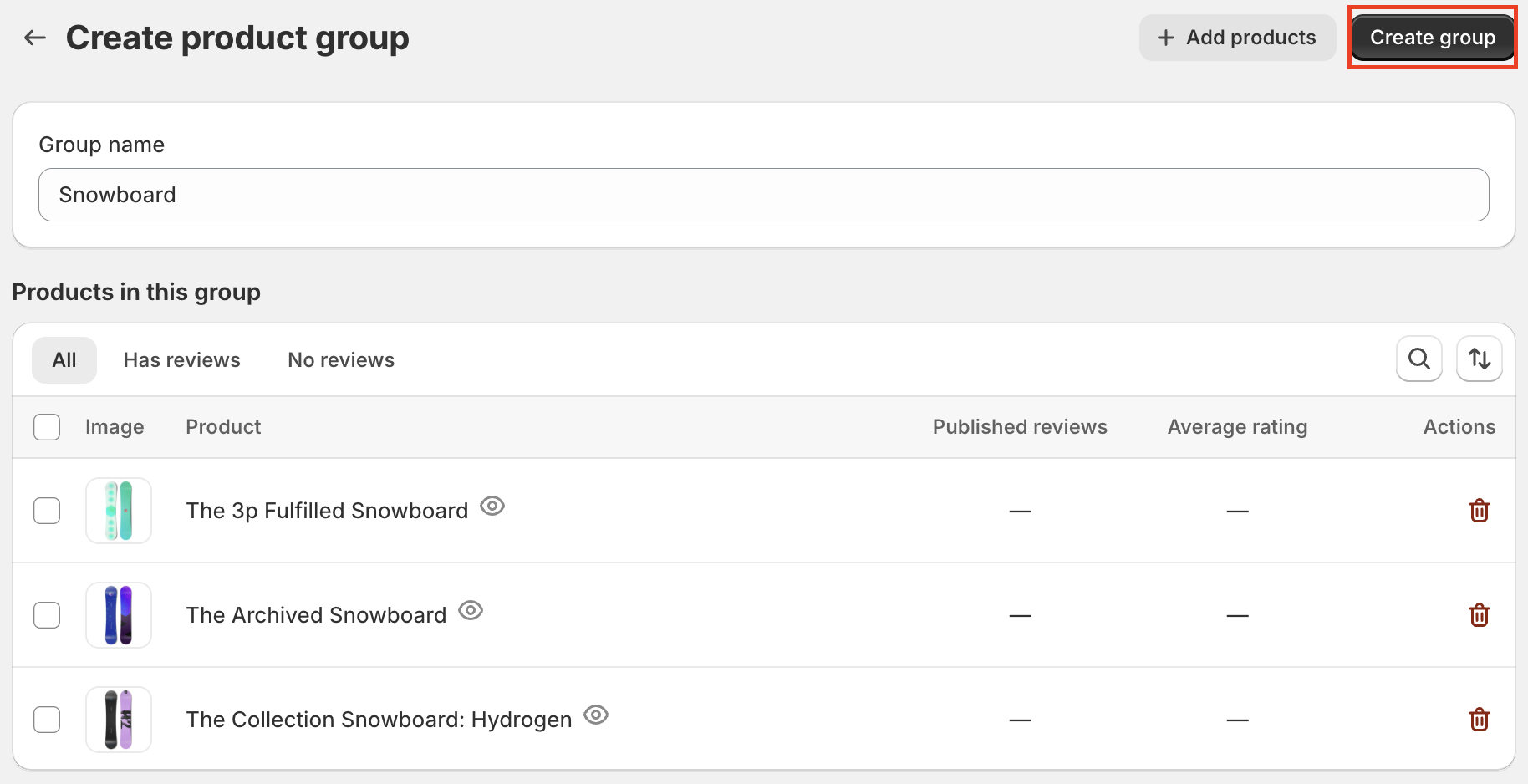
Once created, the products will share their published reviews and display the same total review count and average rating on your storefront. Reviews remain associated with their original products in Ryviu; they are not copied between products. Allow a short time for the changes to appear.
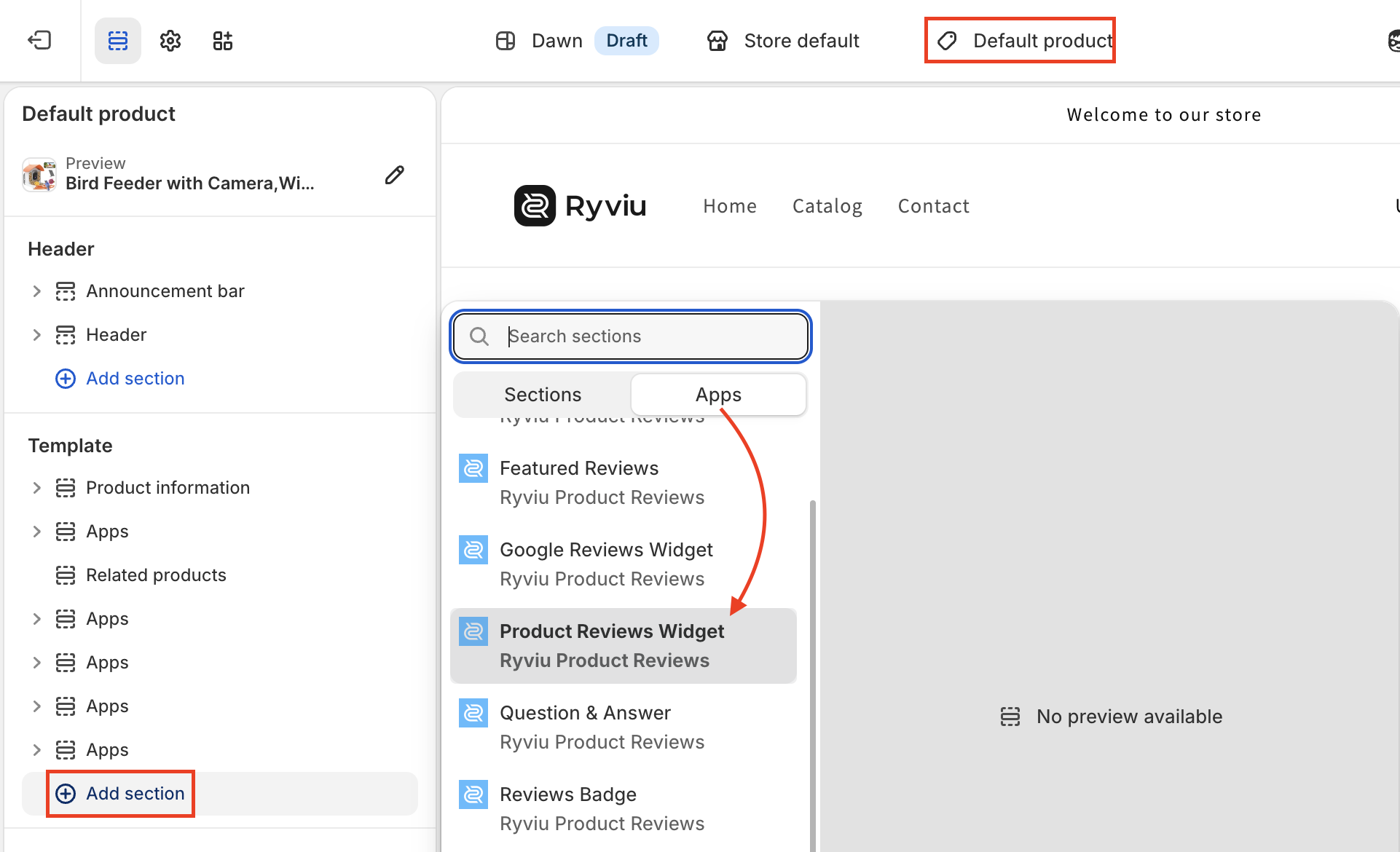
To display Product Group reviews on your storefront, add the Product Reviews Widget section and Star Ratings block to your Shopify product template as usual.
The Product Reviews Widget automatically displays the combined reviews, while Star Ratings displays the group's combined rating and review count. No additional configuration is required.
For setup instructions, see How to Install Ryviu Product Review Blocks for Shopify OS 2.0 Themes.
Open Product groups and click the group you want to manage. Changes are saved automatically.
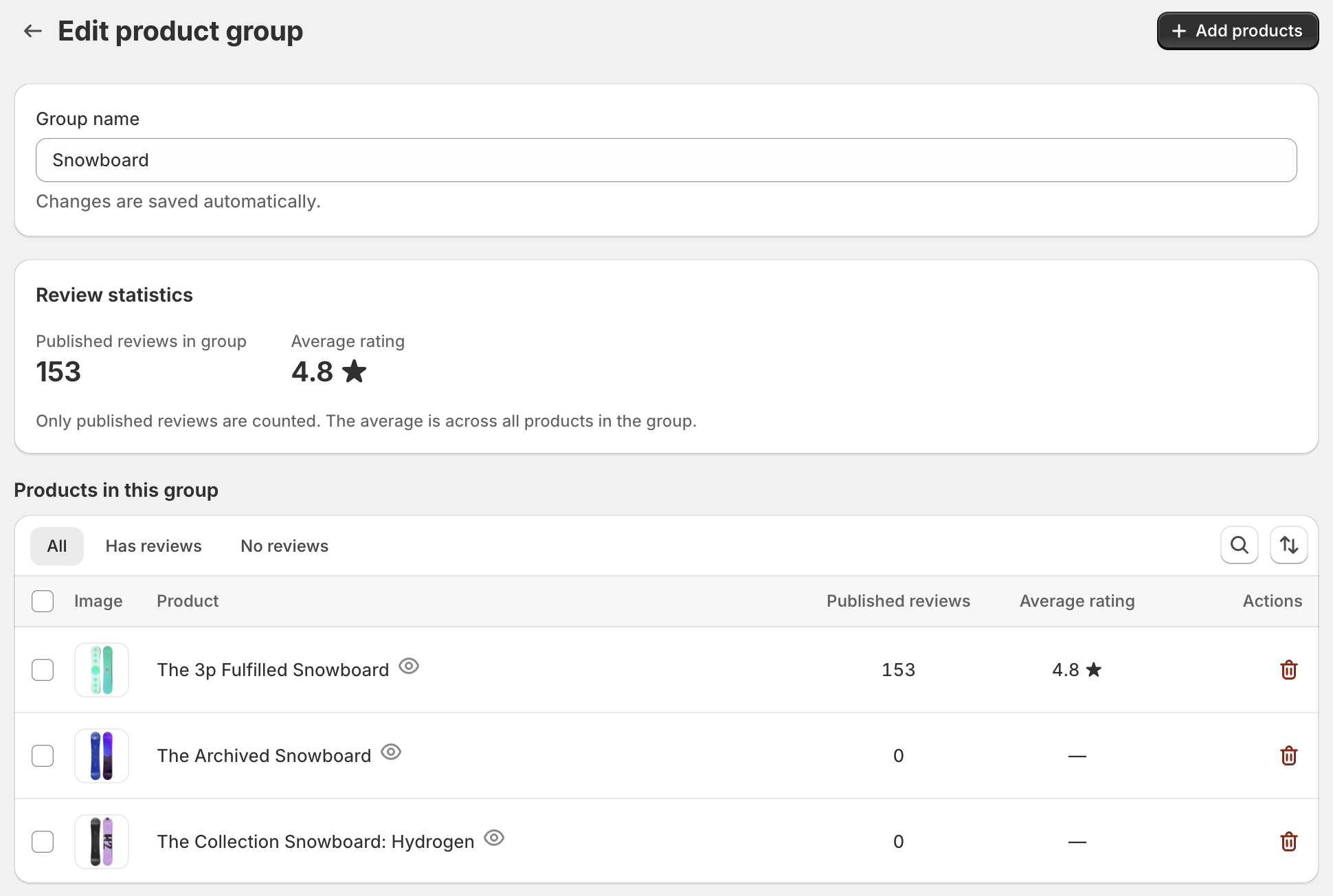
Rename a group: Edit the group name. Changes are saved automatically.
Add products: Click Add products, select the products, and click Add.
Remove products: Click the trash icon next to a product, or select multiple products and click Remove from group.
Delete a group: On the Product Groups list page, click the trash icon next to the group and confirm.
If you add a product that already belongs to another group, Ryviu will ask you to confirm moving it to the new group.
Important notes:
Each group must contain 2–50 products.
A product can belong to only one group at a time.
Removing a product or deleting a group does not delete its reviews.
If removing products leaves fewer than 2 in a group, Ryviu will prompt you to delete the entire group.
Reviews written for other products in the group display a small label below the review text, such as “Reviewed: [Product name]”. Shoppers can click the label to open that product.
To hide the label, disable the link, or change the wording, go to Widgets → Click Customize under Product reviews → Select the Settings tab → Sections → Grouped reviews.
You can manage the label and link settings here, and change the wording in the Language tab.
Questions & Answers and AI review summaries are not shared; they stay on each product.
Watch the video below to learn how to create and manage Product Groups in Ryviu.
Need help?
Get in touch with our support team through live chat or email at [email protected]. We're here to help!