company logo

Help Center

Go to Ryviu
HomePricingDashboardShopify AppWoocommerce Plugin
All collectionsShopifyRyviu Version 2.0How to set up an FAQ section on Shopify

How to set up an FAQ section on Shopify

Learn how to add an FAQ section to your Shopify store, manage FAQs, and customize the FAQ widget with Ryviu.

Yen Ma·November 3, 2026
info icon
This feature is available on paid plans — Ryviu version 2.0.

Ryviu's FAQ Widget lets you display frequently asked questions and answers on your storefront in an accordion layout.

View demo store
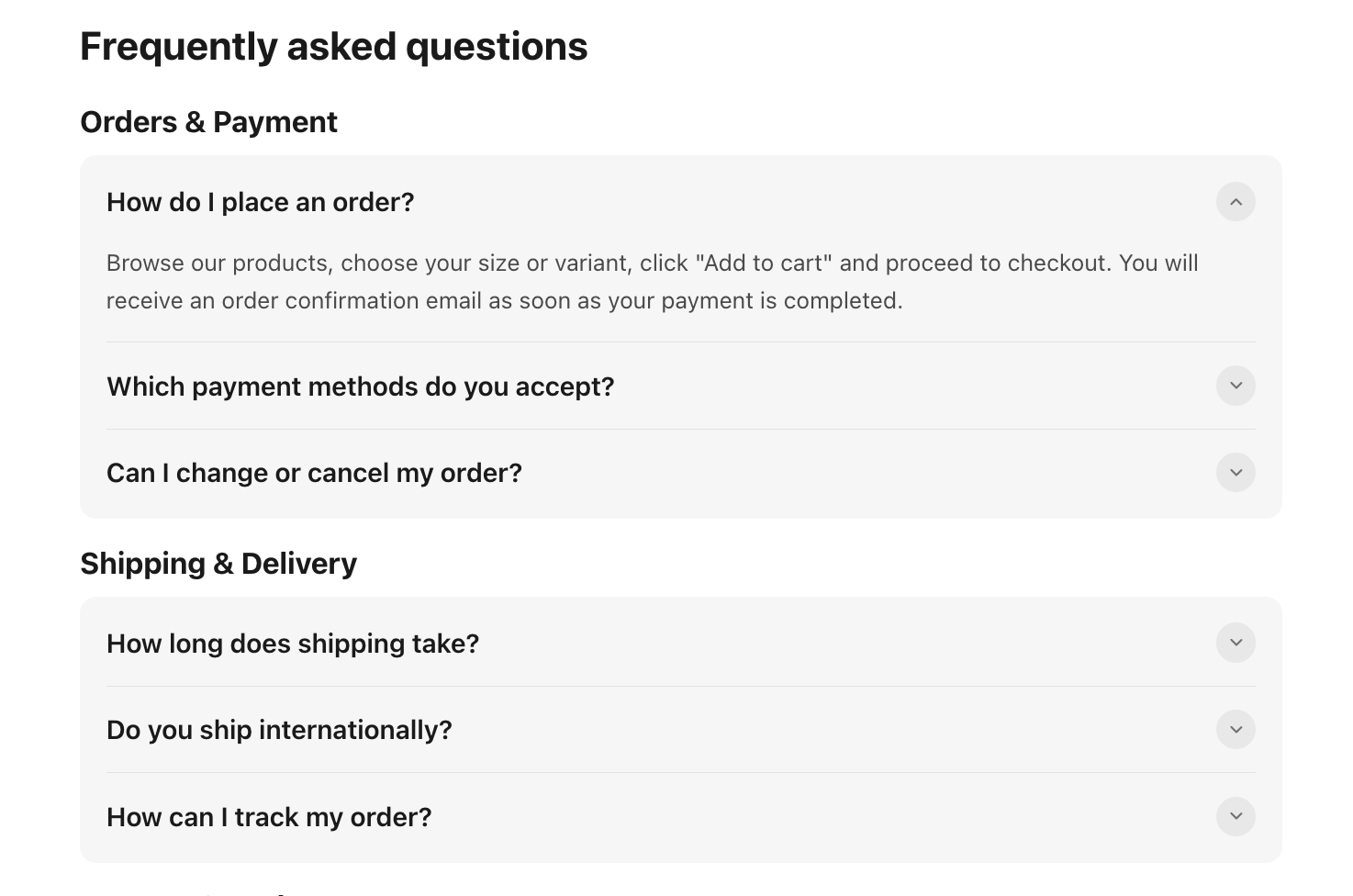
Frequently asked questions page showing Orders & Payment and Shipping & Delivery accordion sections, with “How do I place an order?” expanded. Visible: Frequently asked questions, Orders & Payment, How do I place an order?, Browse our products, choose your size or variant, click "Add to cart" and pr

1. How to Add an FAQ Section to Your Shopify Store

First, add the FAQ widget to your Shopify theme by following these steps:

  1. From your Shopify admin, go to Online Store → Themes.

  2. Find the theme you want to edit and click Edit theme.
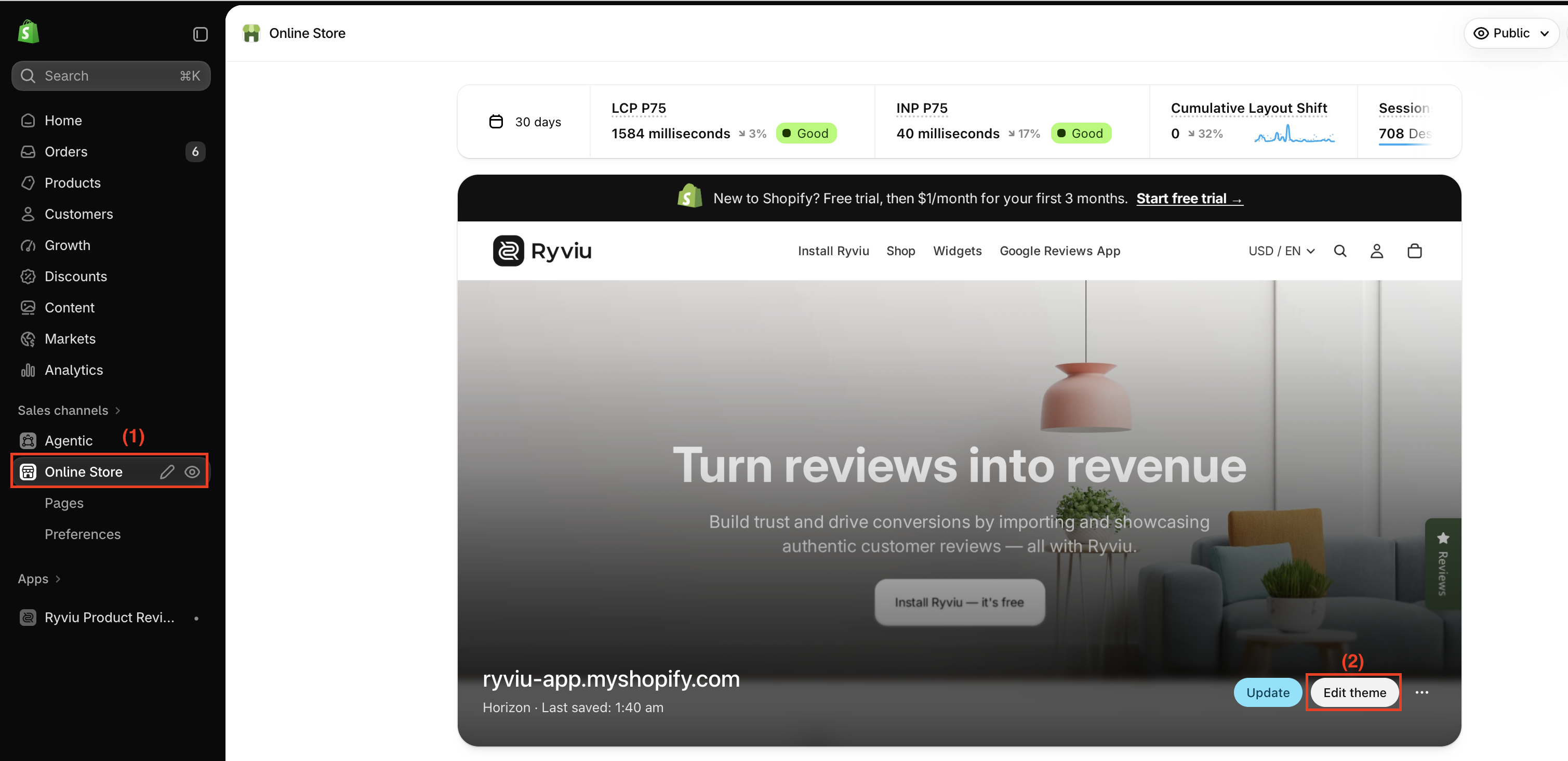
Shopify admin Online Store sales channel shows a storefront preview; red boxes highlight Online Store in the sidebar and the Edit theme button. Visible: Online Store, Pages, Preferences, Edit theme, Update, Public.
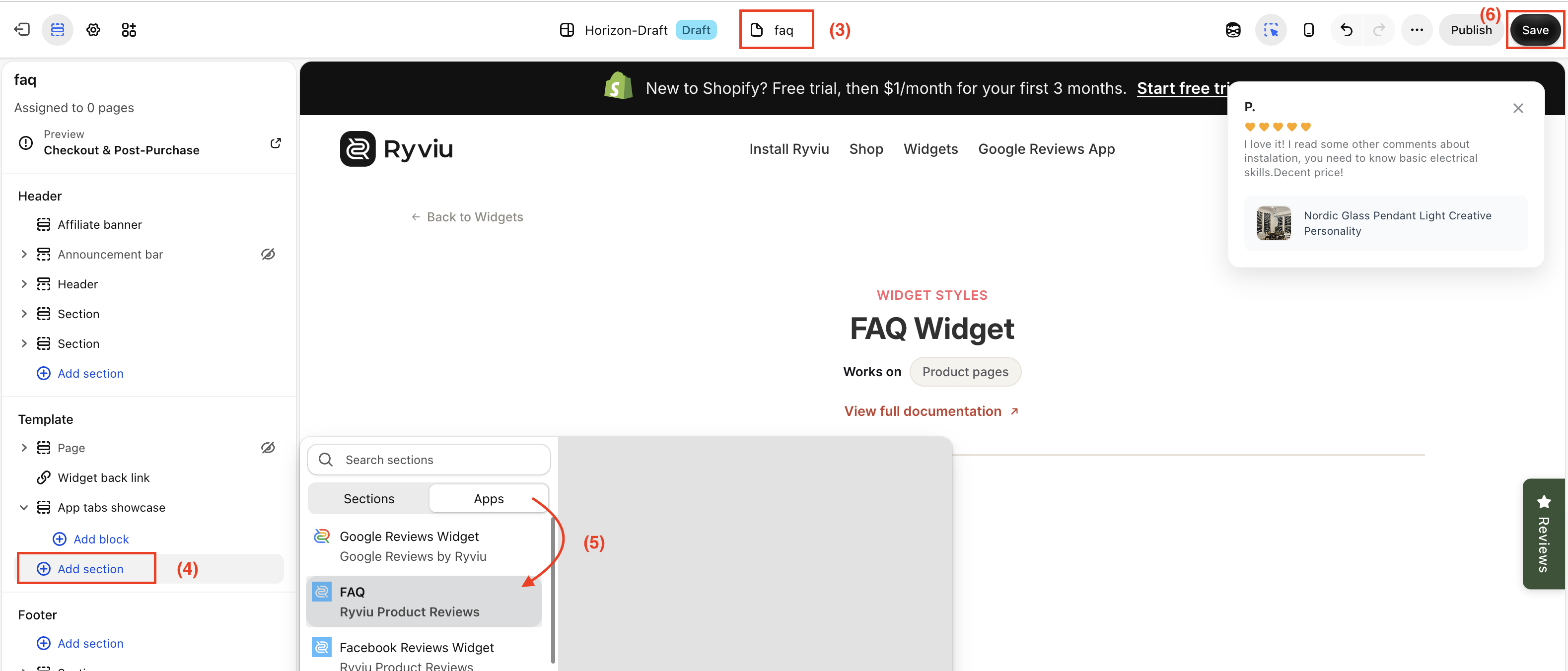
  1. Select the page where you want to display the FAQ section, such as your homepage.

  2. Click Add section.

  3. Open the Apps tab and select FAQ.

  4. Click Save to apply your changes.

Shopify theme editor showing the FAQ widget preview and the Apps section picker, with an arrow pointing to the FAQ app entry and Add section highlighted. Visible: faq, Horizon-Draft, Draft, Save, Assigned to 0 pages, Preview.

Finally, visit your storefront to make sure the FAQ section is displayed correctly.

2. How to create and manage FAQs

After adding the FAQ widget, you can create questions and answers and organize them into categories from your Ryviu dashboard.

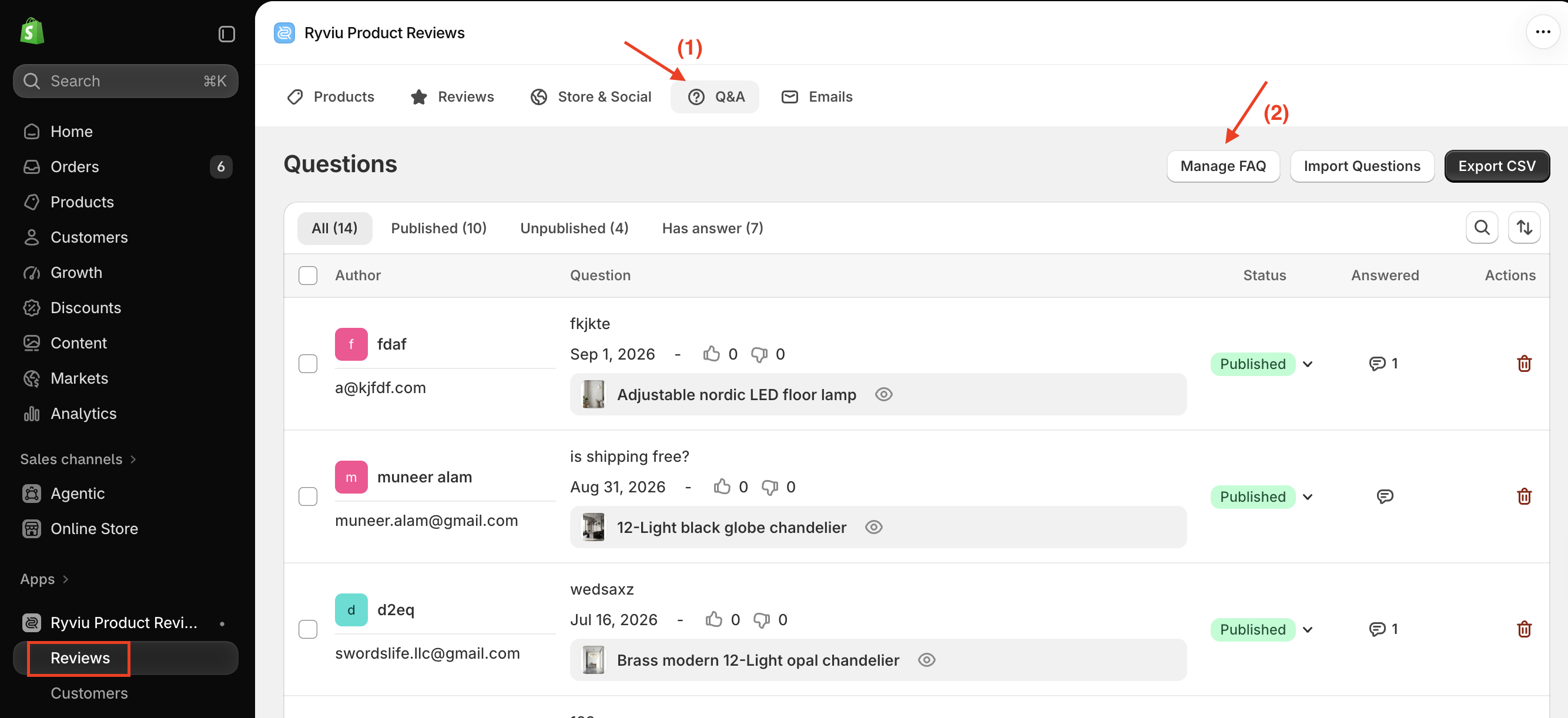
  1. Go to Reviews, select Q&A.

  2. Click Manage FAQ.

Ryviu Product Reviews Q&A Questions screen with arrows pointing to the Q&A tab and FAQ/import/export controls, and a red box highlighting Reviews in the sidebar. Visible: Ryviu Product Reviews, Products, Reviews, Store & Social, Q&A, Emails.
  1. Click Manage categories to add a category name, then click Add.

  2. Click Add FAQ to create your questions and answers.
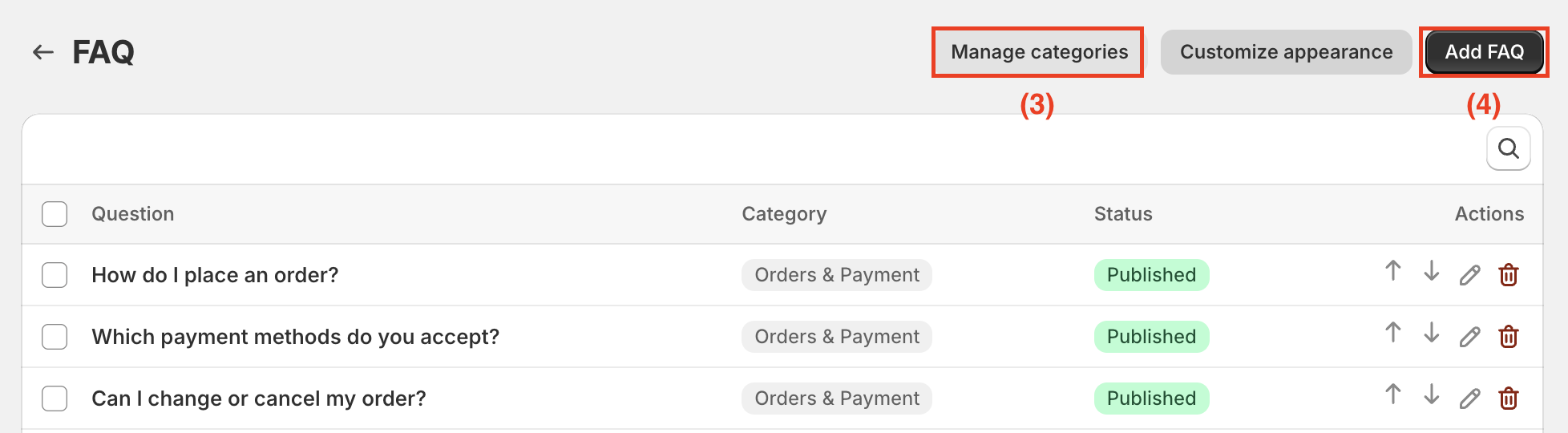
FAQ management screen lists questions with categories, published status, and row actions; red boxes highlight Manage categories and Add FAQ. Visible: FAQ, Manage categories, Customize appearance, Add FAQ, Question, Category.

You can also manage your FAQs using the following options:

  • Manage categories: Add, rename, reorder, or delete categories.
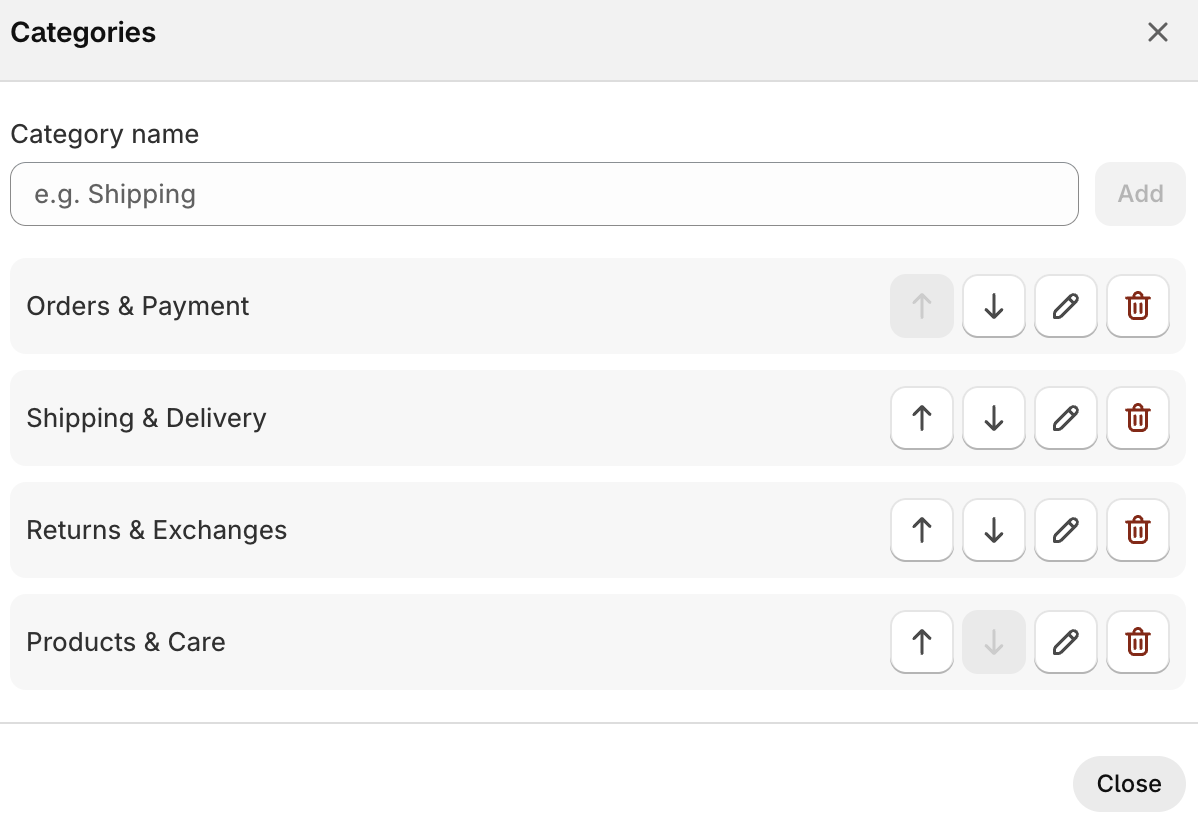
Categories management dialog with a category name field, Add button, and four reorderable category rows with edit and delete controls. Visible: Categories, Category name, e.g. Shipping, Add, Orders & Payment, Shipping & Delivery.
  • Publish/Unpublish: Change an FAQ's visibility using its status badge.

  • Reorder: Use the arrow buttons to move FAQs up or down.

  • Search: Find FAQs by question or answer.

  • Bulk actions: Publish, unpublish, or delete multiple FAQs at once.
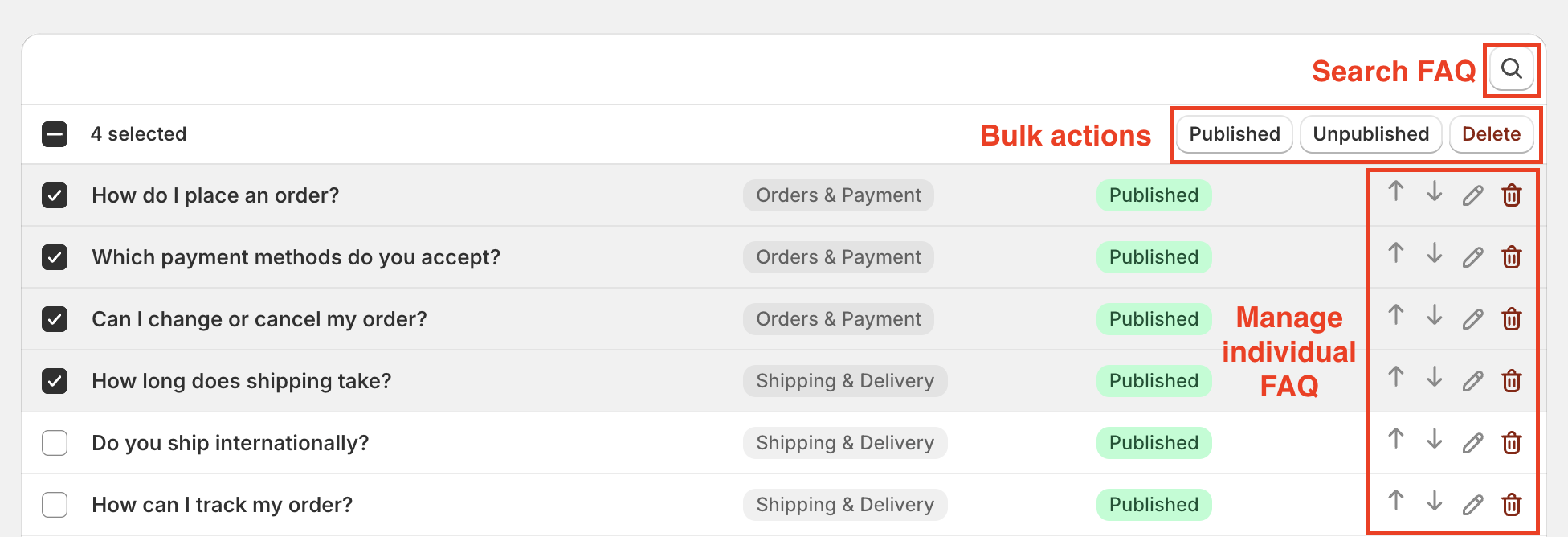
FAQ management list shows six questions with category and Published status; red callouts mark Search FAQ, bulk actions, and individual FAQ controls. Visible: Search FAQ, 4 selected, Published, Unpublished, Delete, How do I place an order.

3. FAQ Widget Settings

You can customize the FAQ widget's appearance, colors, and translations to match your storefront.
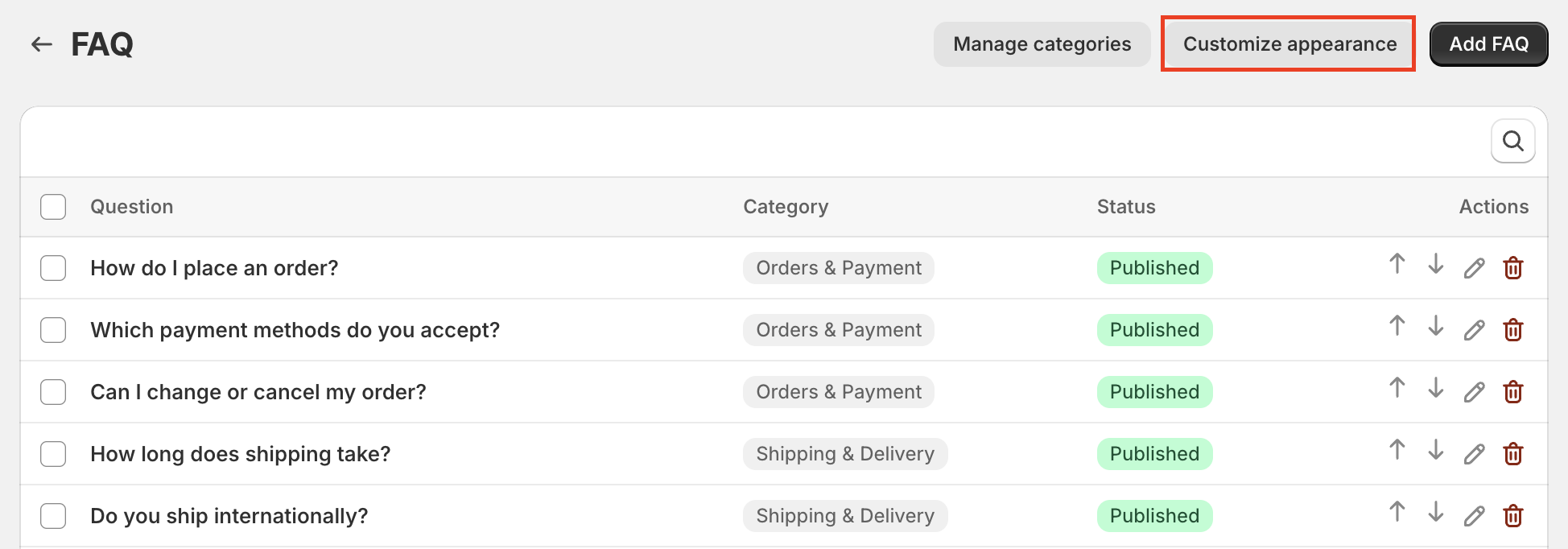
FAQ management screen lists questions by category and published status; a red outline highlights the Customize appearance button. Visible: FAQ, Manage categories, Customize appearance, Add FAQ, Question, Category.

For detailed instructions, check our guide: FAQ Widget Settings.
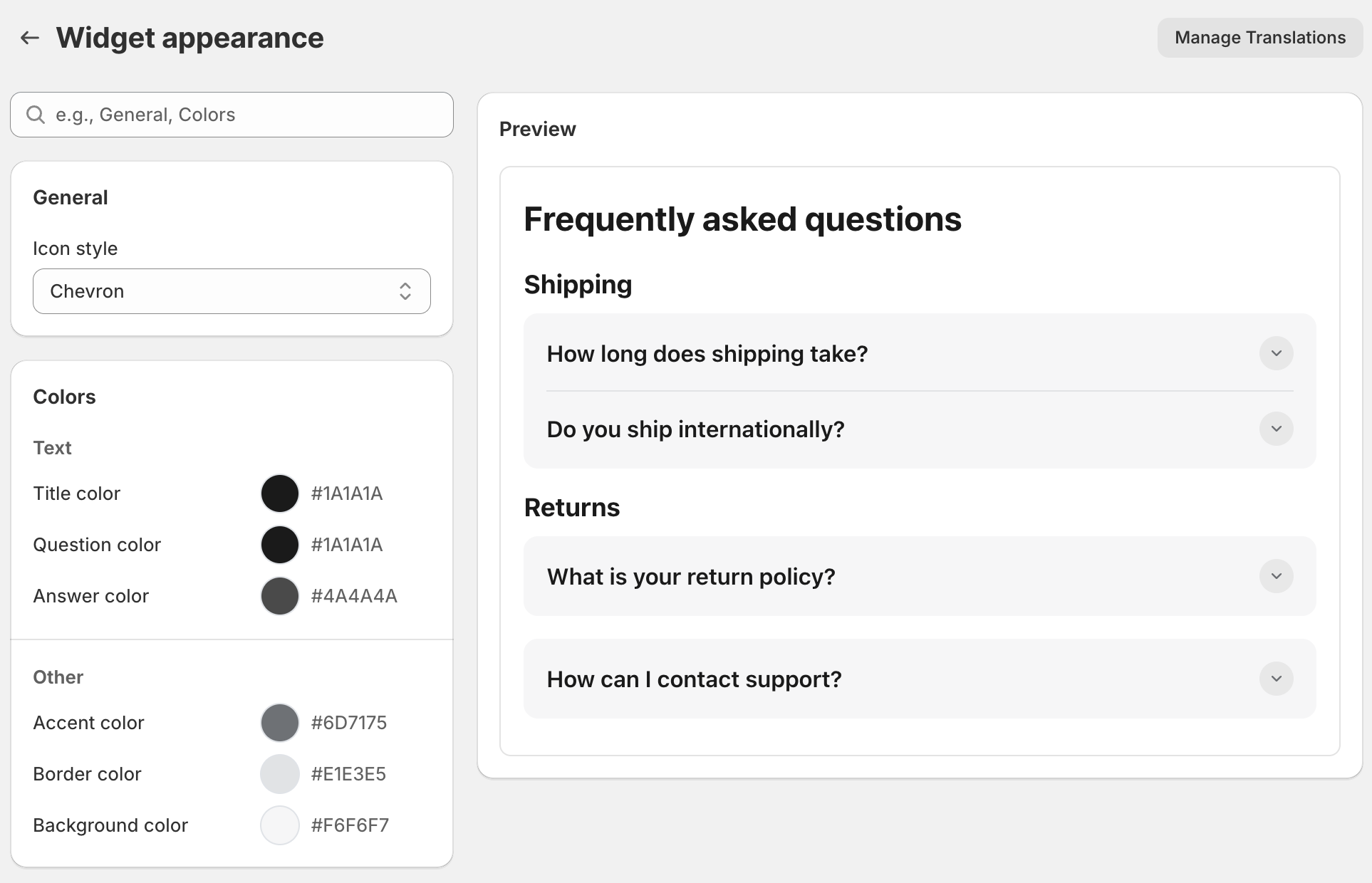
Widget appearance settings screen shows General and Colors controls on the left and a preview of a Frequently asked questions accordion on the right. Visible: Widget appearance, Manage Translations, General, Icon style, Chevron, Colors.

Need help?

Get in touch with our support team through live chat or email at [email protected]. We're here to help!

Did this answer your question?
😞
😐
😁