The Fontify app may override Ryviu icon fonts and styles, causing some elements to display incorrectly.
You may notice issues such as:
Misshapen star ratings
Incorrect verified badge icons
Broken pop-up close (“X”) buttons
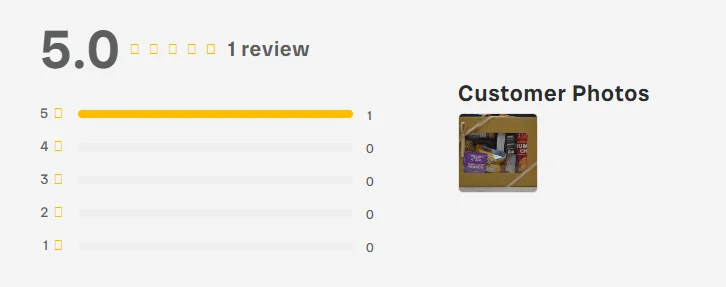
Follow these steps to exclude Ryviu icons from Fontify styling.
Step 1: Open the Fontify dashboard.
Step 2: Go to the Fonts section and add the following code to the Custom Elements box:
:not(em[class*="ryviu-icon"]):not(span[class*="Ry-Icon"]):not([class*="r-icon"]):not([class*="r--stars-icon"])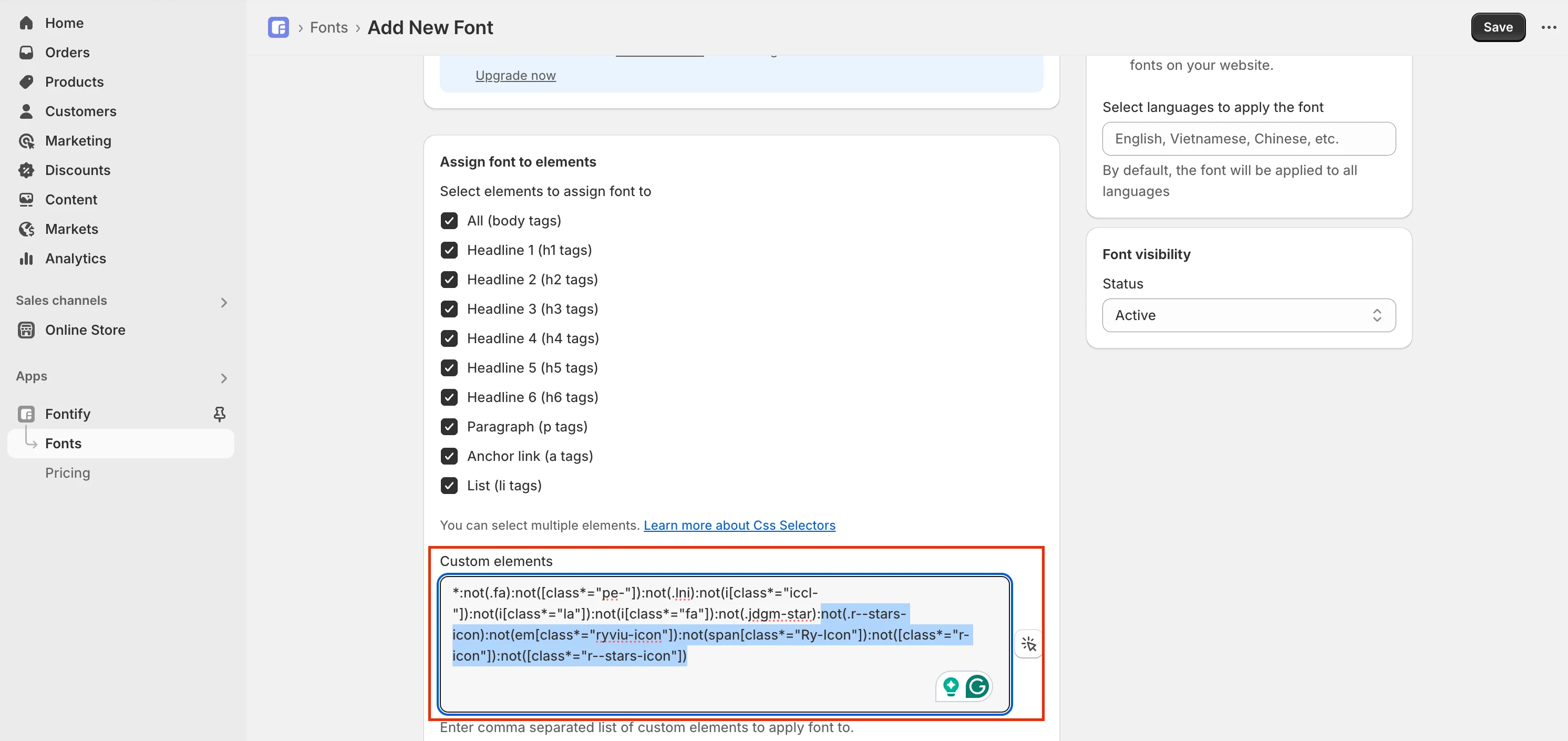
Step 3: Click Save to apply the changes.
This issue usually happens because the Ryviu App Embed is disabled in your Shopify theme.
As a result:
The star color may not update correctly
The total reviews text may not display properly
Translation settings may not apply
Please follow these steps:
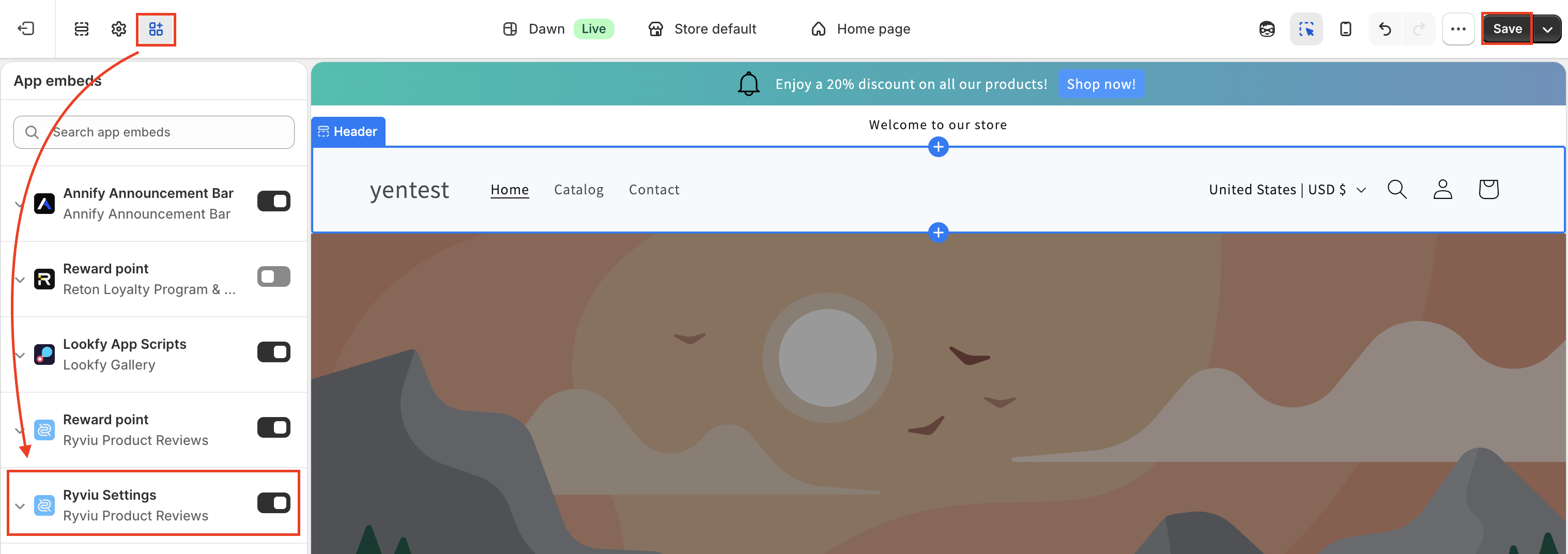
Step 1: Go to Shopify Admin → Online Store
Step 2: In your current theme, click Customize
Step 3: Open App embeds
Step 4: Turn on Ryviu Settings
Step 5: Save the changes
Need help?
Get in touch with our support team through live chat or email at [email protected]. We're here to help!