Setting up Ryviu is quick and easy. Follow this guide to enable our widgets and start showcasing social proof on your store in minutes.
Go to the Shopify App Store and search for Ryviu.
Click Install, then confirm the installation in your Shopify admin dashboard.
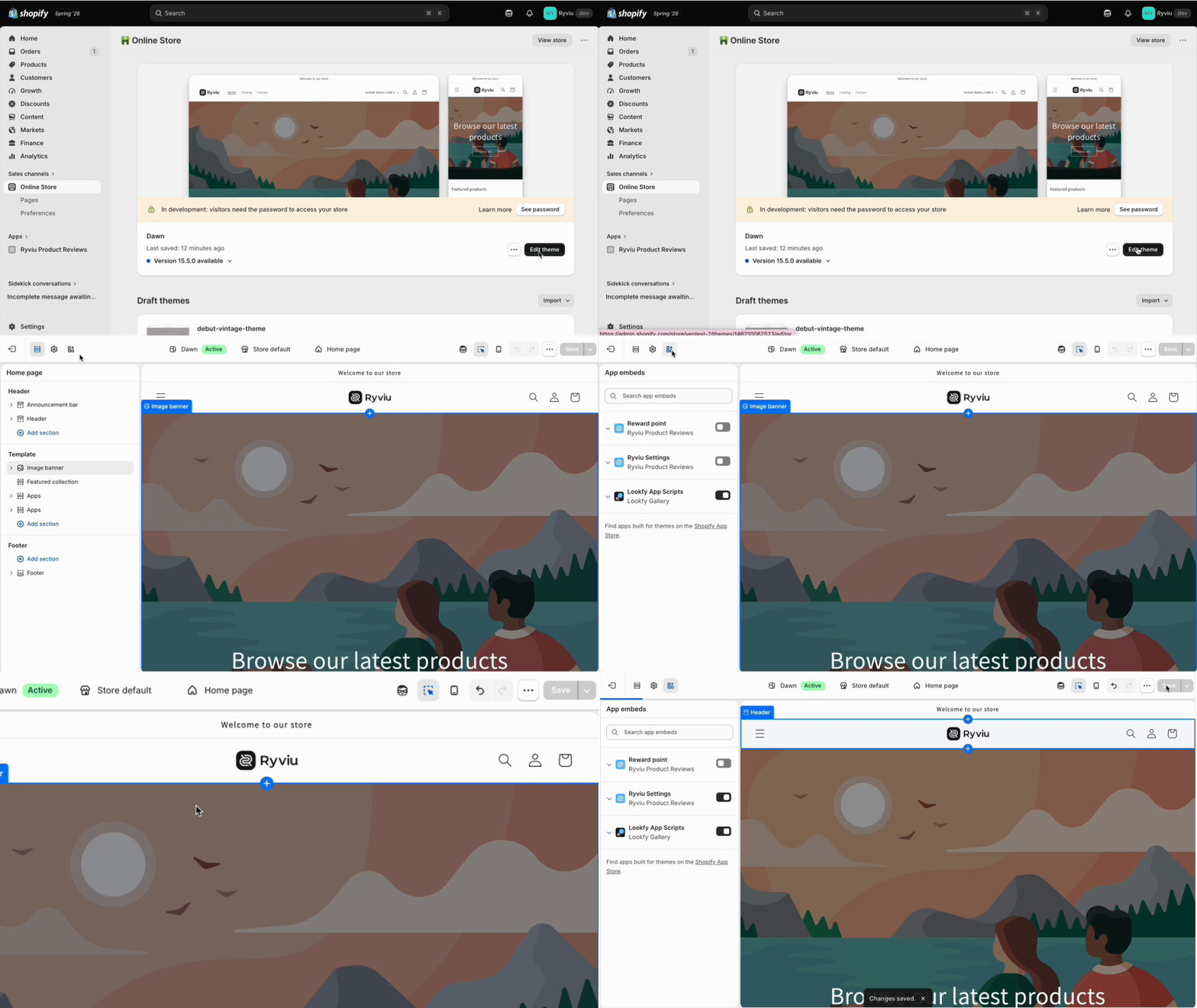
From your Shopify admin, navigate > Sales channels > Online Store
In the current theme > Edit themes.
On the left sidebar, click the App embeds icon.
Toggle on the Ryviu settings.
CRITICAL: Click the Save button in the top right corner.
Note: If you don't click Save, the widgets won't appear on your storefront.
Now you can choose where to display your reviews and star ratings.
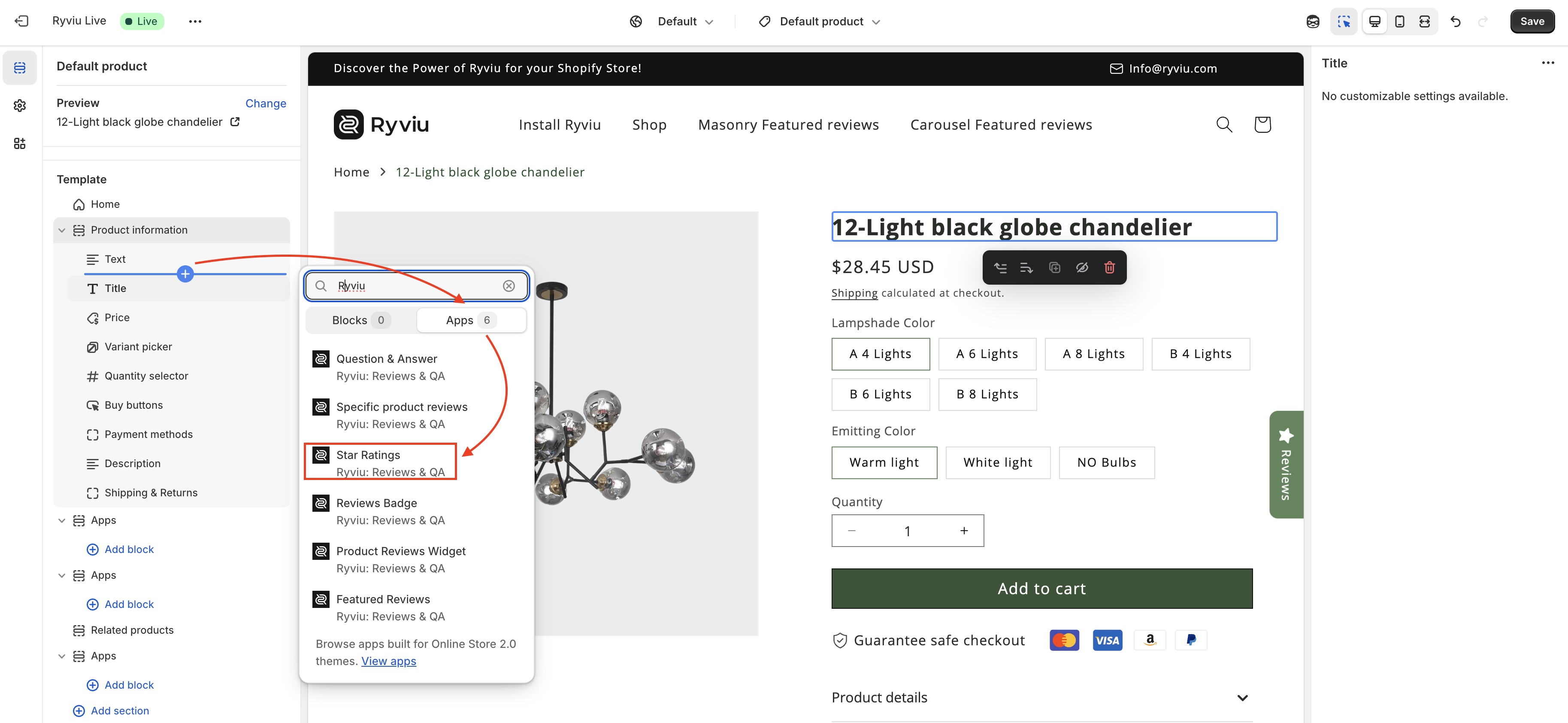
In the theme customizer, navigate to a Product Page.
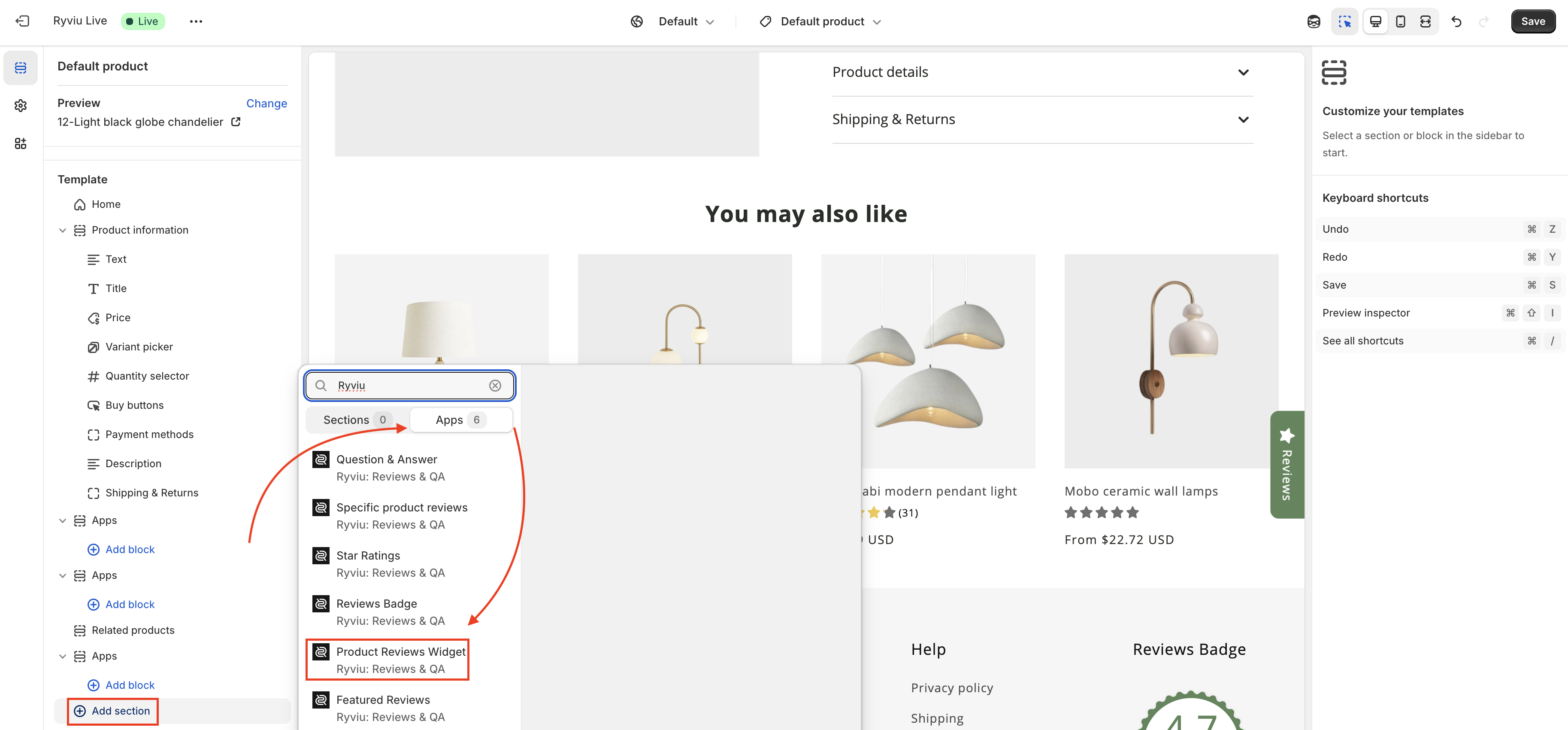
Under the Product Information section (or wherever you prefer), click Add block or Add section.
Search for Ryviu and select:
Star Ratings: Usually placed right under the product title.
Product Reviews Widget: Usually placed at the bottom of the page.
Drag and drop the blocks to your desired position.
Click Save.
Let's check our quick tutorial by watching this video:
Now that Ryviu is installed, it's time to build your social proof:
Need help?
Get in touch with our support team through live chat or email at [email protected]. We're here to help!