Ryviu Version 2.0 offers an improved interface, more widget customization options, and new features to help you manage and display reviews more effectively.
This guide explains how to update your Ryviu app and what to check after the migration.
View demo store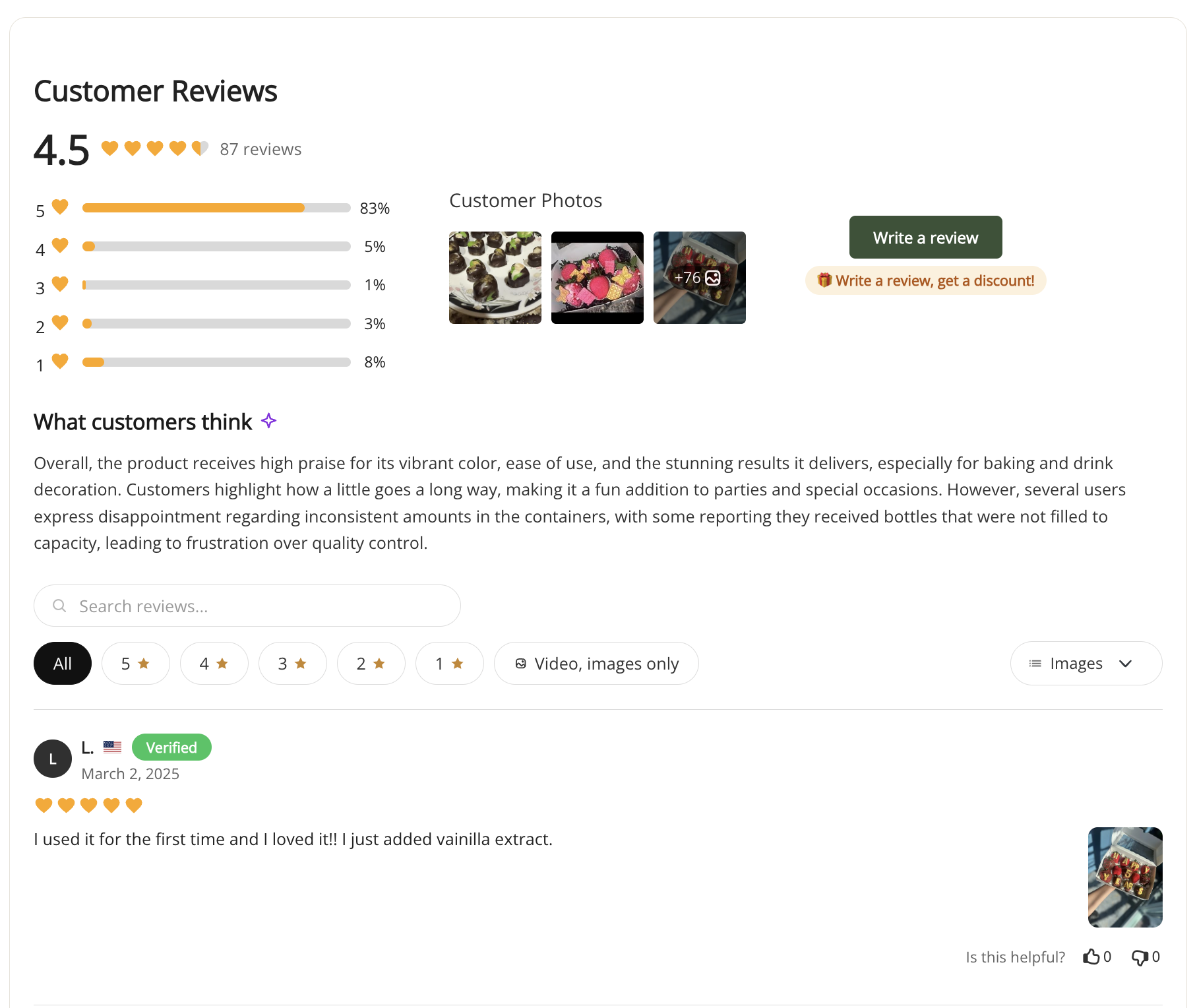

Discover the key benefits and new features available when you upgrade to Ryviu Version 2.0.
Keep Your Store Up to Date: The old version of Ryviu is being retired. Update to Version 2.0 to migrate your reviews, products, Q&A, and settings, stay aligned with Shopify's requirements, and continue using Ryviu. Your storefront will automatically switch to the new review widgets after the update.
Improved Interface: Manage your reviews and settings more easily.
Flexible Widget Customization: Customize your review widgets to match your store's design.
Enhanced Review Management: Enjoy an improved experience managing and displaying product reviews.
More Features: Explore additional features available on paid plans, including: AI Review Summary, Google Place Reviews, Facebook Reviews, Store Reviews, Shoppable Video Reviews, Discount for Reviews, Highlight Text in Reviews, Review Attributes, and Loyalty Add-on.
Follow the steps below to migrate your existing data and switch to the new Ryviu version.
Open the old Ryviu admin in your Shopify store.
Click Update now on the banner at the top of the Dashboard, then confirm in the dialog.
Note: This automatic update feature applies exclusively to Shopify stores. WooCommerce and other platforms continue using their existing Ryviu version.
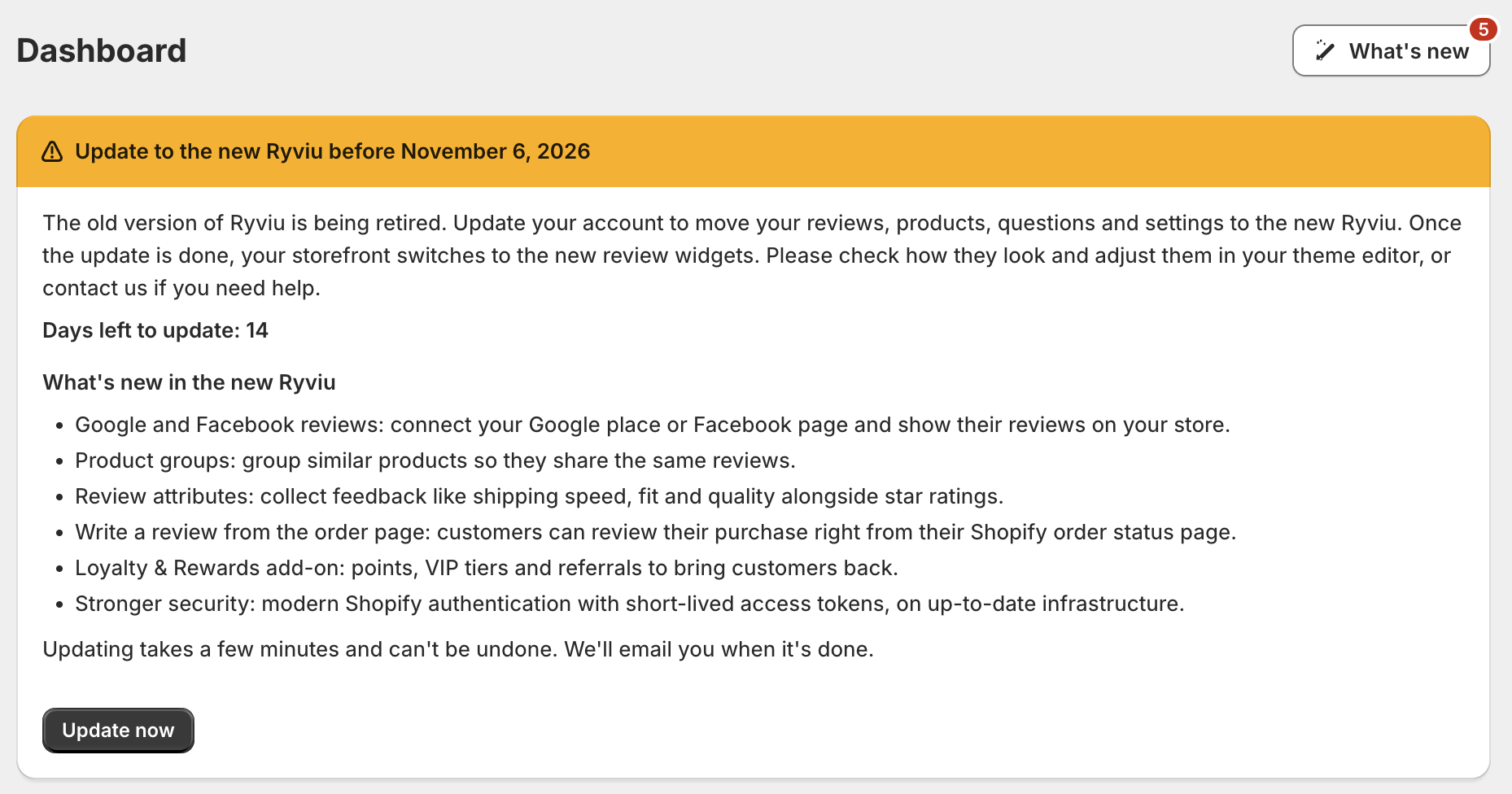

Ryviu will automatically copy your reviews, products, Q&A, and settings to the new version. While waiting:
Your store keeps showing reviews as usual.
You can close the progress page. Please do not change your theme or uninstall Ryviu until the update is finished.
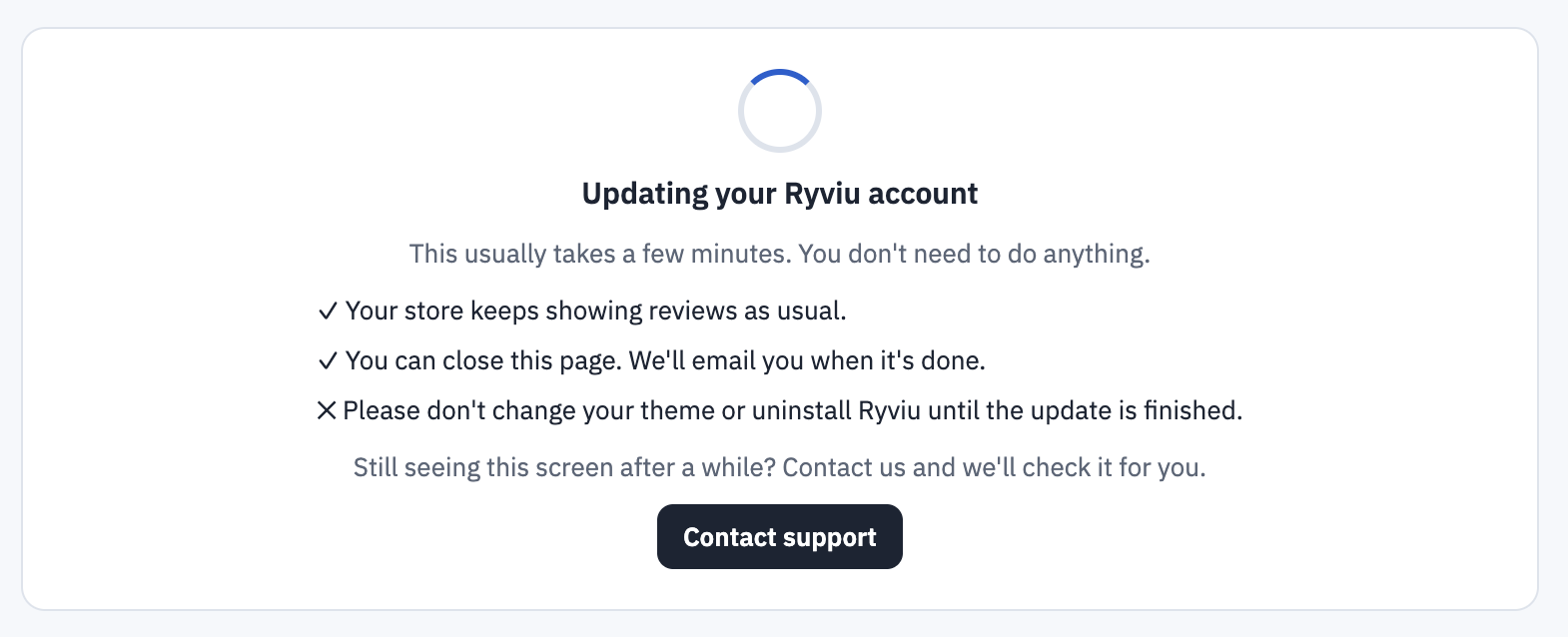
Once the migration is complete, you'll receive an email titled Ryviu Migration Completed. Click the button in the email or go to Apps → Ryviu in your Shopify admin to open the new version.
Automatic Background Switch: The first time you open the new Ryviu Home page, the system will automatically switch your storefront to the new v3 widgets in the background without needing a manual preview or confirmation step.
Check Your Storefront: Because the switch happens automatically, you must verify how your storefront looks. If needed, customize your widgets in the Shopify theme editor or under Widgets → Customize in Ryviu.
If you encounter any issues during or after the update, check the troubleshooting tips below.
Check whether you've received the Ryviu Migration Completed email.
If you've received it: Open the new Ryviu using the email button or go to Apps → Ryviu in your Shopify admin.
If you haven't received it after 30 minutes: Contact our support team with your store domain and the approximate time you started the update.
This is expected after migration because the old admin is retired for your store. To continue managing reviews, always use Apps → Ryviu in your Shopify admin.
The update banner is available for eligible Shopify stores with a connected domain and using versions 1.0 and 1.1. If you are using Shopify but don't see the banner, check that your store has a connected domain. If more than 14 days have passed or the banner was closed, check your storefront directly to see if v3 widgets are already active.
The banner may have been closed, your store may have been updated before the notification was introduced, or more than 14 days may have passed.
Visit your storefront to check whether the new widgets are working correctly. If everything displays as expected, no further action is needed.
The update runs in the background and can retry when you revisit the Home page, up to three times.
First, check your Shopify theme:
Go to Online Store → Themes → Customize.
Open your product page.
Make sure the Ryviu app embed is enabled and the review blocks are added.
Save your changes and reload your storefront.
If your star ratings look outdated, wait a few minutes and reload the page, as they may still be updating in the background.
If the issue persists, share your store URL and a screenshot of the affected area so we can help identify the cause.
The new widgets may look different from those in the previous version.
You can adjust their appearance in the Shopify theme editor or under Widgets → Customize in Ryviu.
Your existing Shopify subscription should be linked automatically during migration.
Important: Please do not purchase another subscription or change plans while your status is being checked. If your plan still shows Free after the update, contact support so we can manually verify and match your subscription.
Need help?
Get in touch with our support team through live chat or email at [email protected]. We're here to help!